
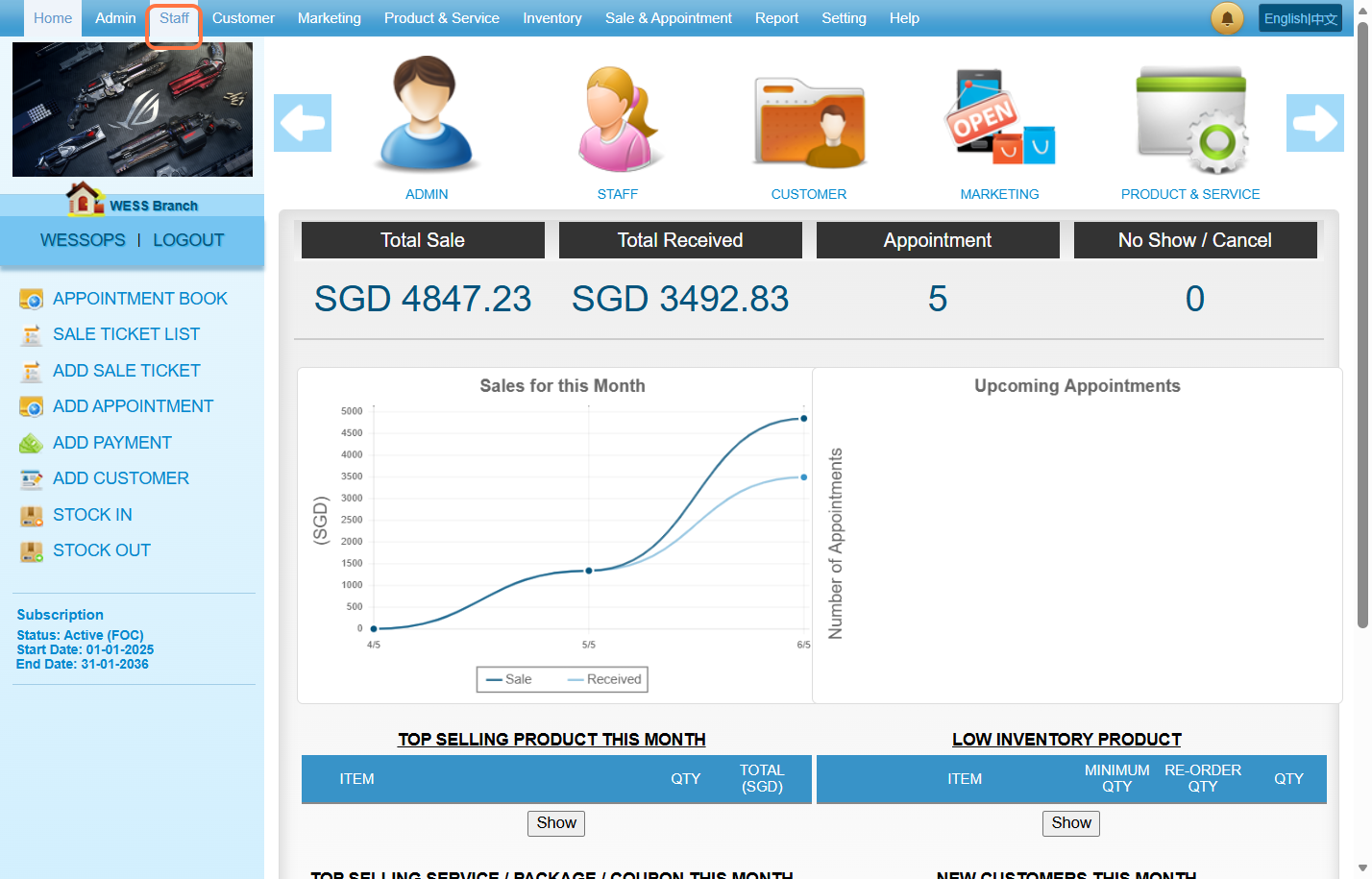
Step 1. Click on “Staff”.
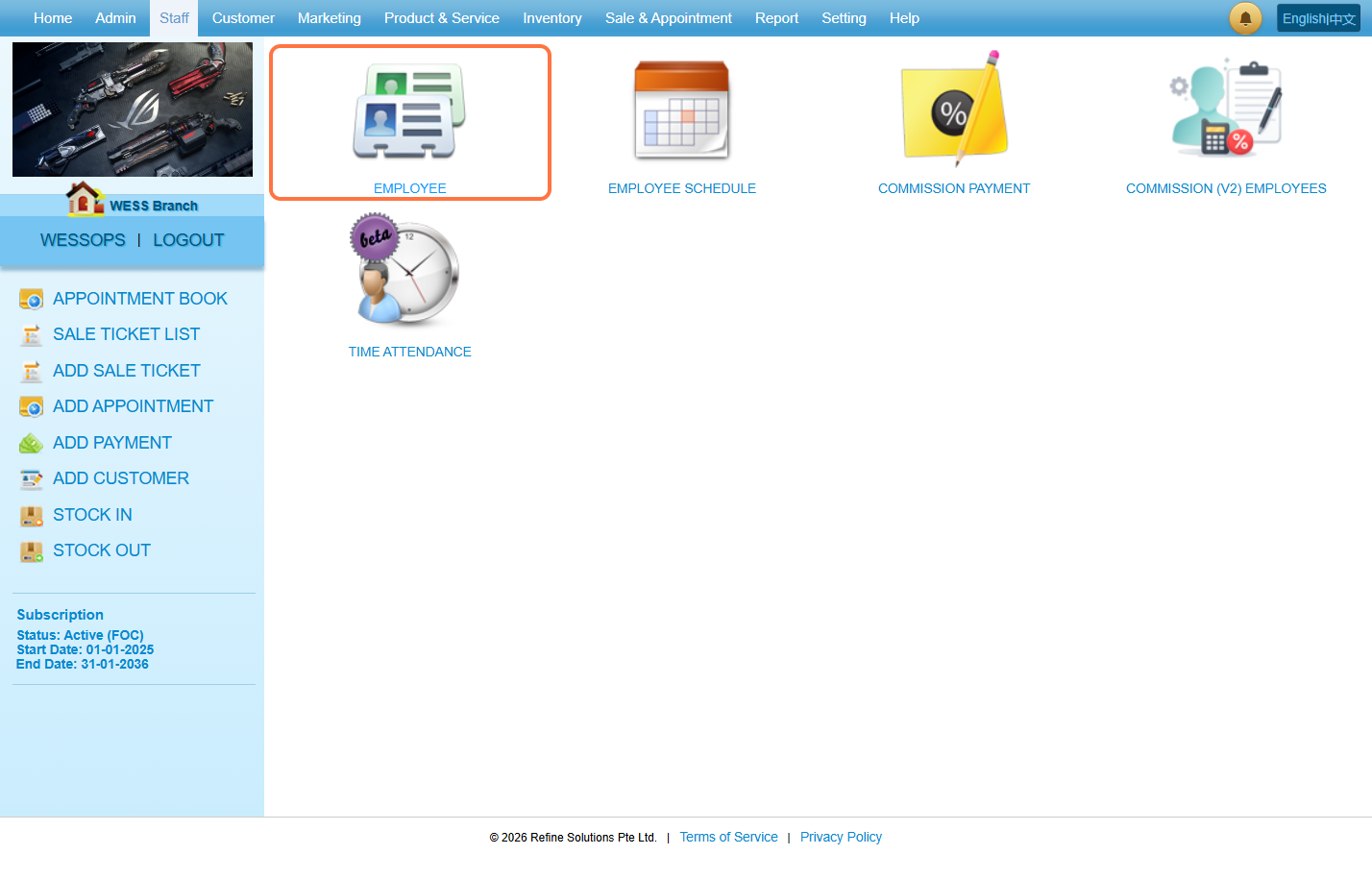
Step 2. Click on “EMPLOYEE”.
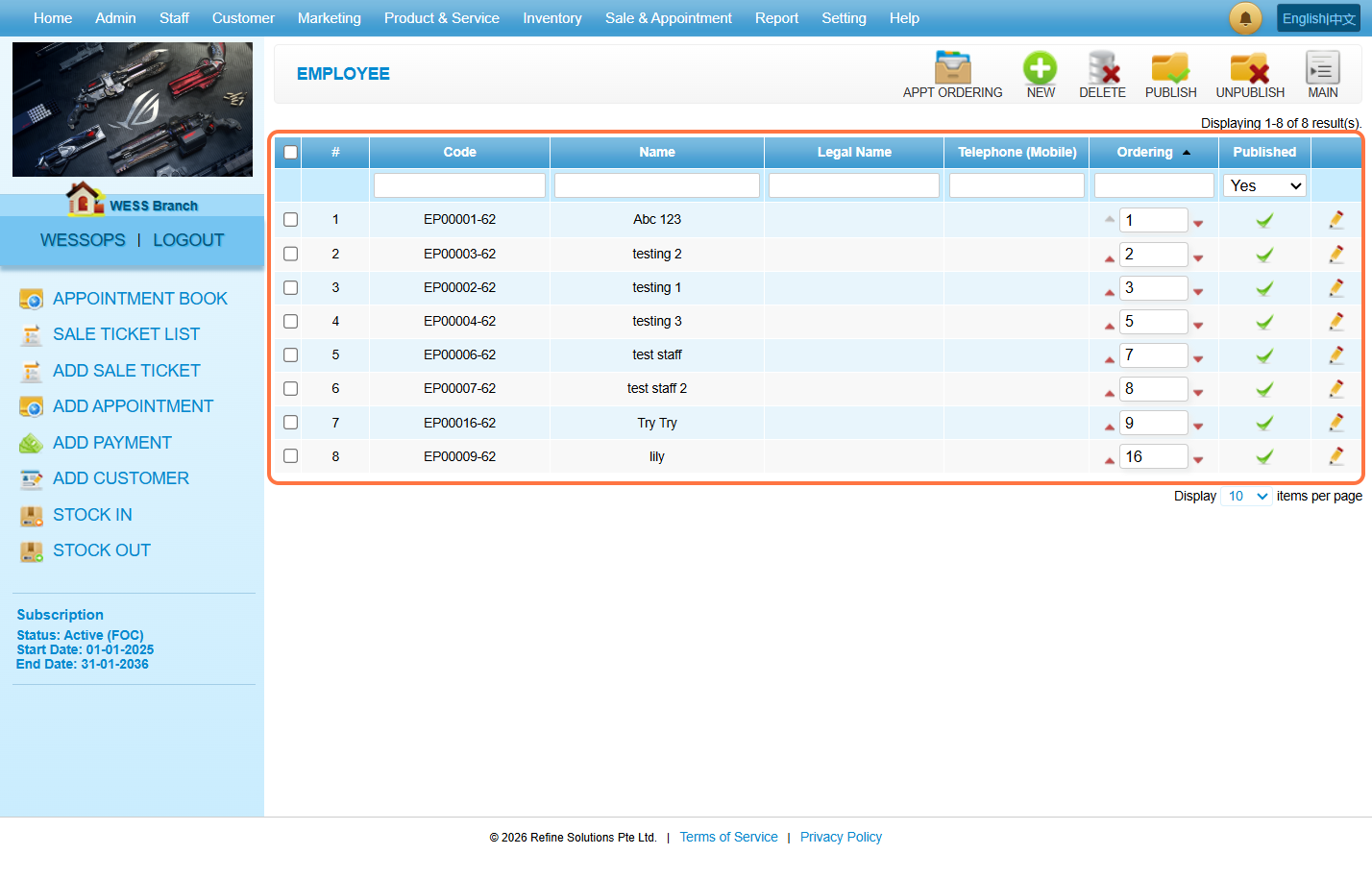
Step 3. Ensure you have created an employee.
Step 4. [!] Option
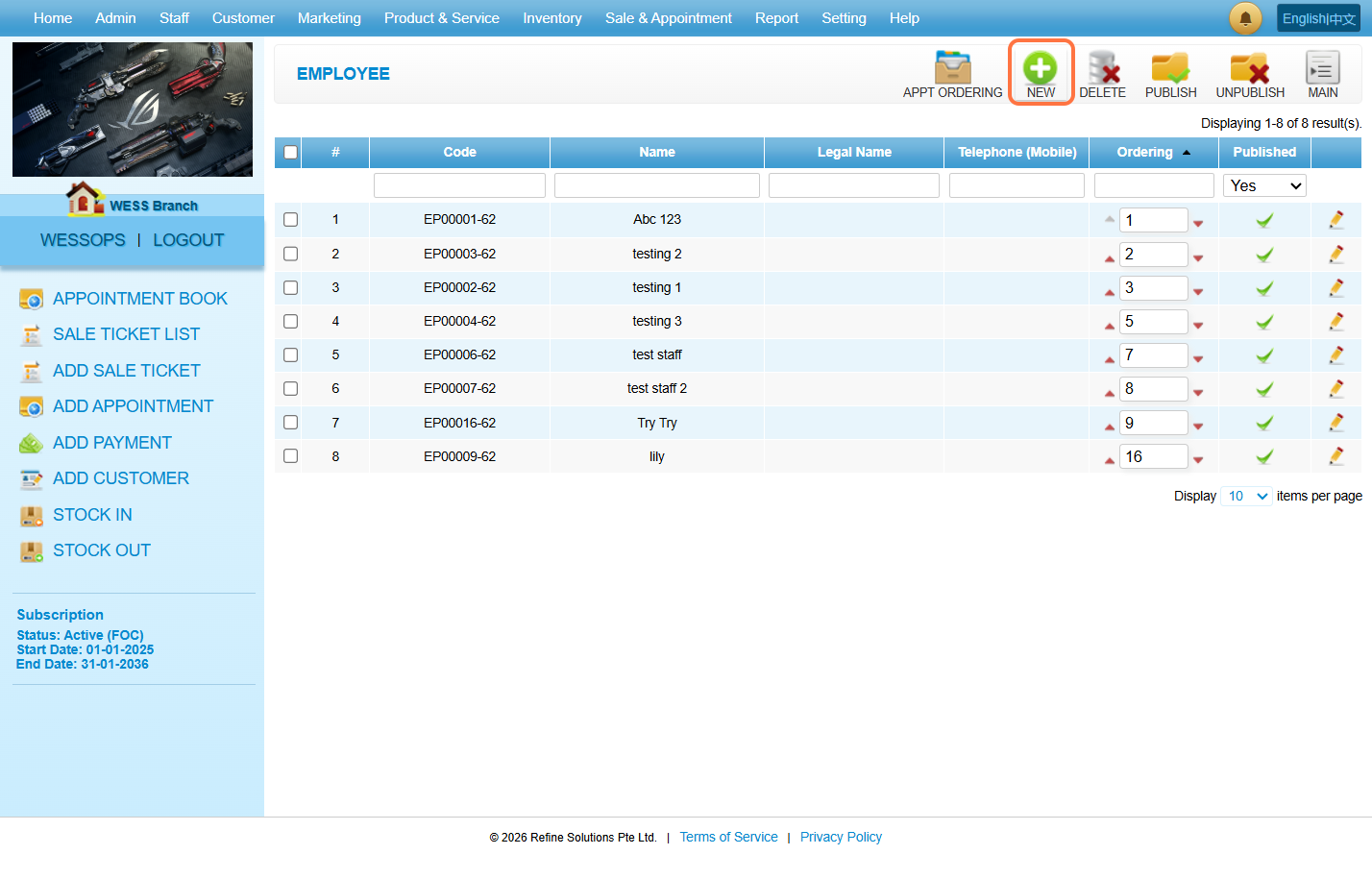
If there is no record: You need to create an employee.
Click on “NEW”.
Step 5. Fill in the necessary information.
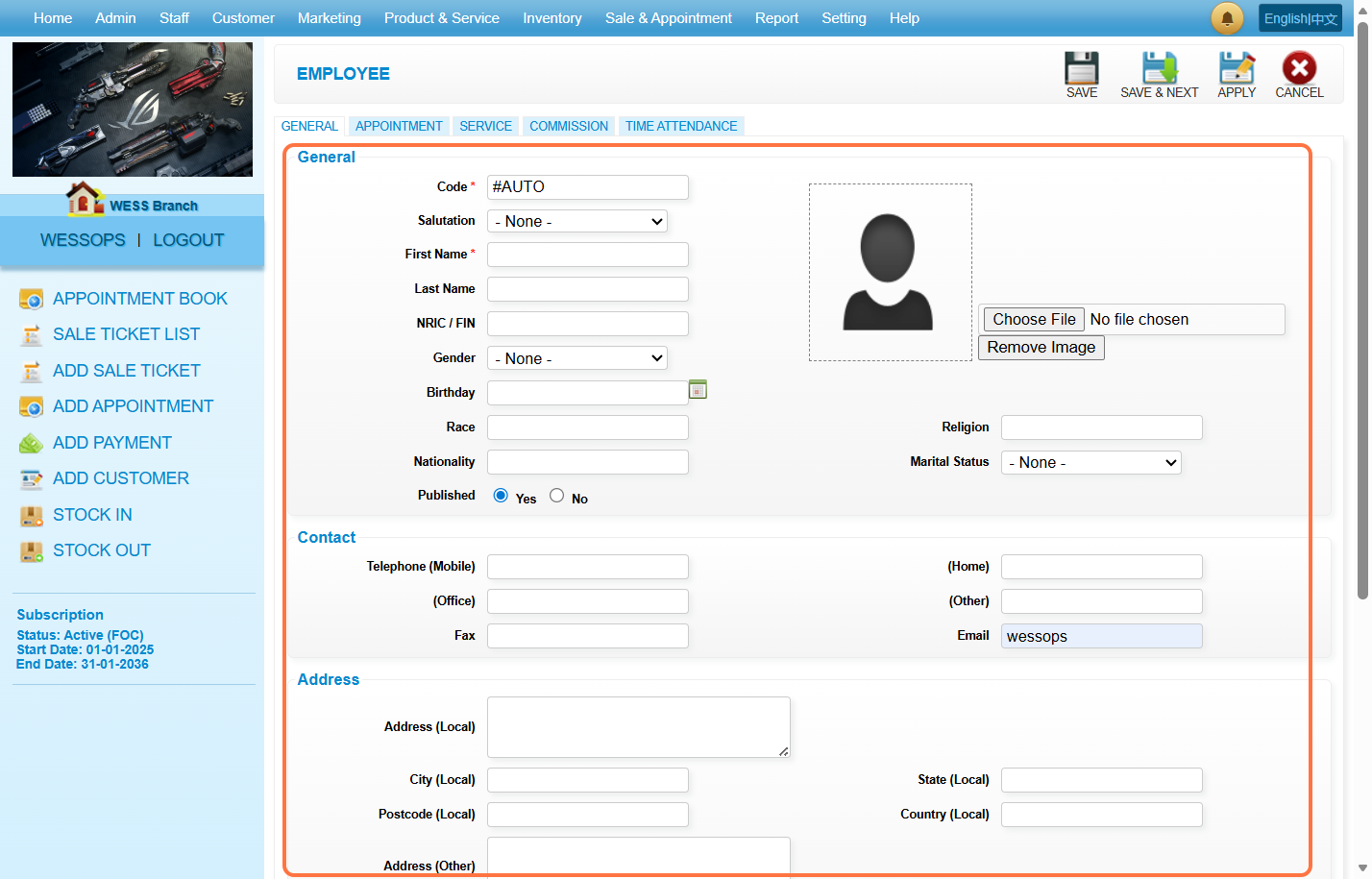
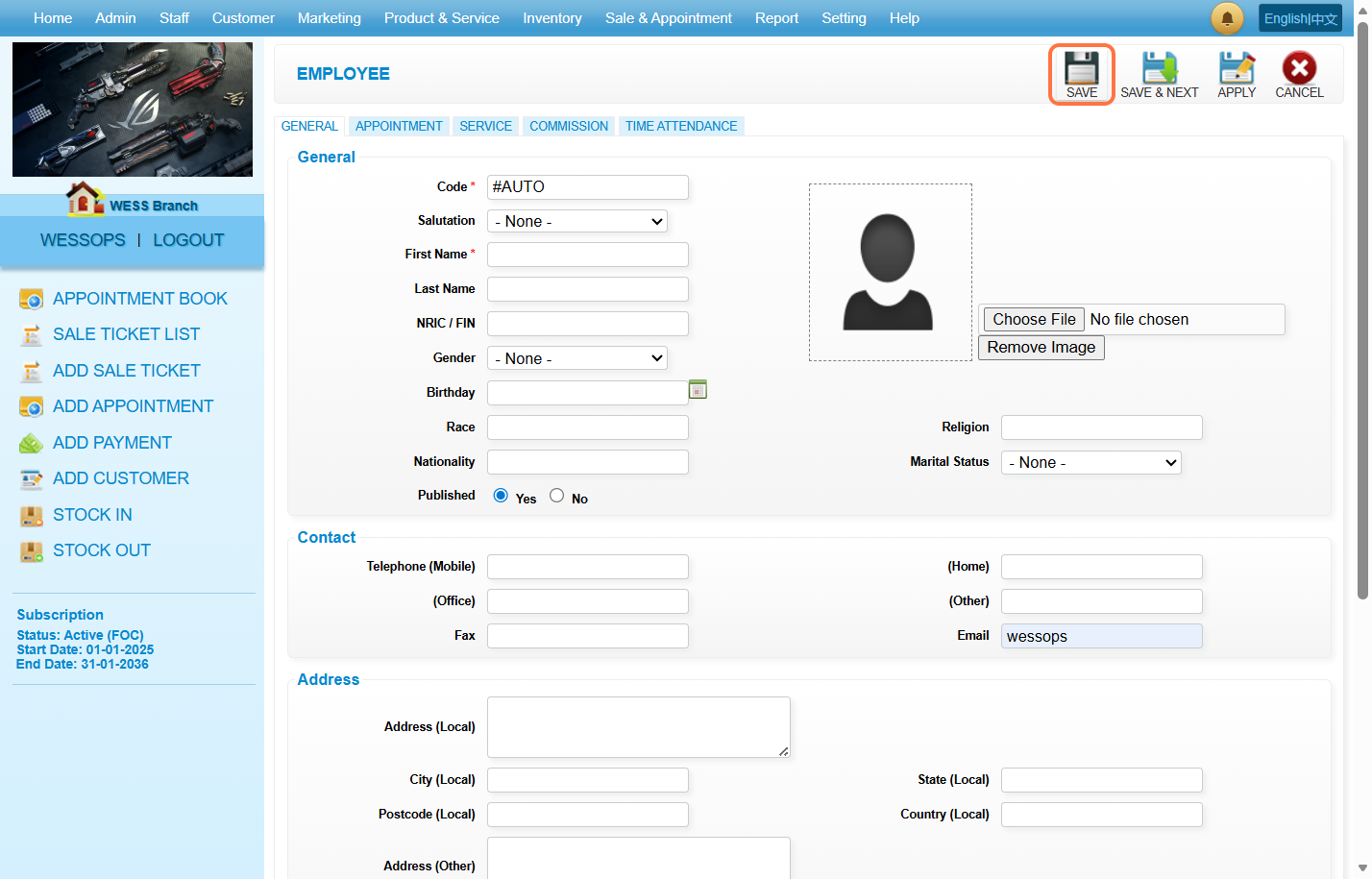
Step 6. Click on “Save”.
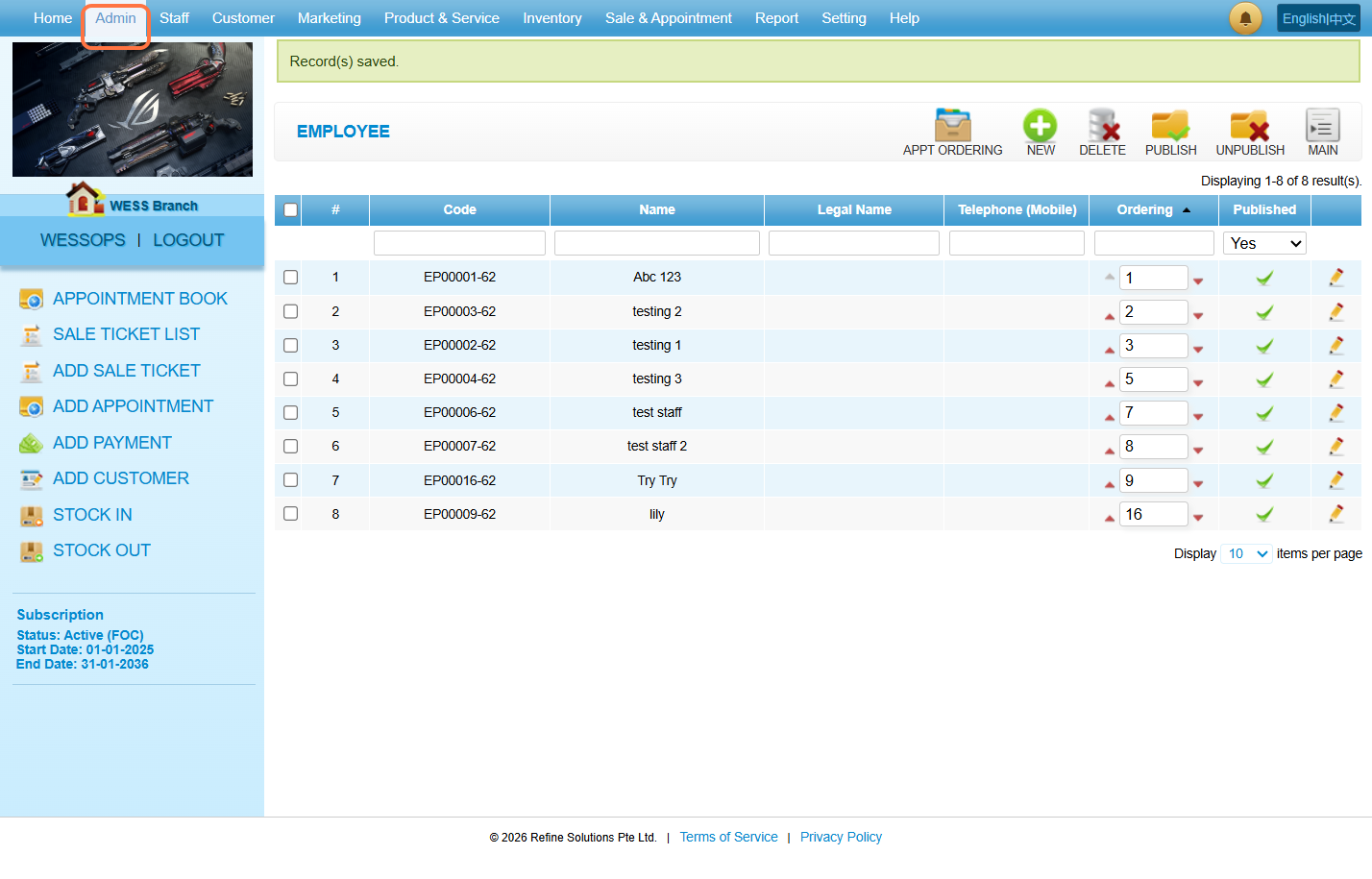
Step 7. Click on “Admin”.
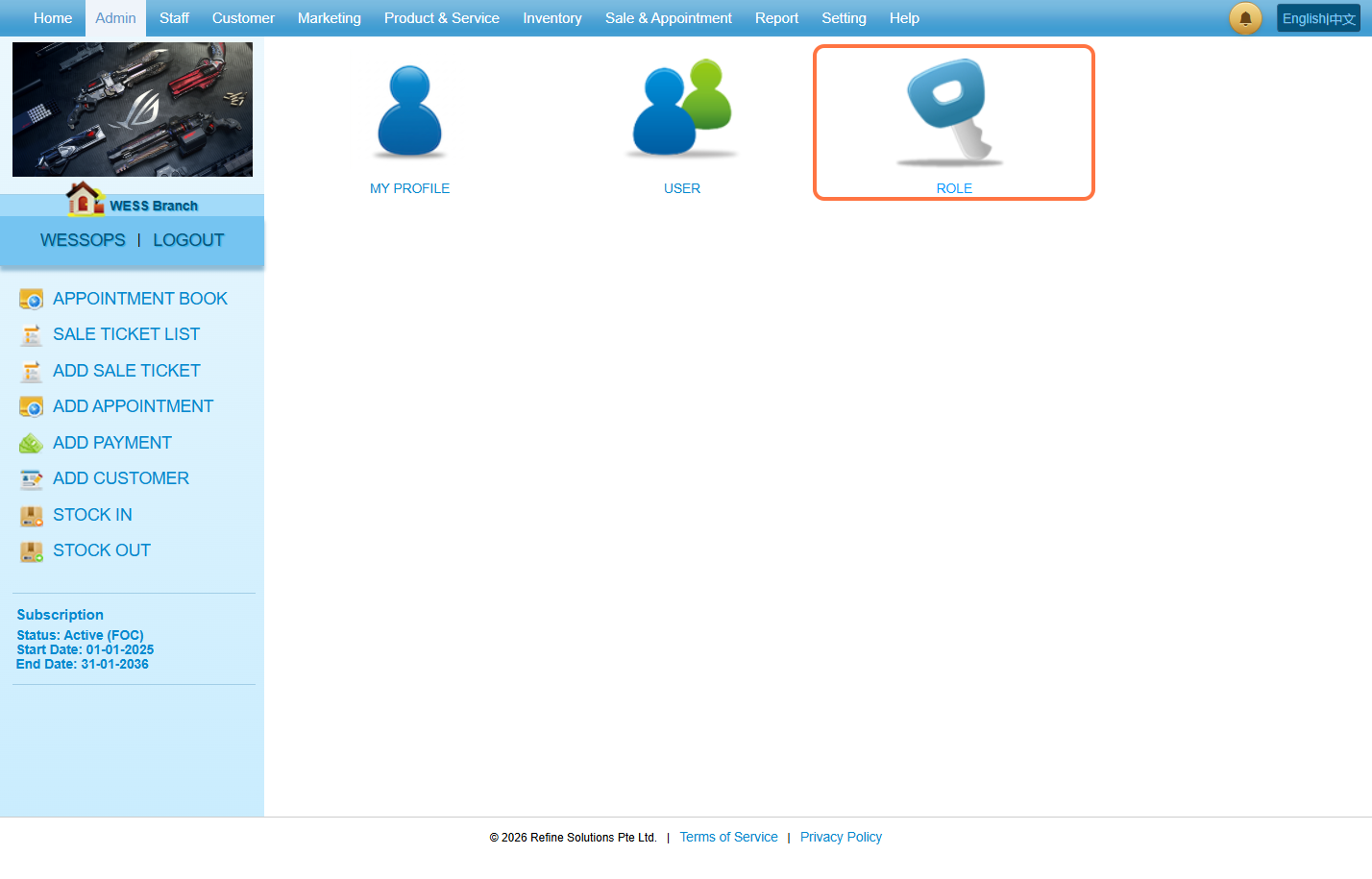
Step 8. Click on “ROLE”.
Step 9. Select the role.
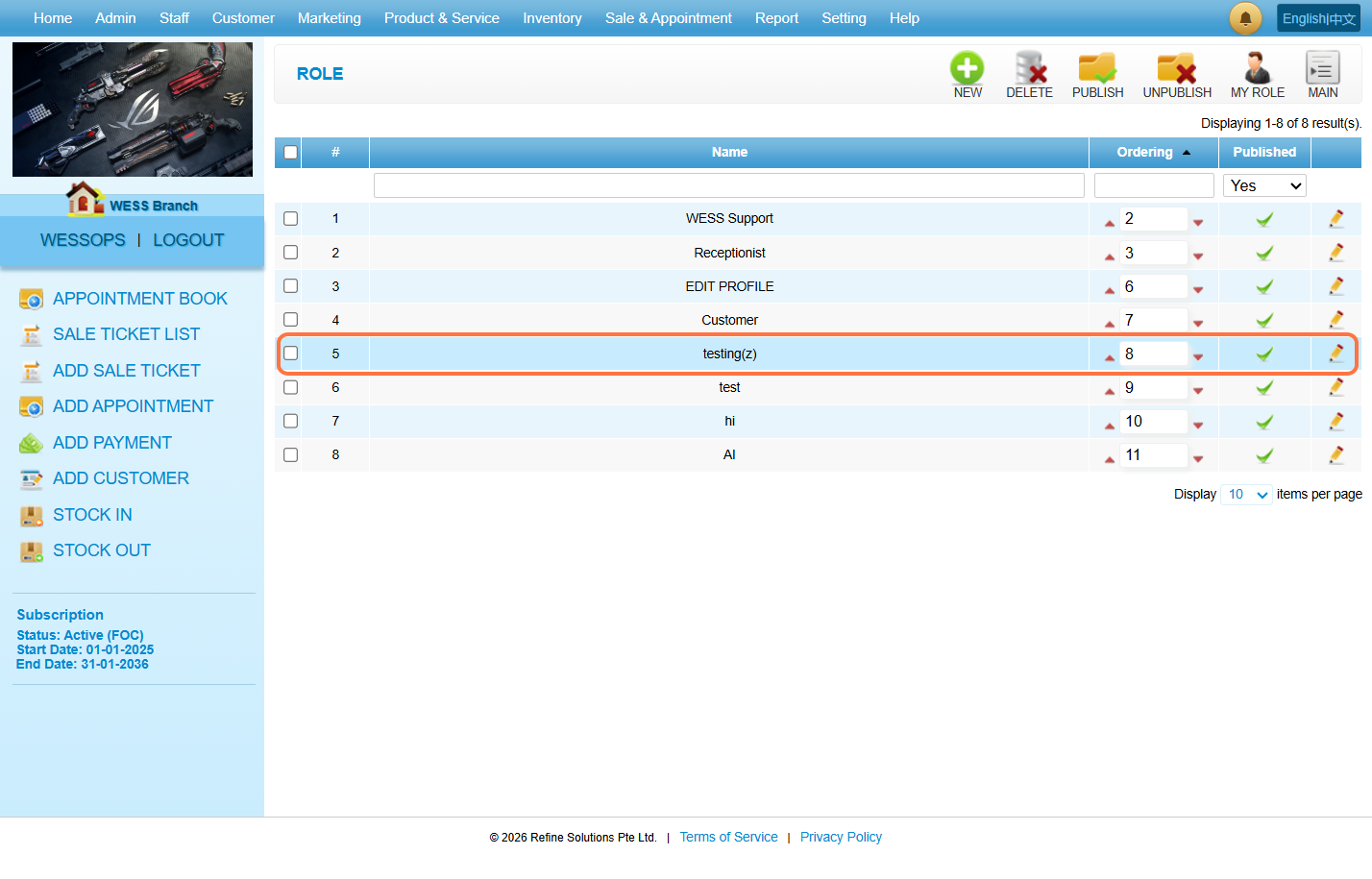
Step 10. Click on “Edit”.
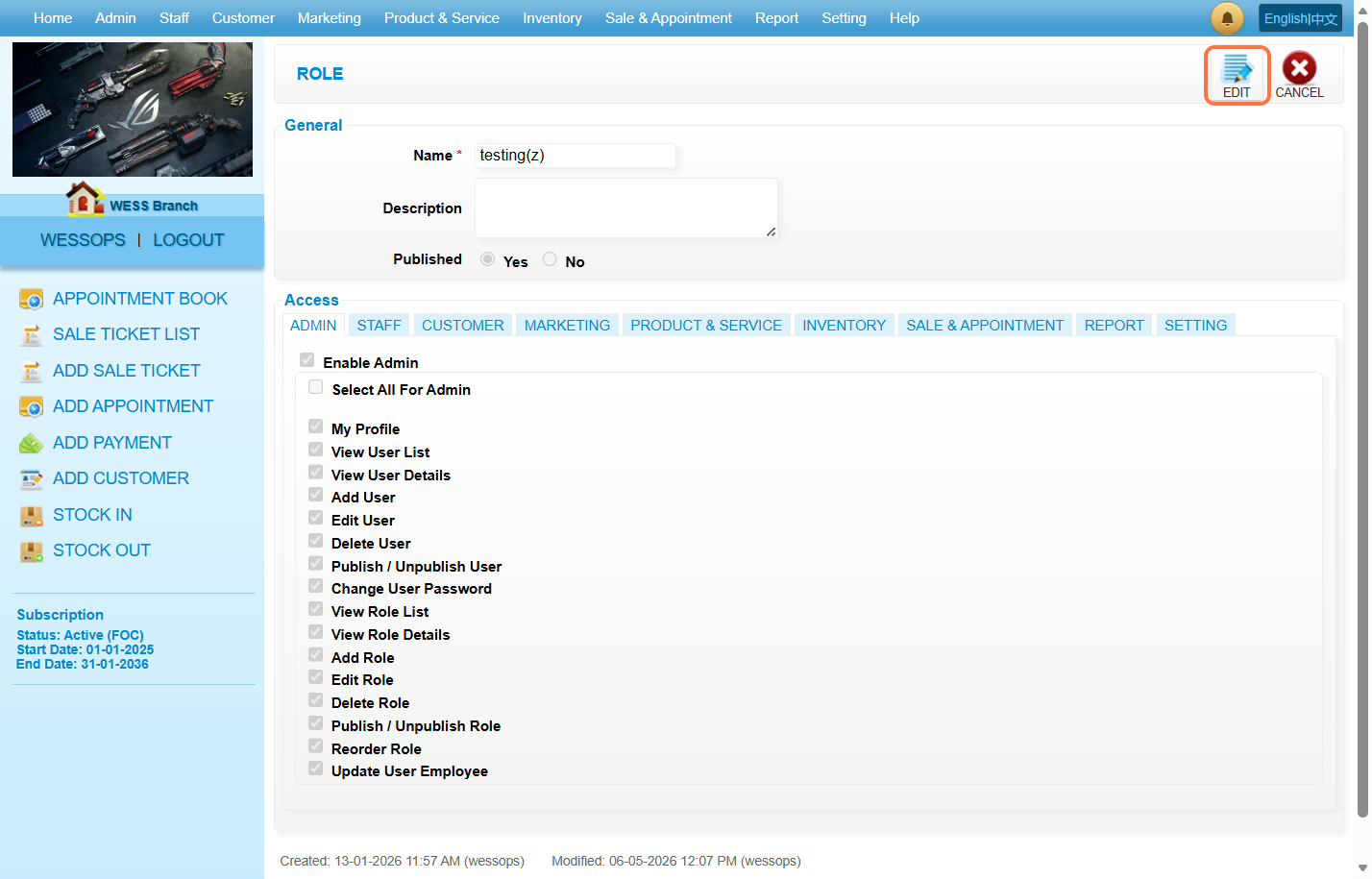
Step 11. Click on “REPORT”.
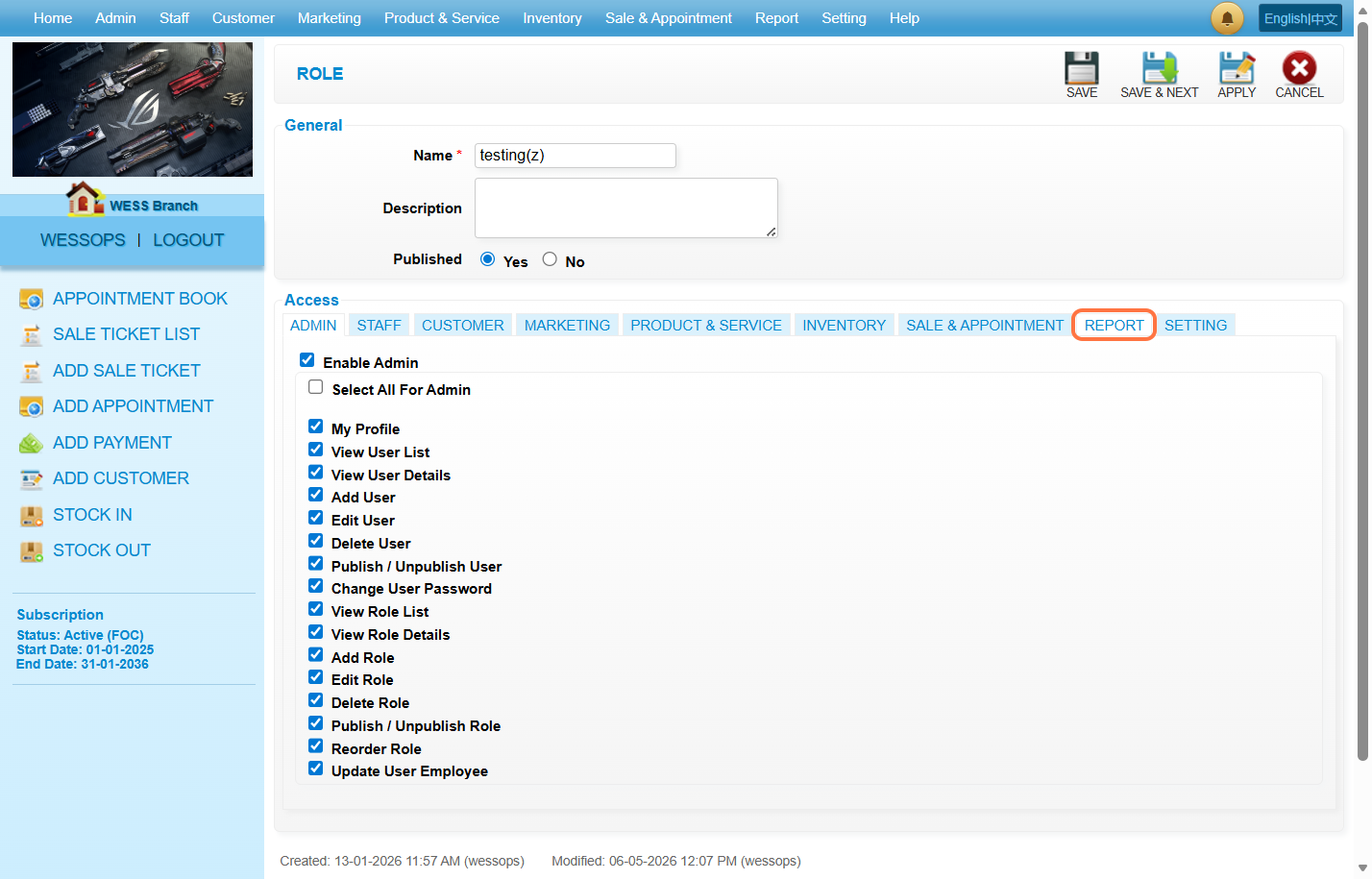
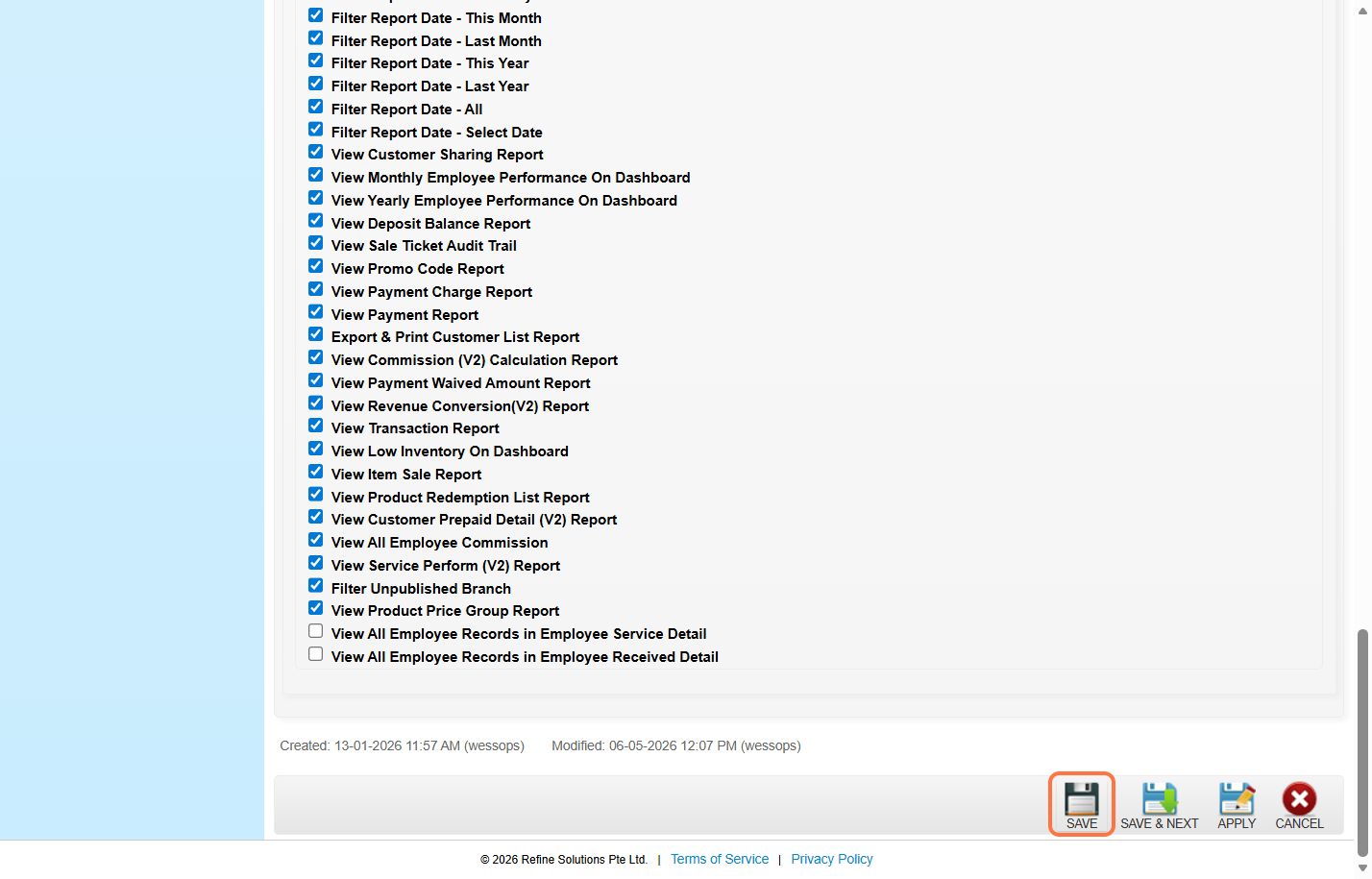
Step 12. Scroll down and untick the last two option.
Note: That mean only show your own report in your account.
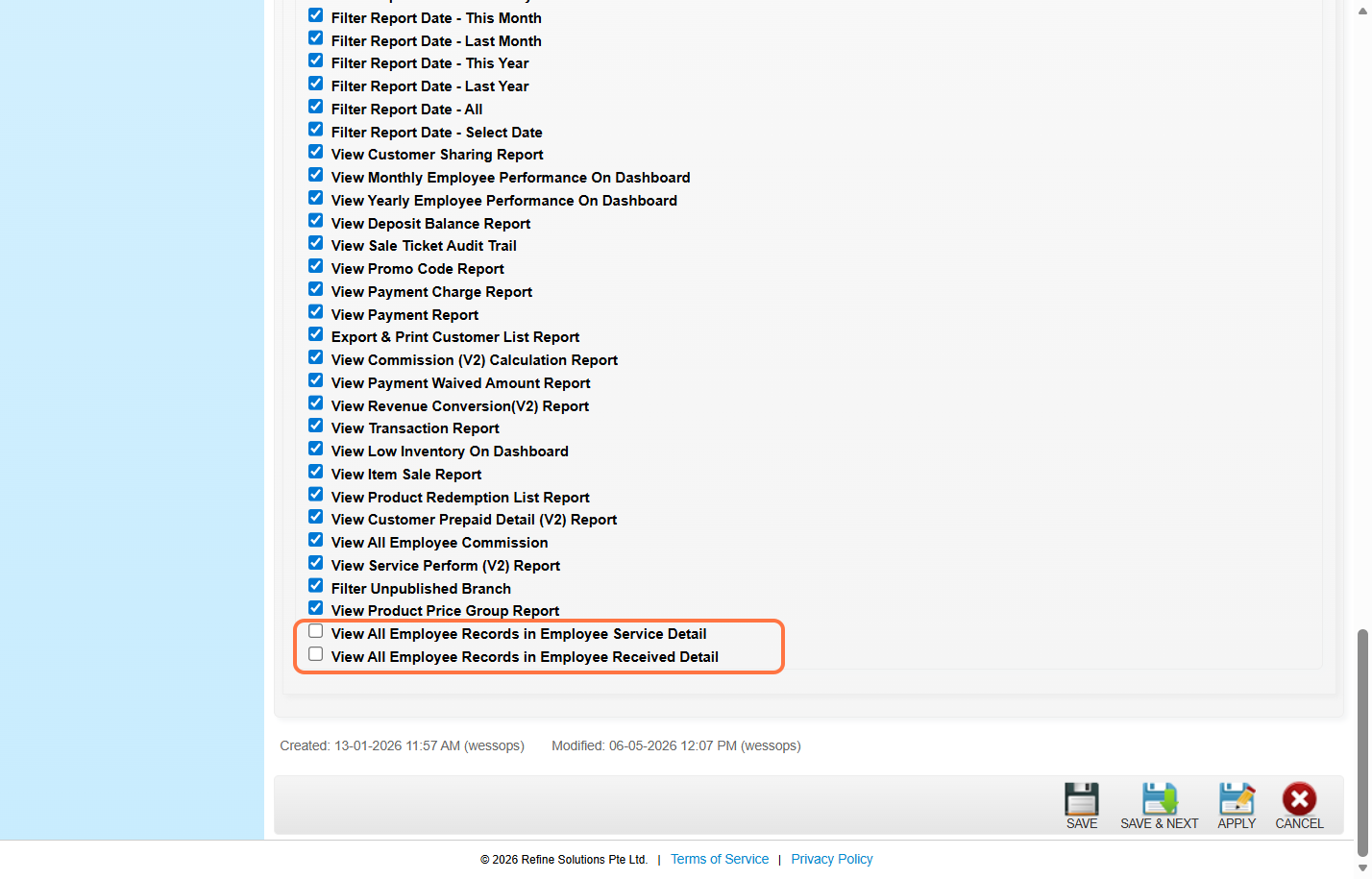
Step 13. Click on “SAVE”.
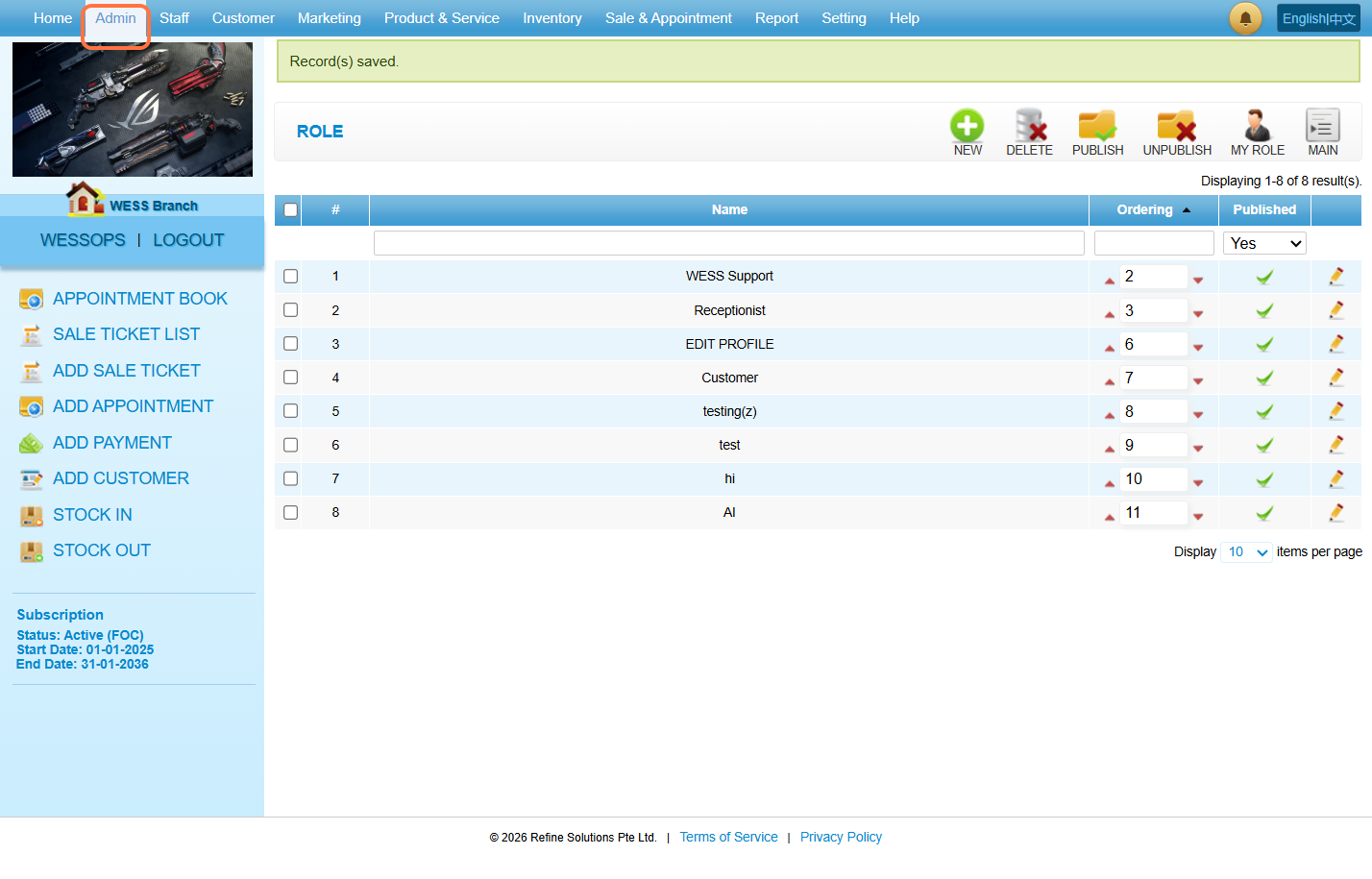
Step 14. Click on “Admin”.
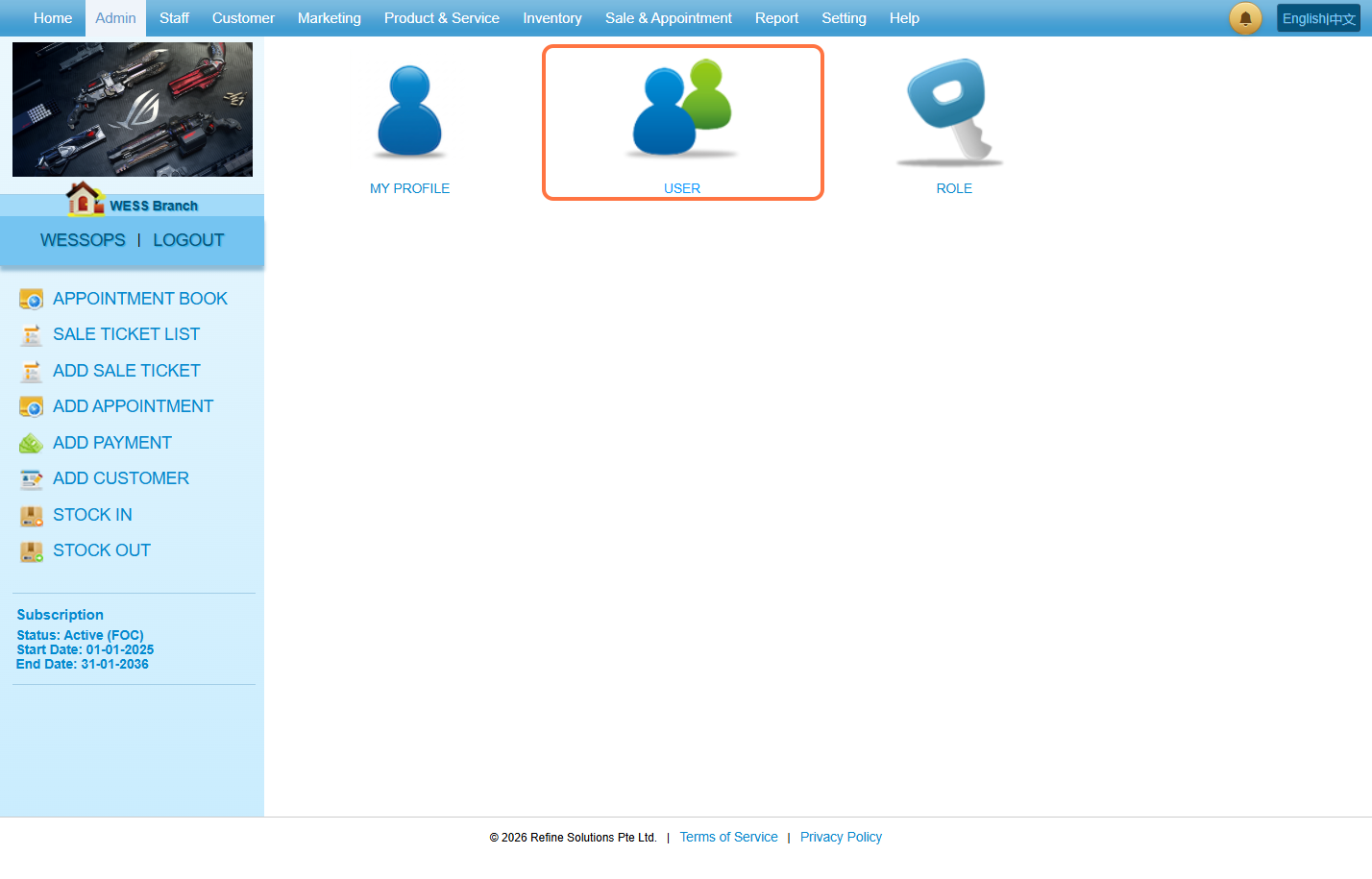
Step 15. Click on “USER”.
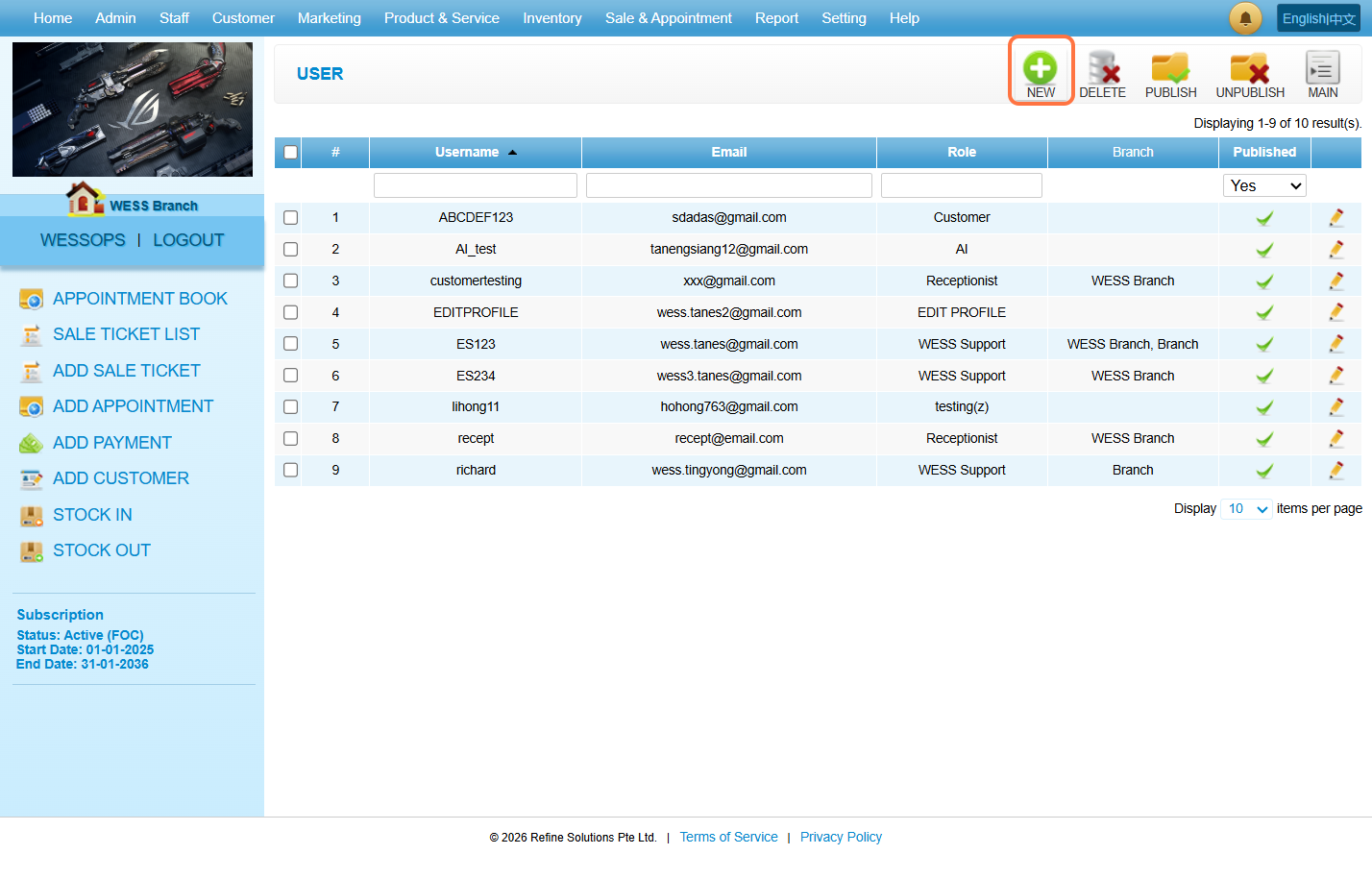
Step 16. Click on “NEW”.
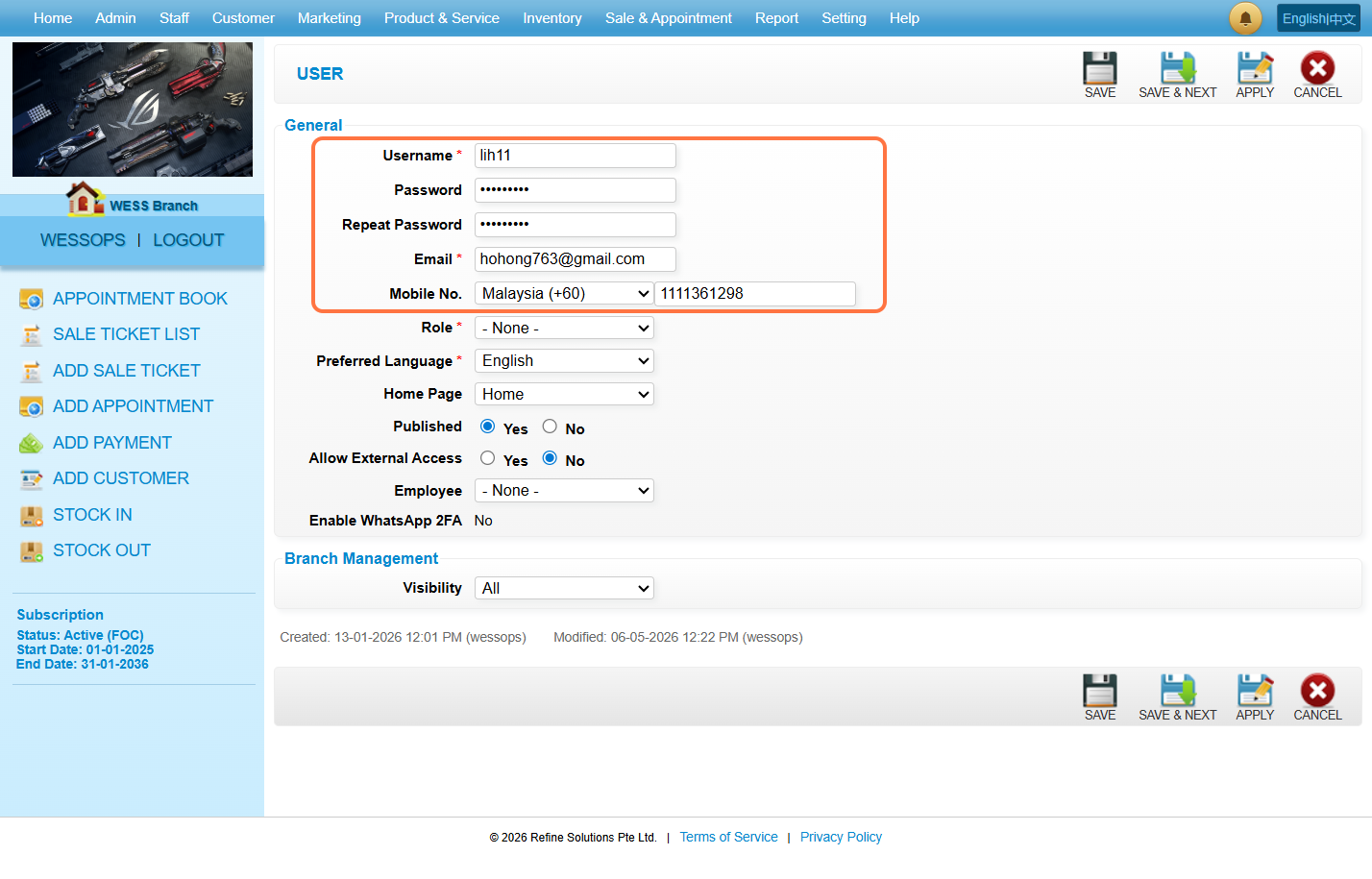
Step 17. Fill in the necessary information.
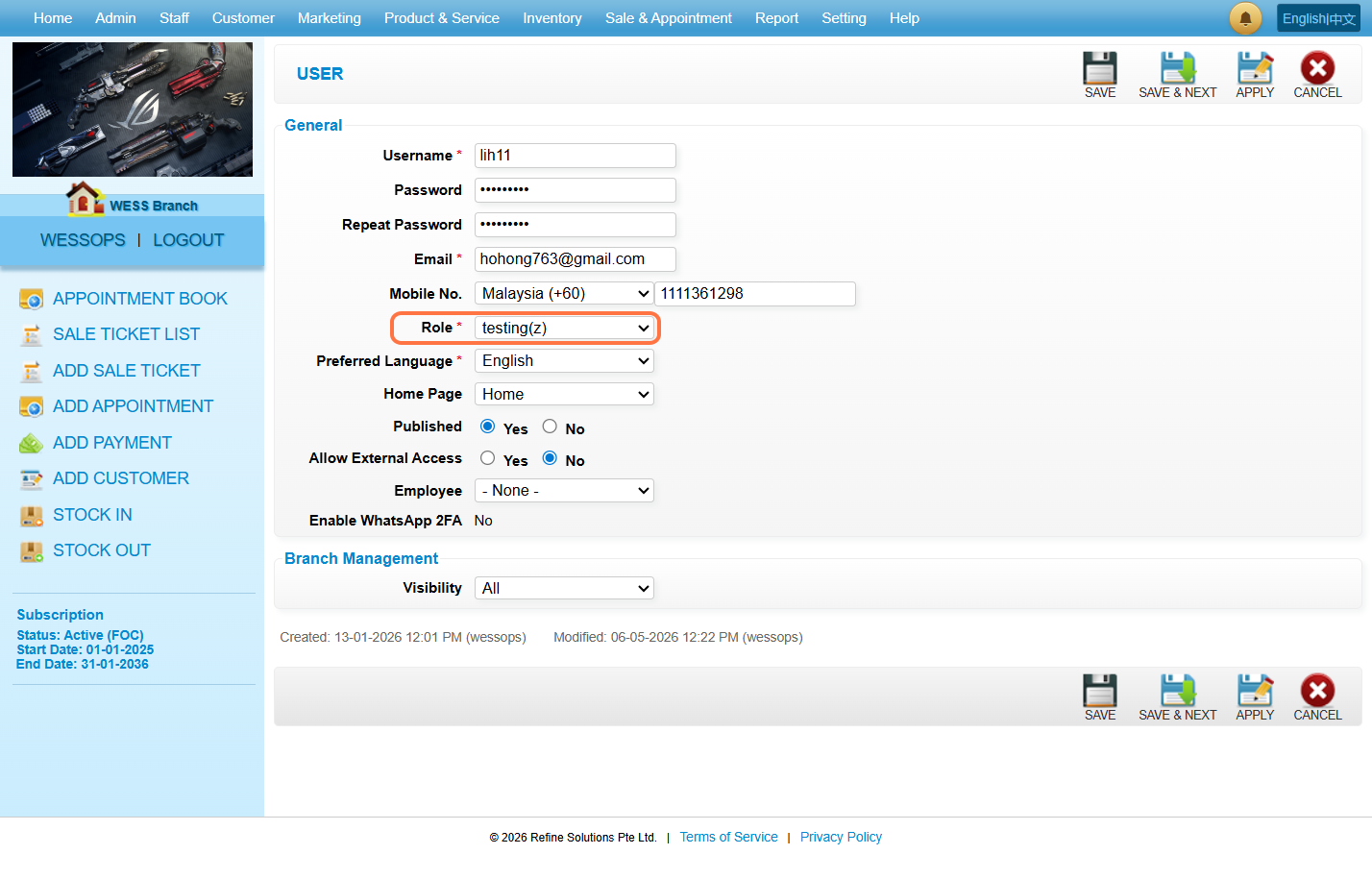
Step 18. Select the “Role”.
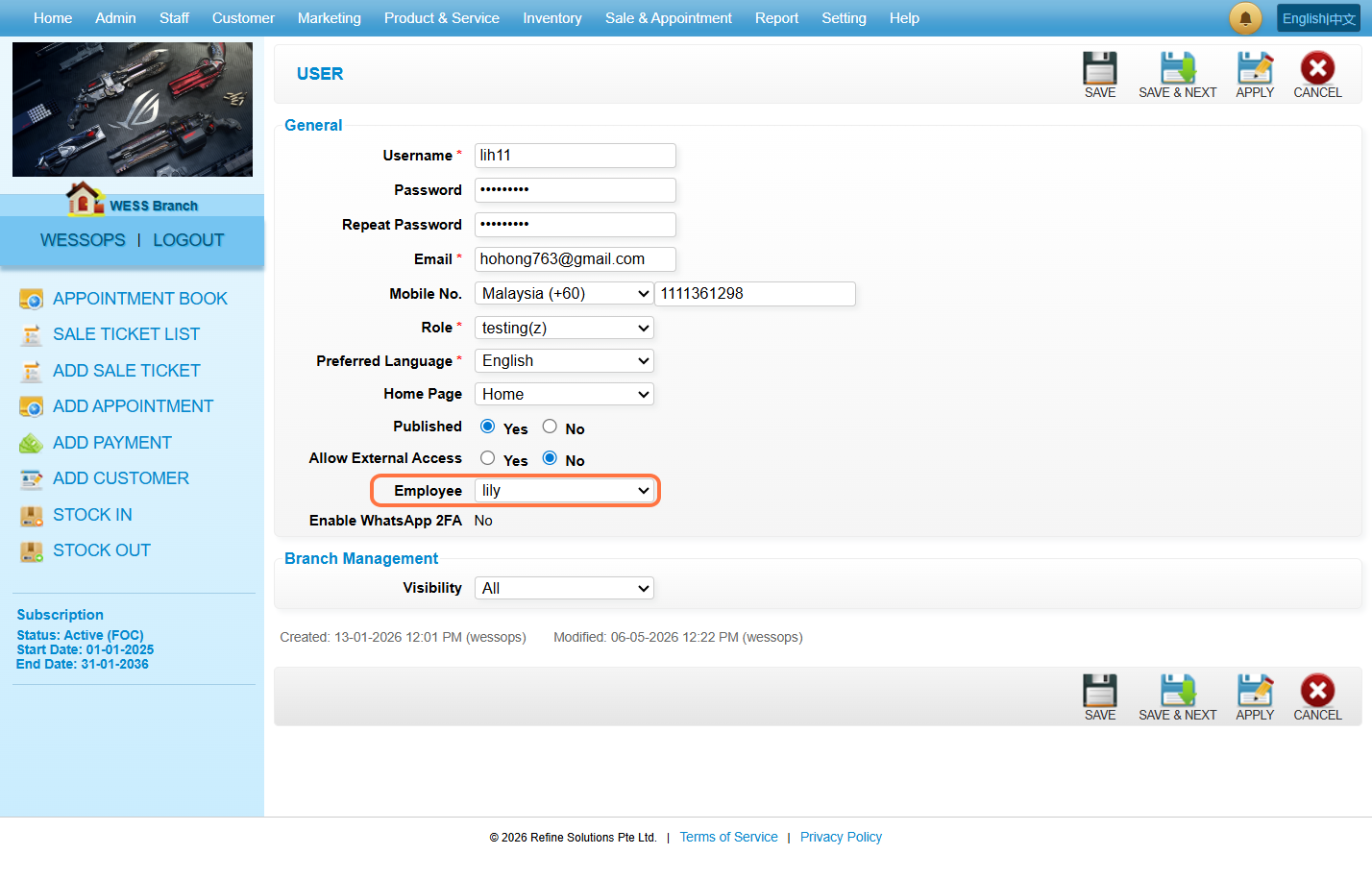
Step 19. Select the “Employee”.
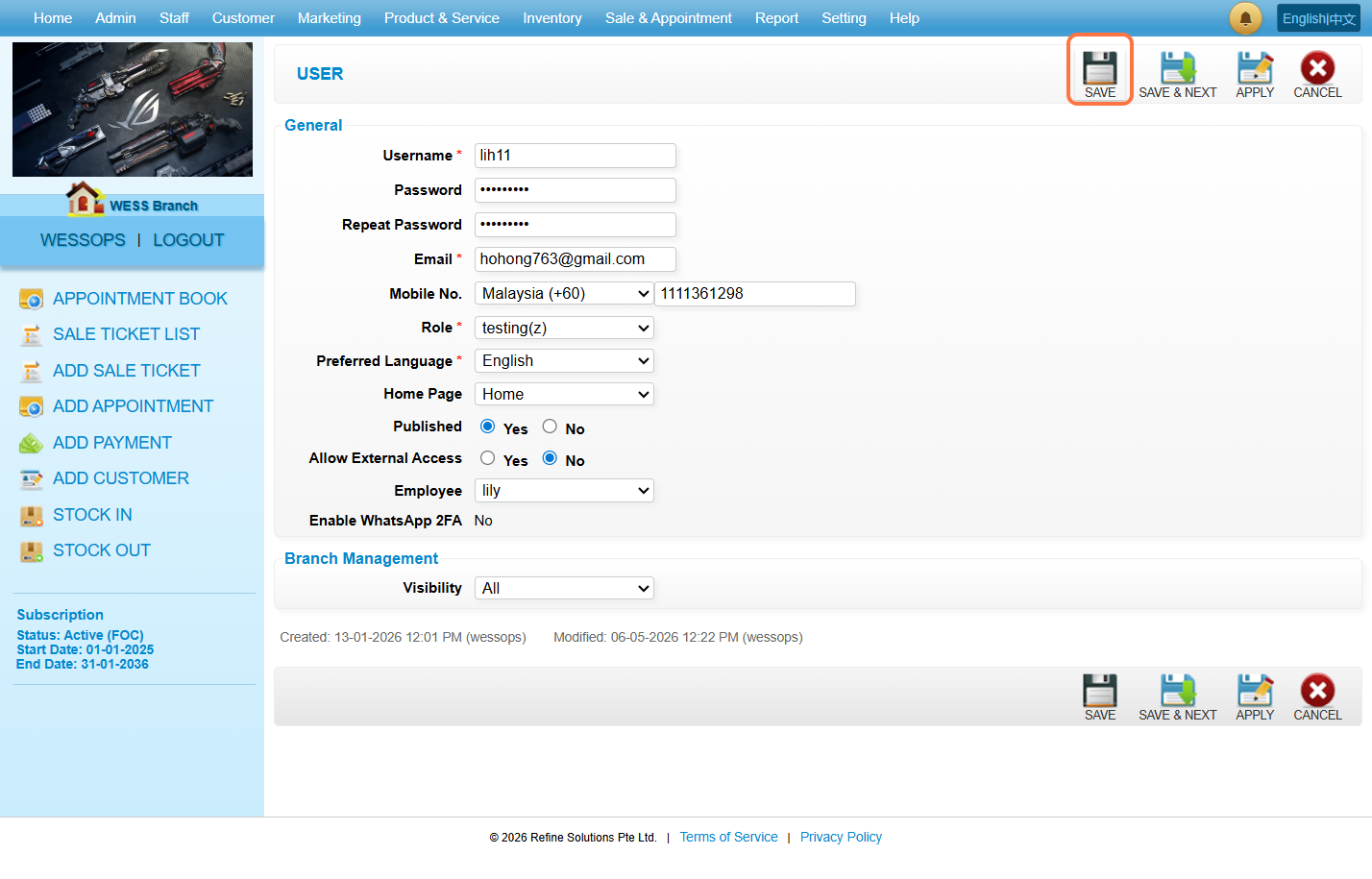
Step 20. Click on “SAVE”.
Step 21. Click on “LOGOUT”.
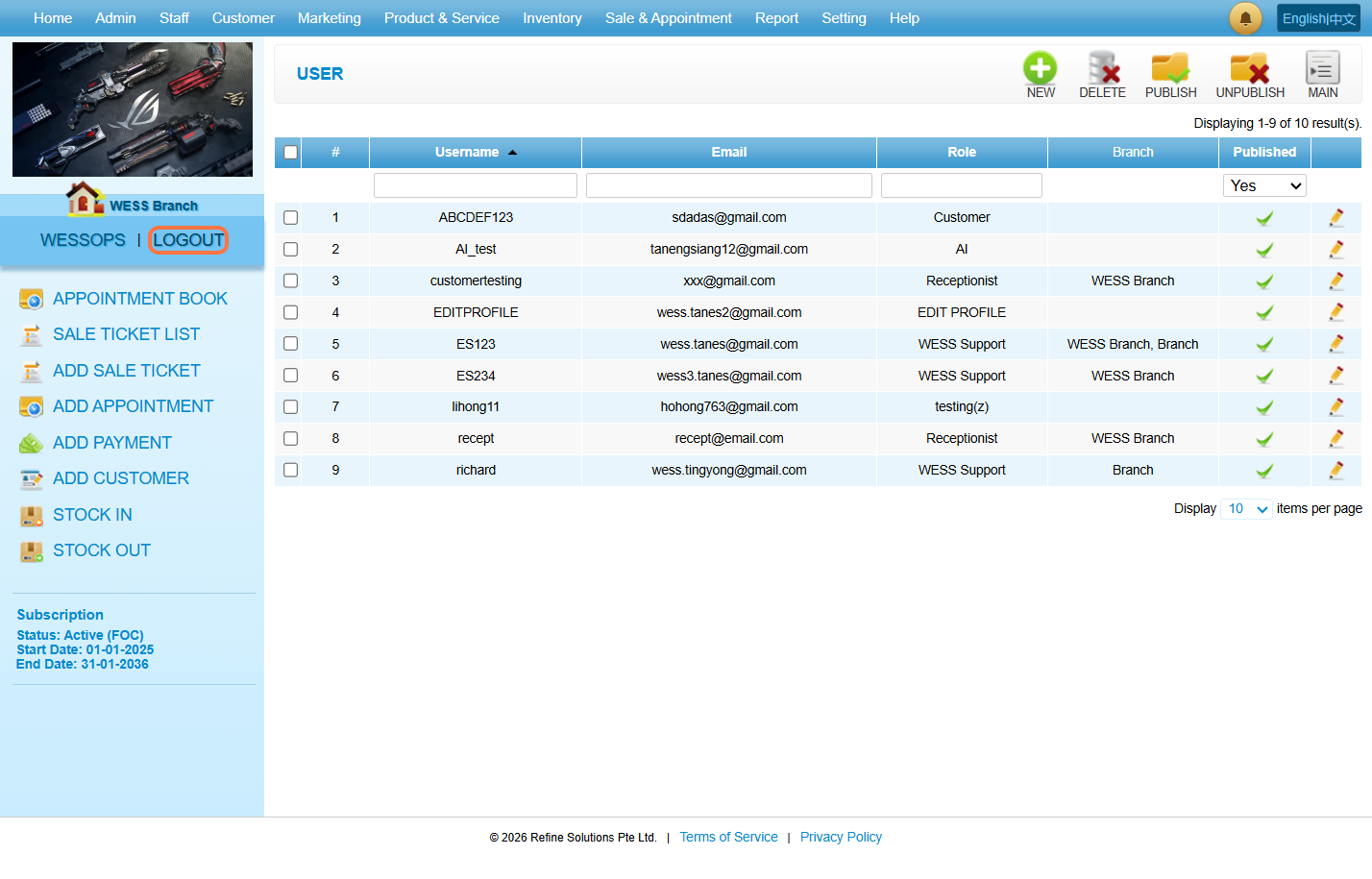
Step 22. Enter the “Username” and “Password” to login into your own account.
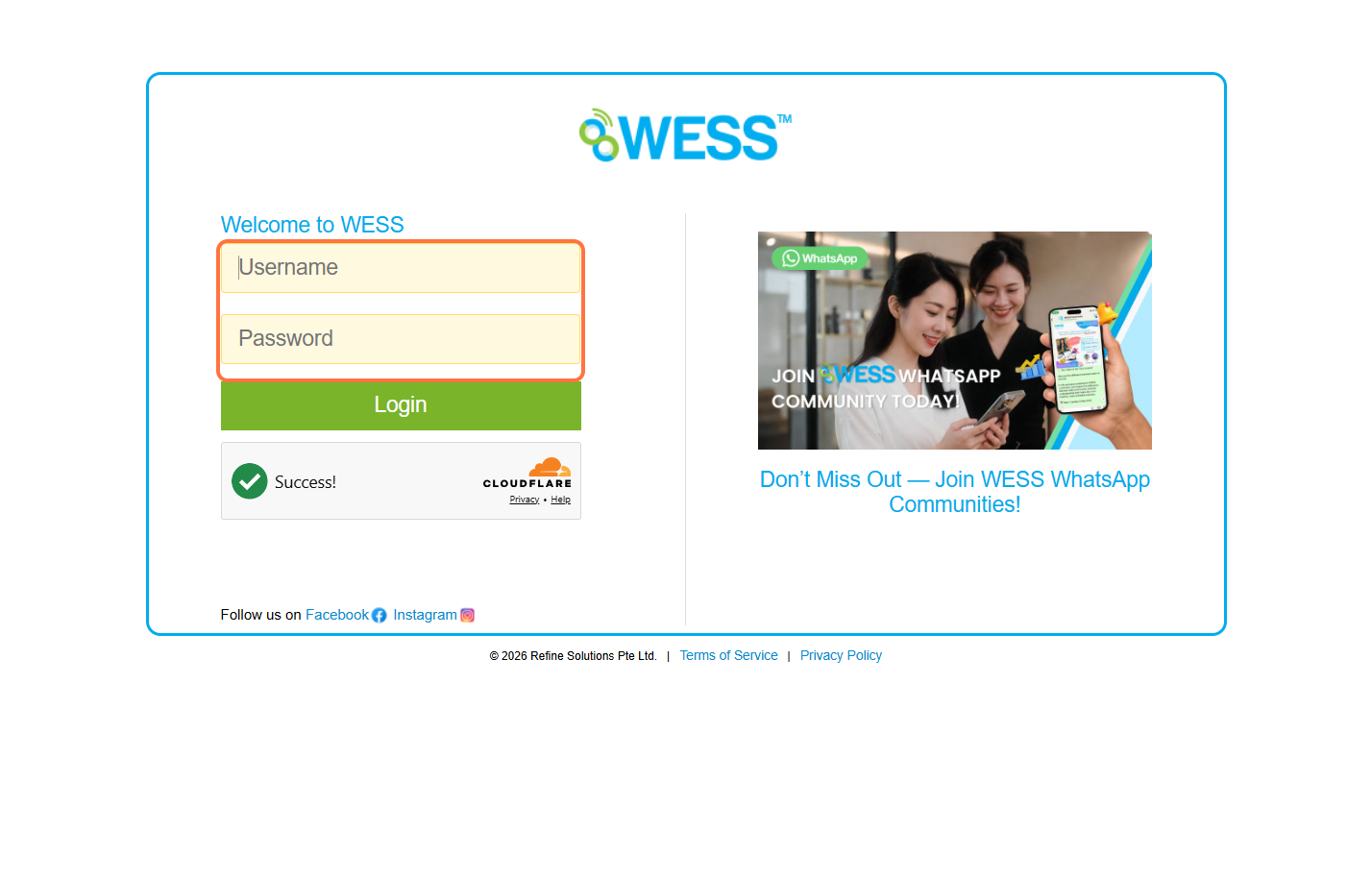
Step 23. Click on “Login”.
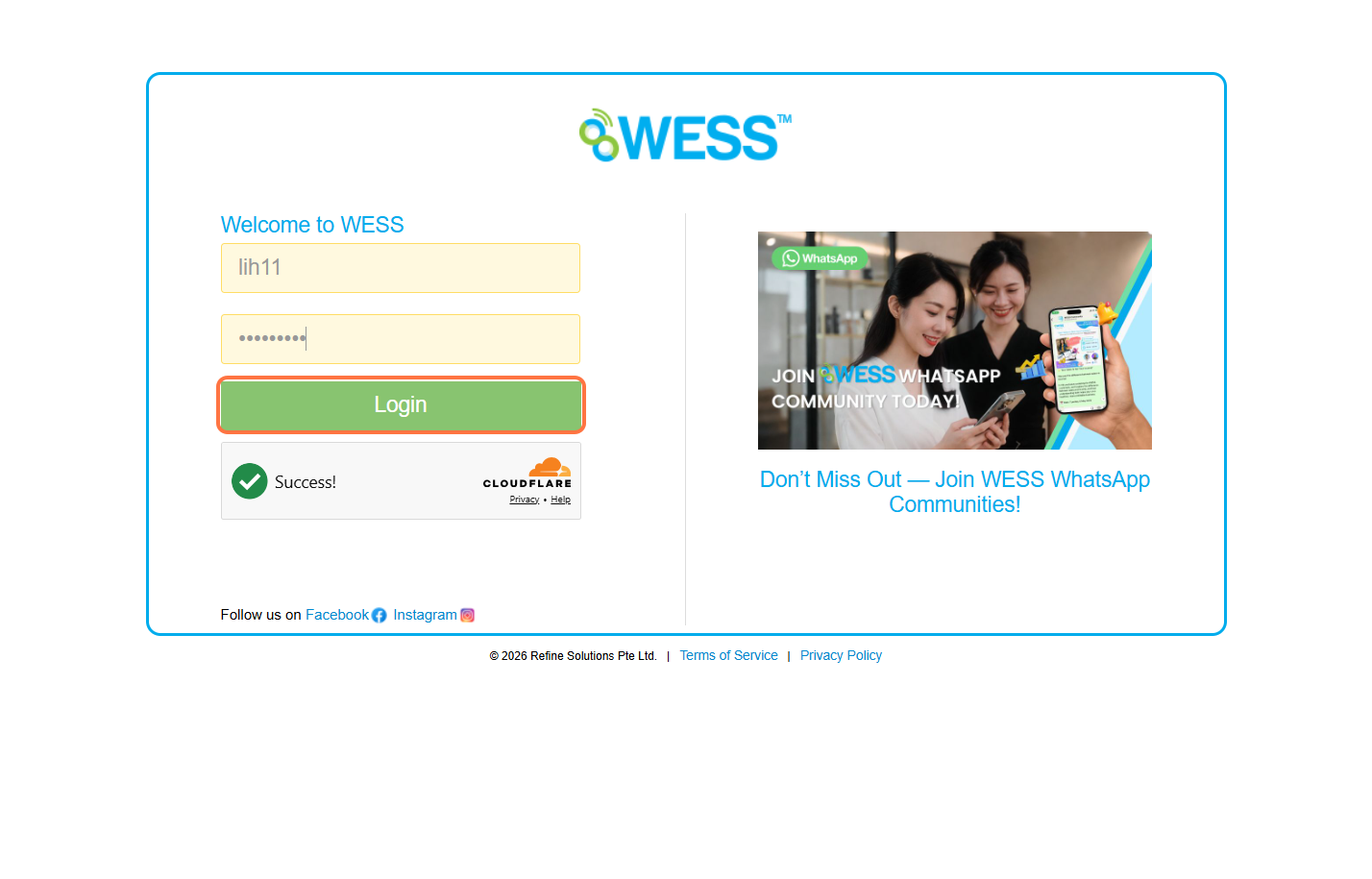
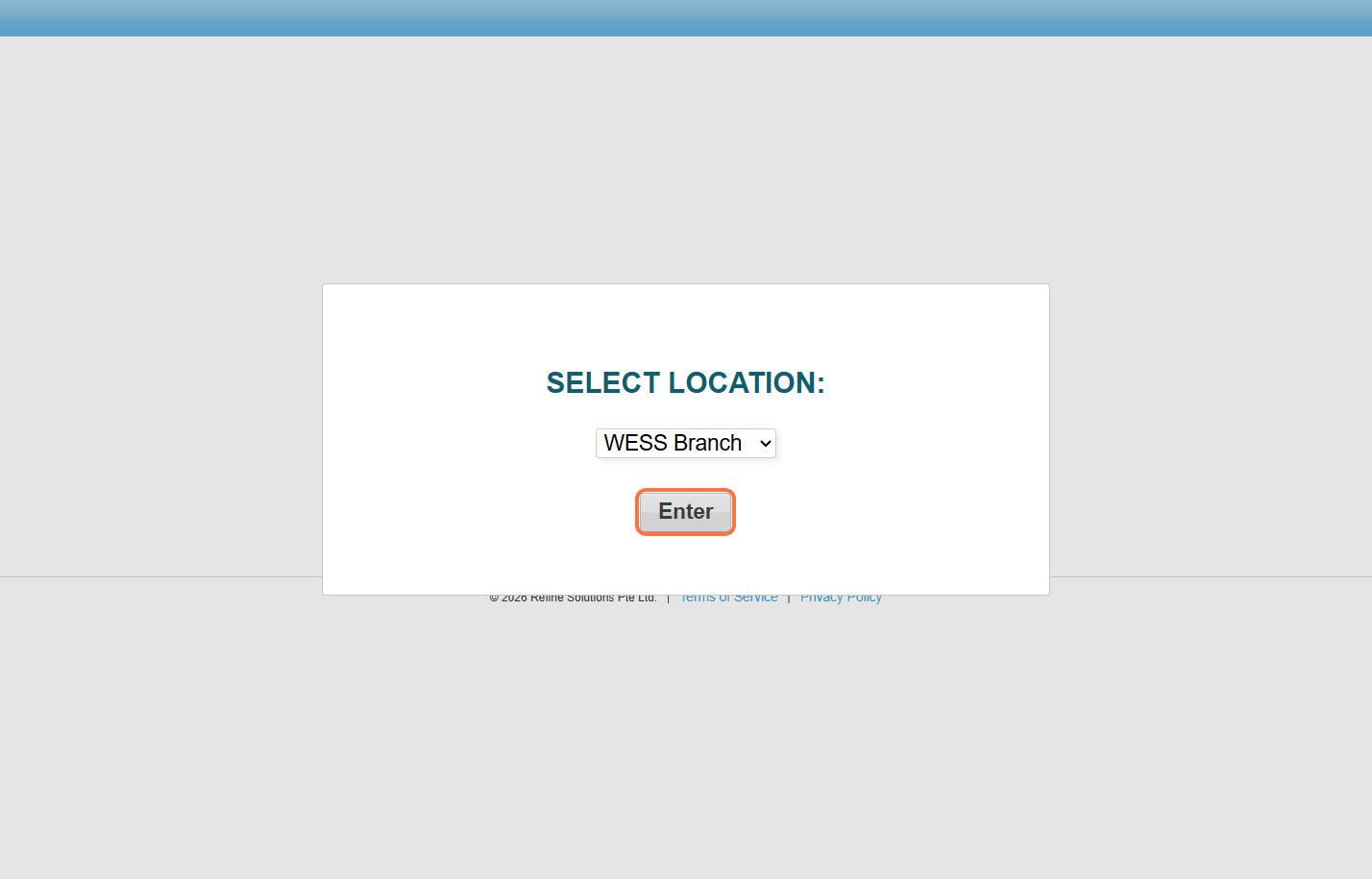
Step 24. Select the Branch.
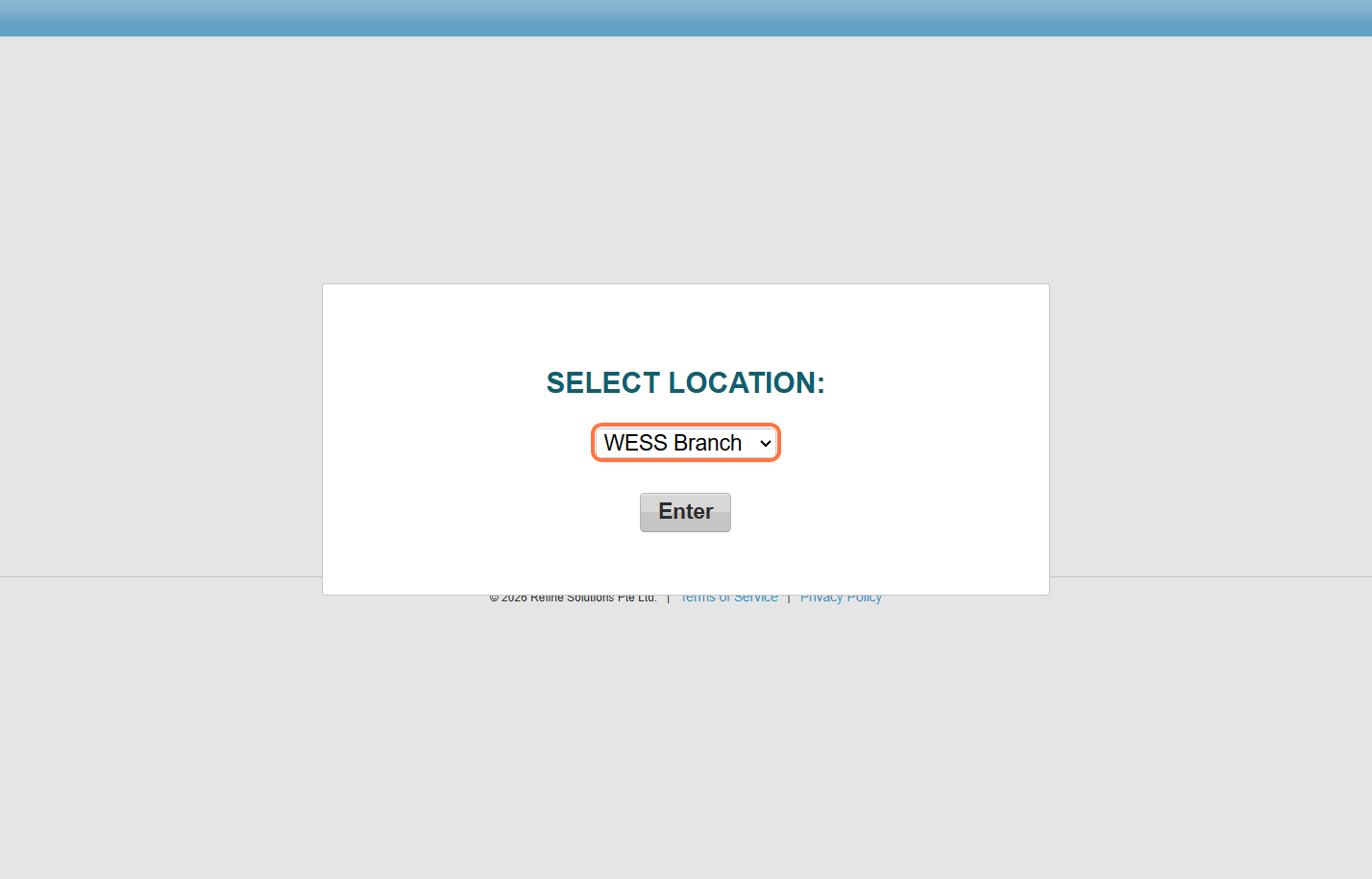
Step 25. Click on “Enter”.
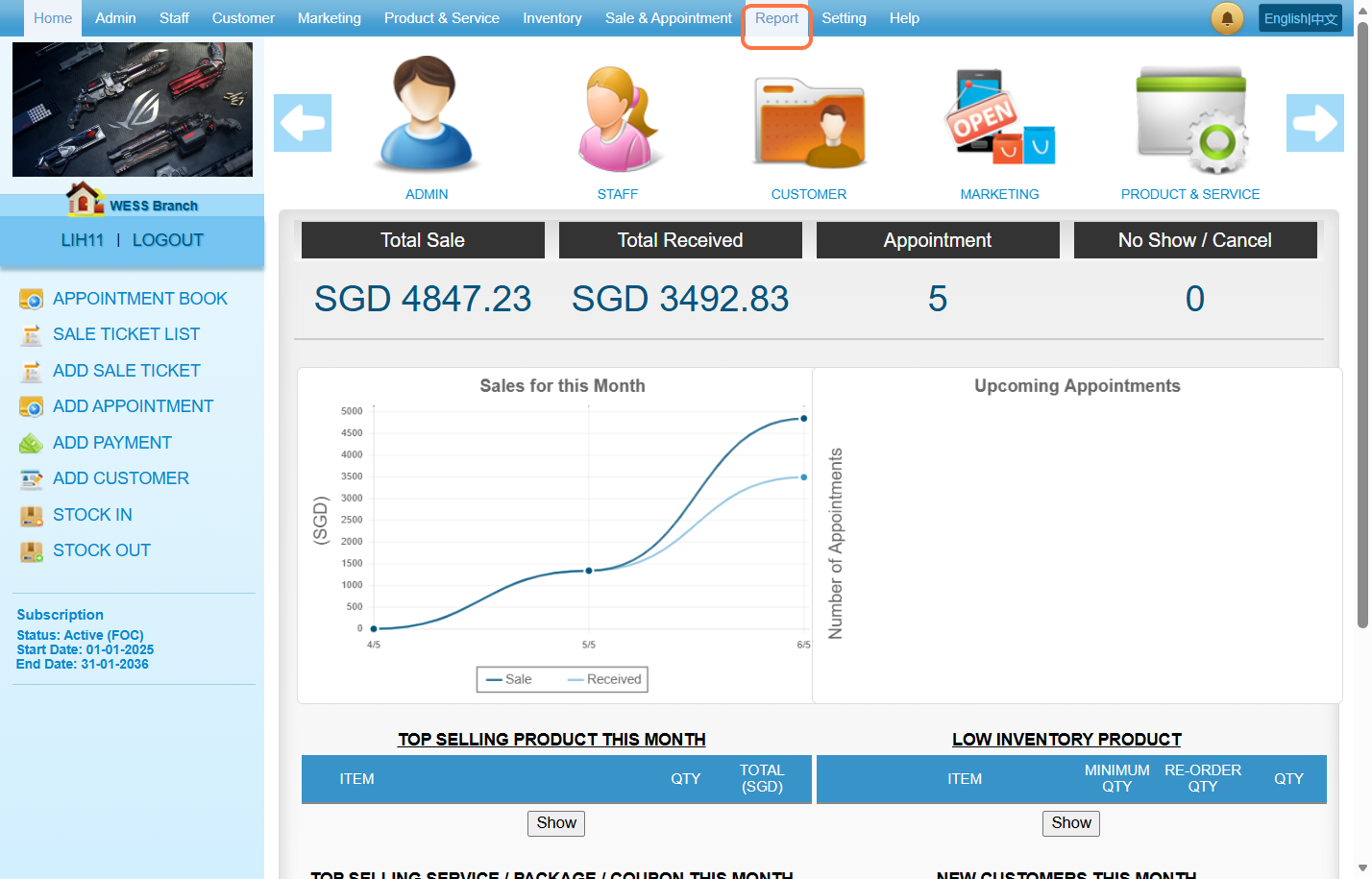
Step 26. Click on “Report”.
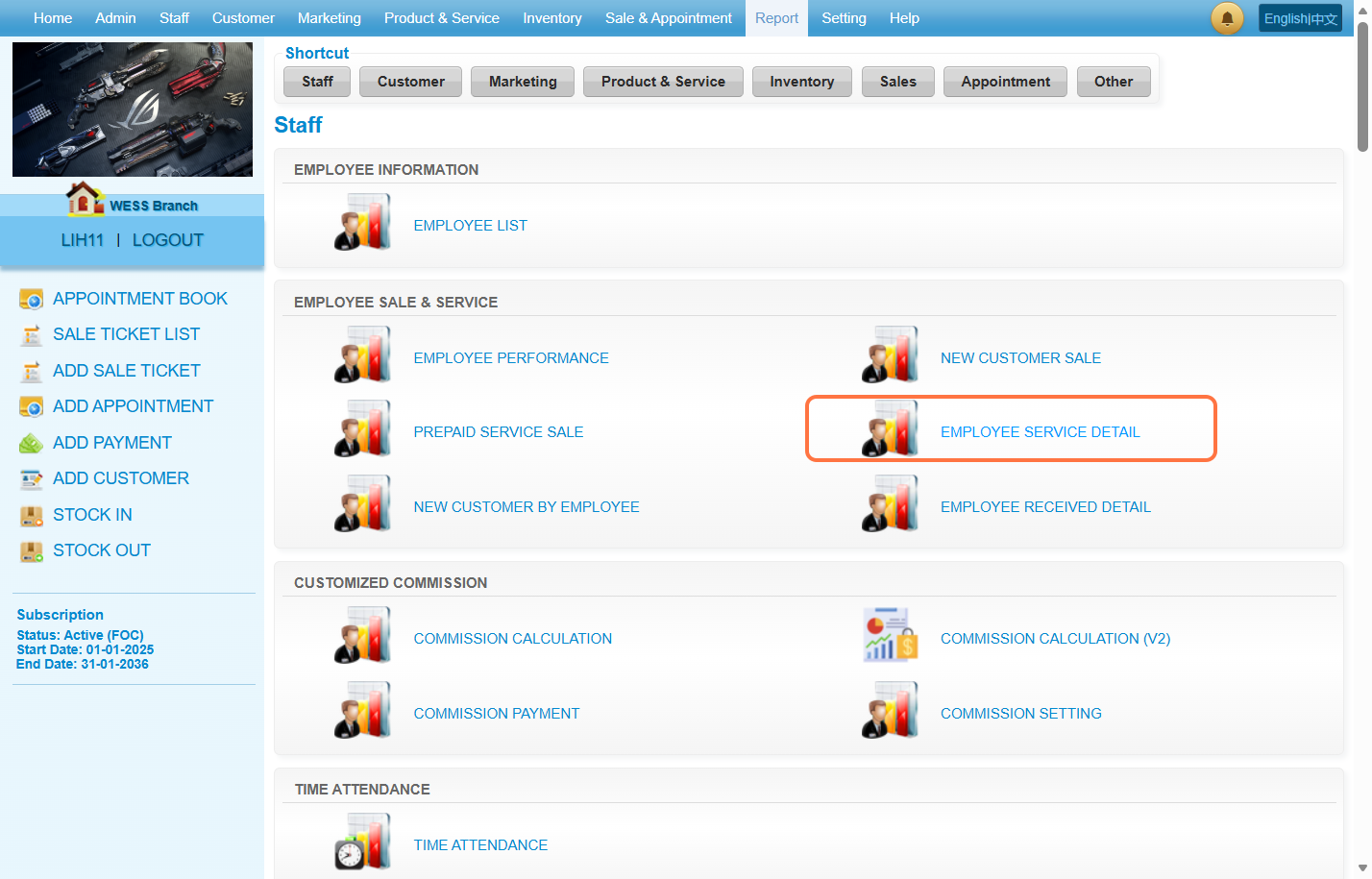
Step 27. Click on “EMPLOYEE SERVICE DETAIL”.
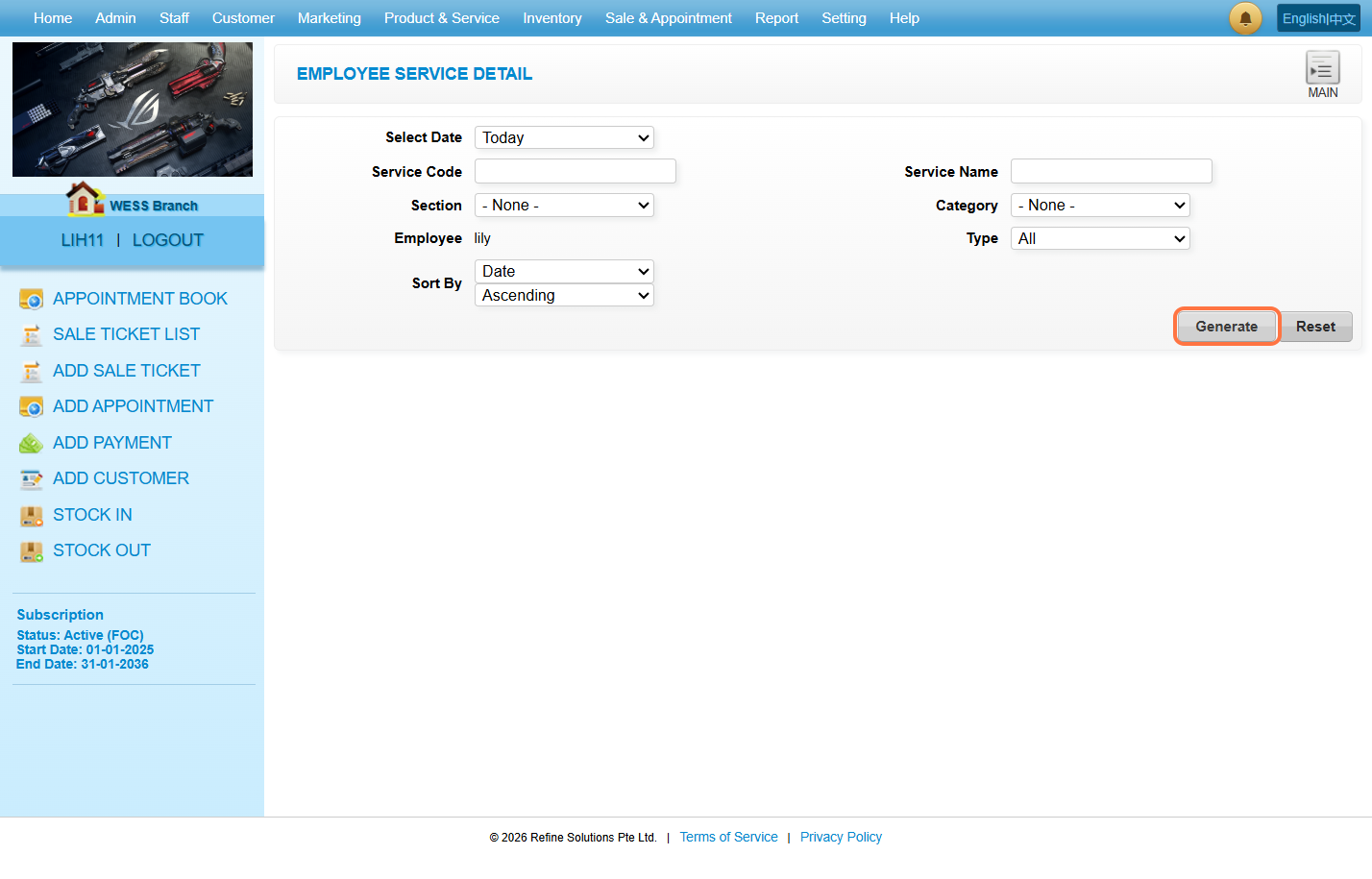
Step 28. The employee column is unable to filter other employees.
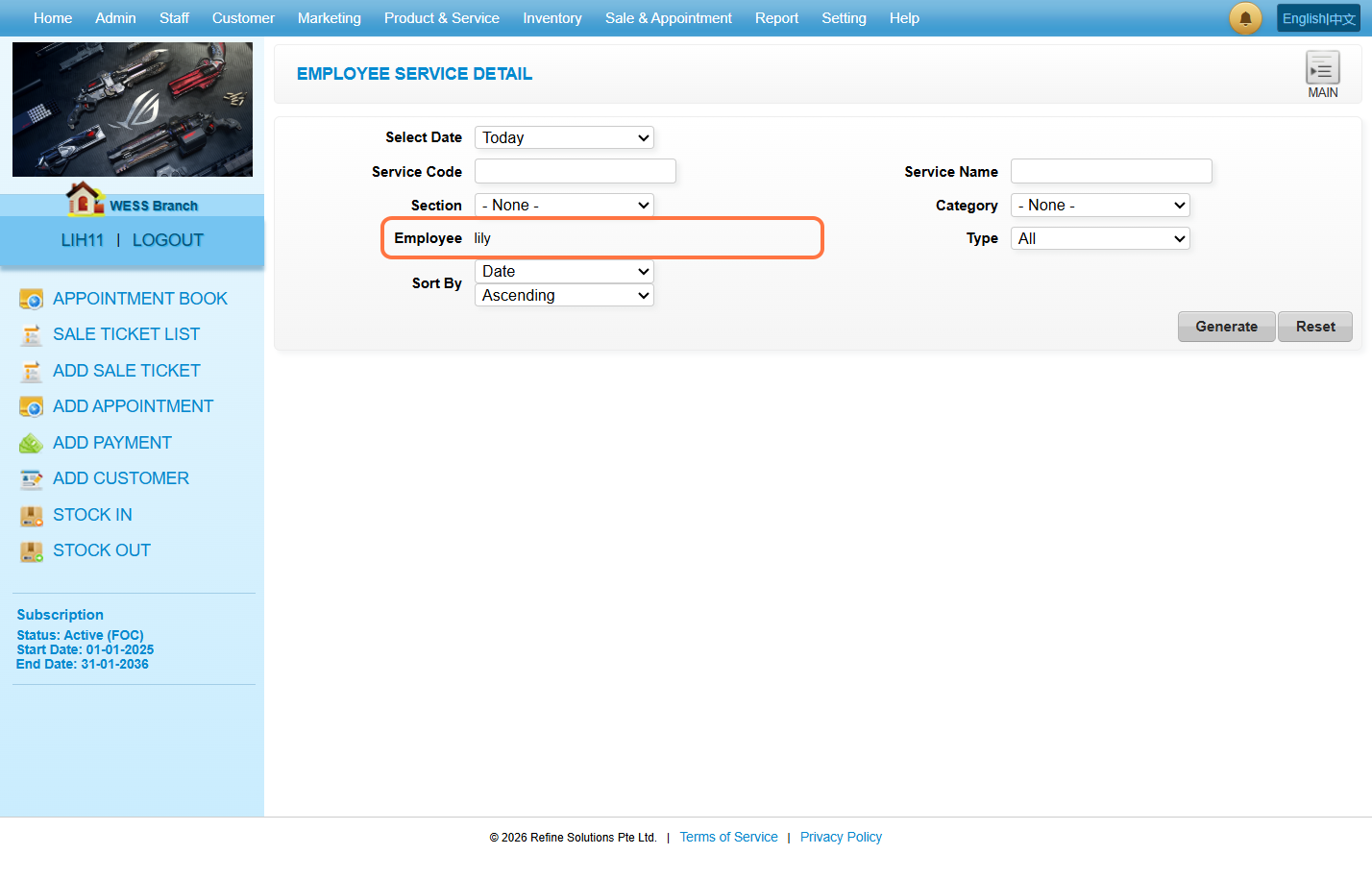
Step 29. Click on “Generate”.
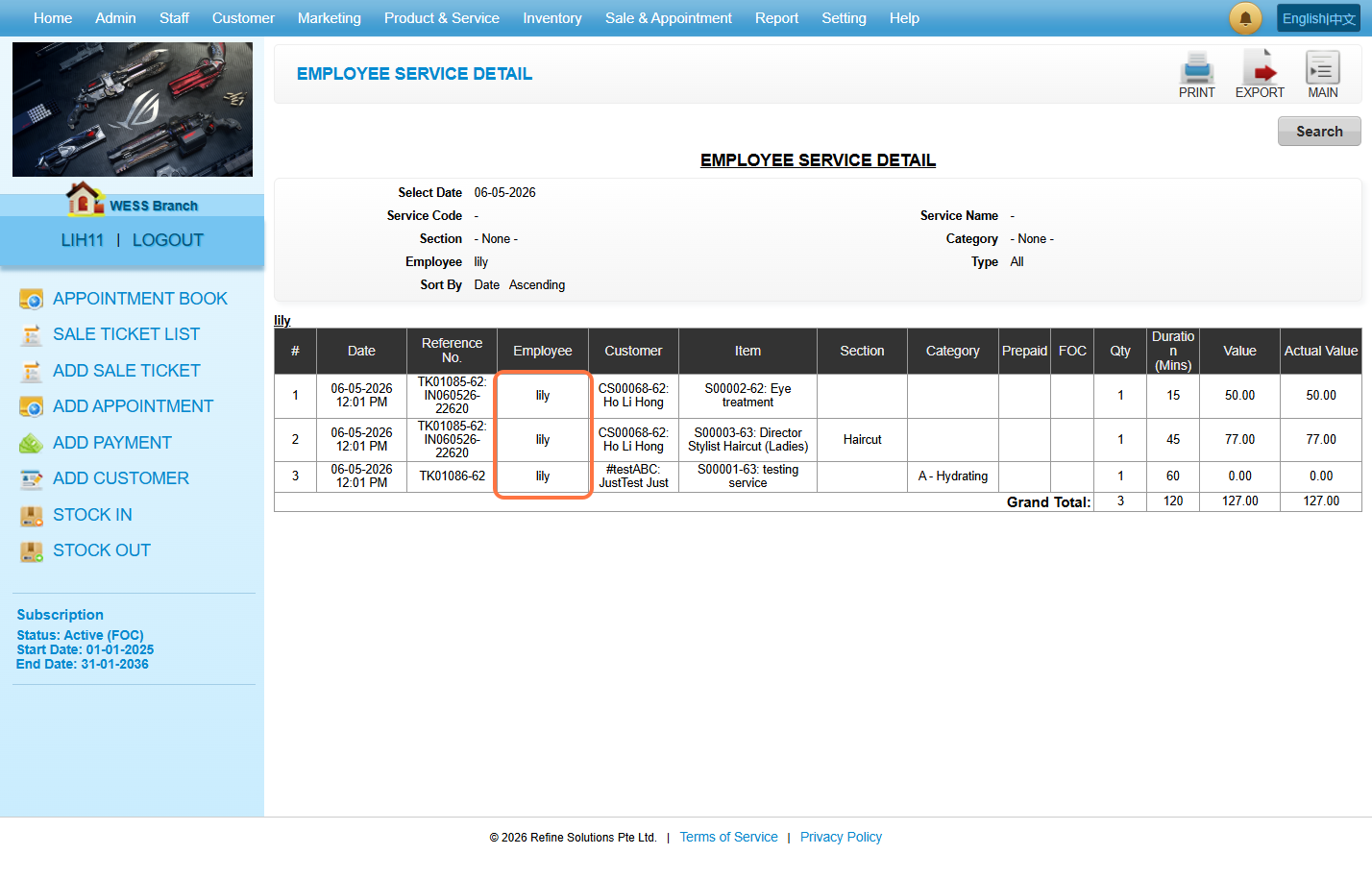
Step 30. So, it will generate the records that only include the employee “lily”.
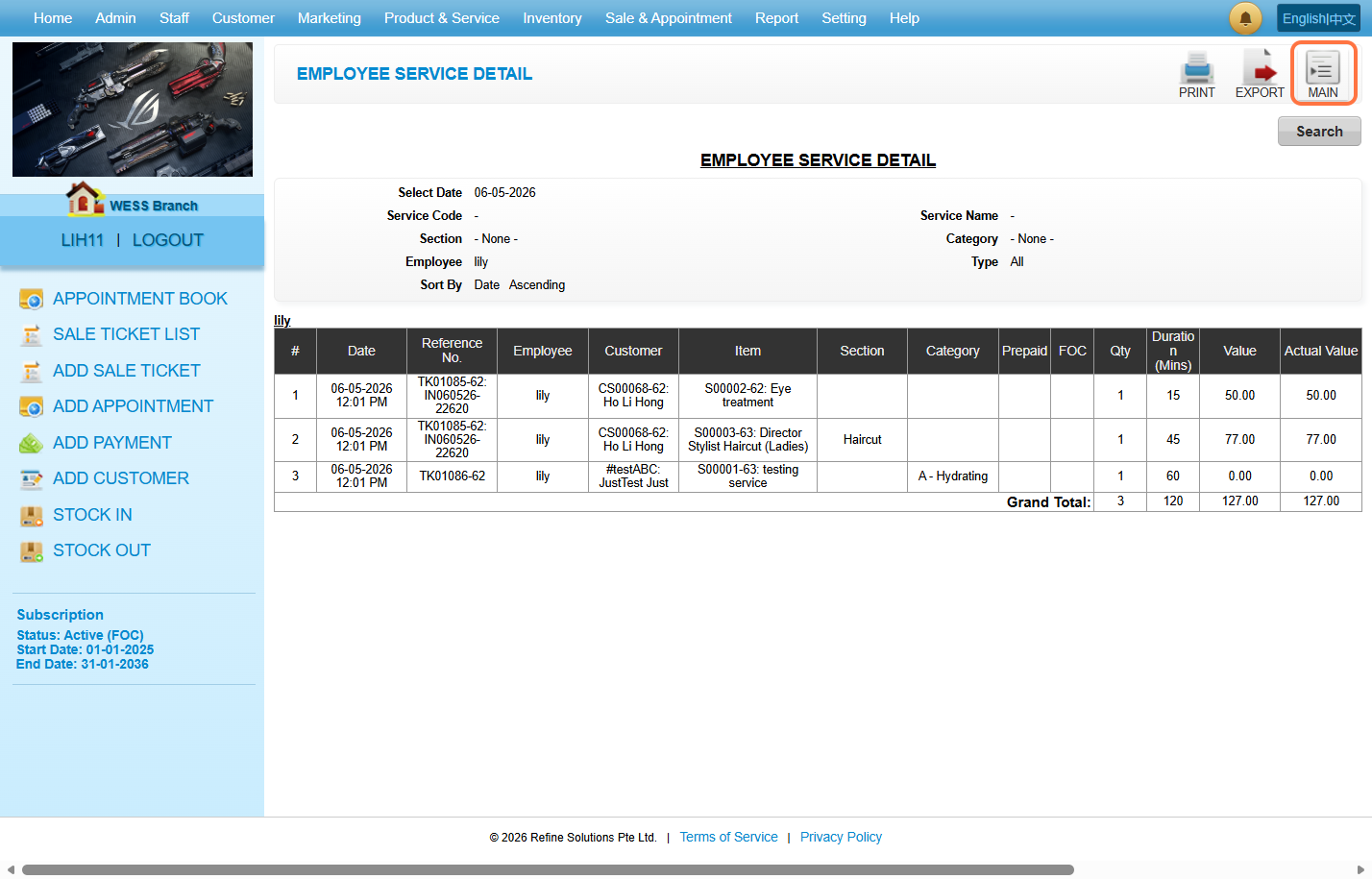
Step 31. Click on “MAIN”.
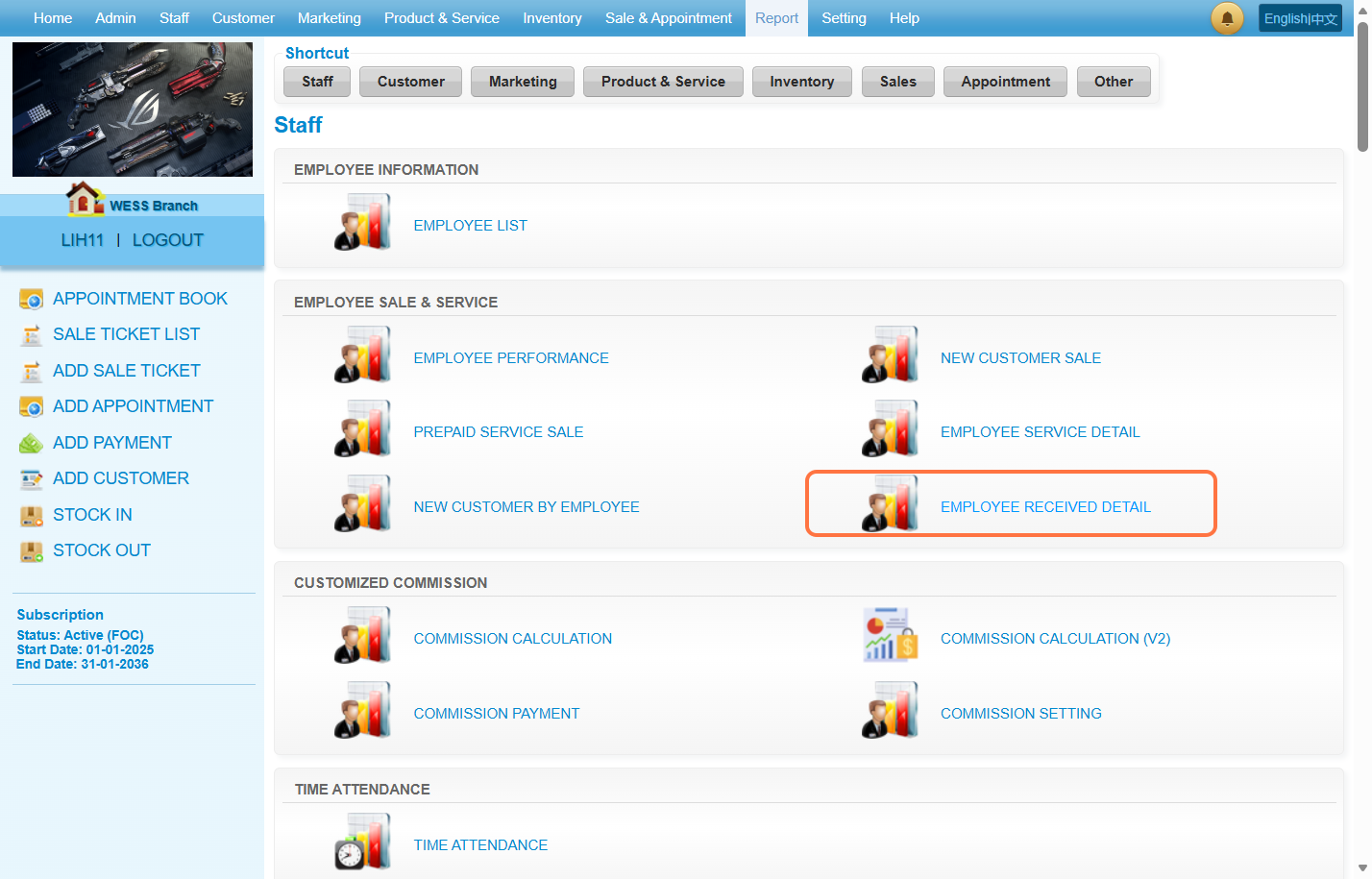
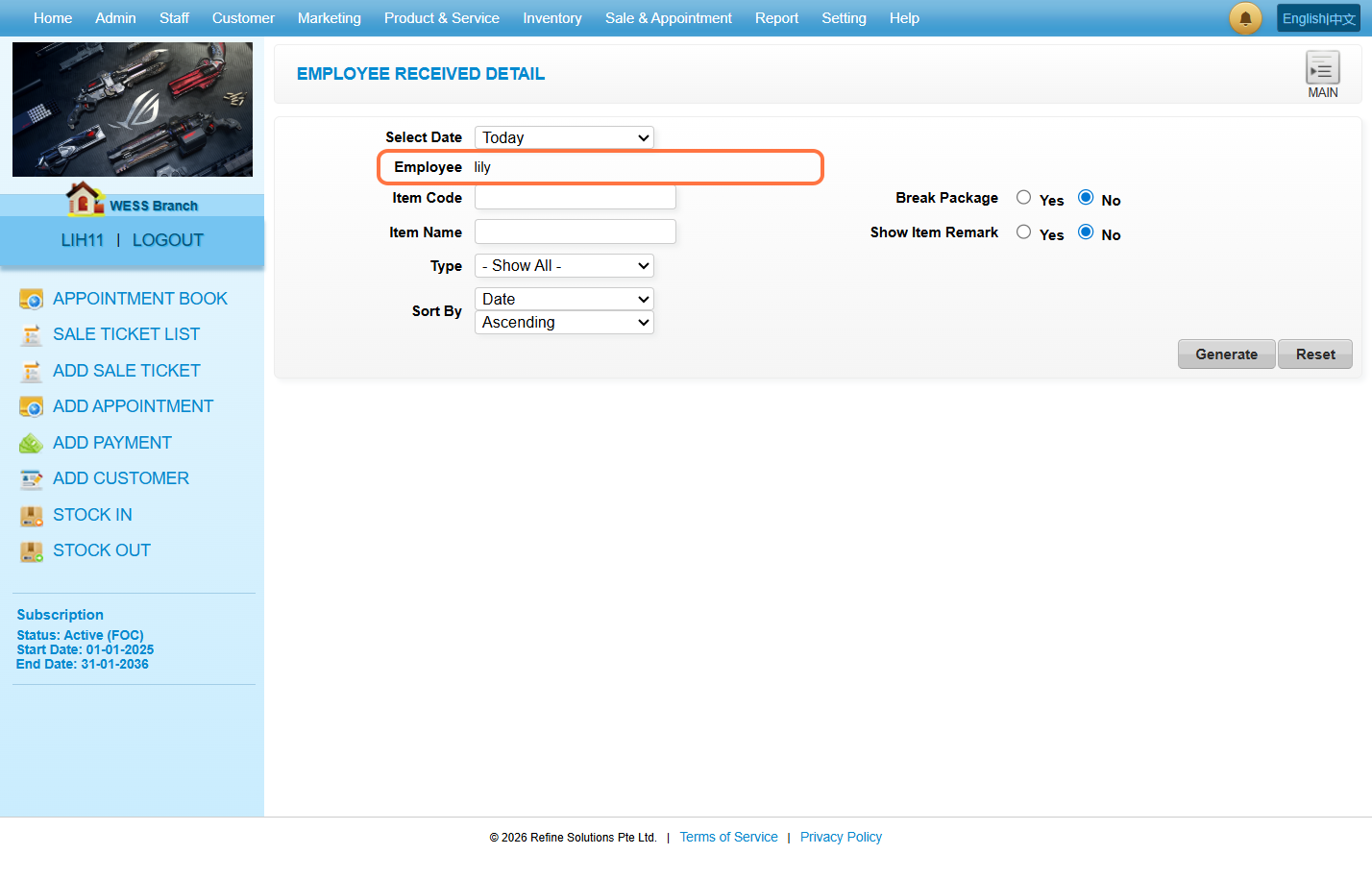
Step 32. Click on “EMPLOYEE RECEIVED DETAIL”.
Step 33. The employee column is unable to filter other employees.
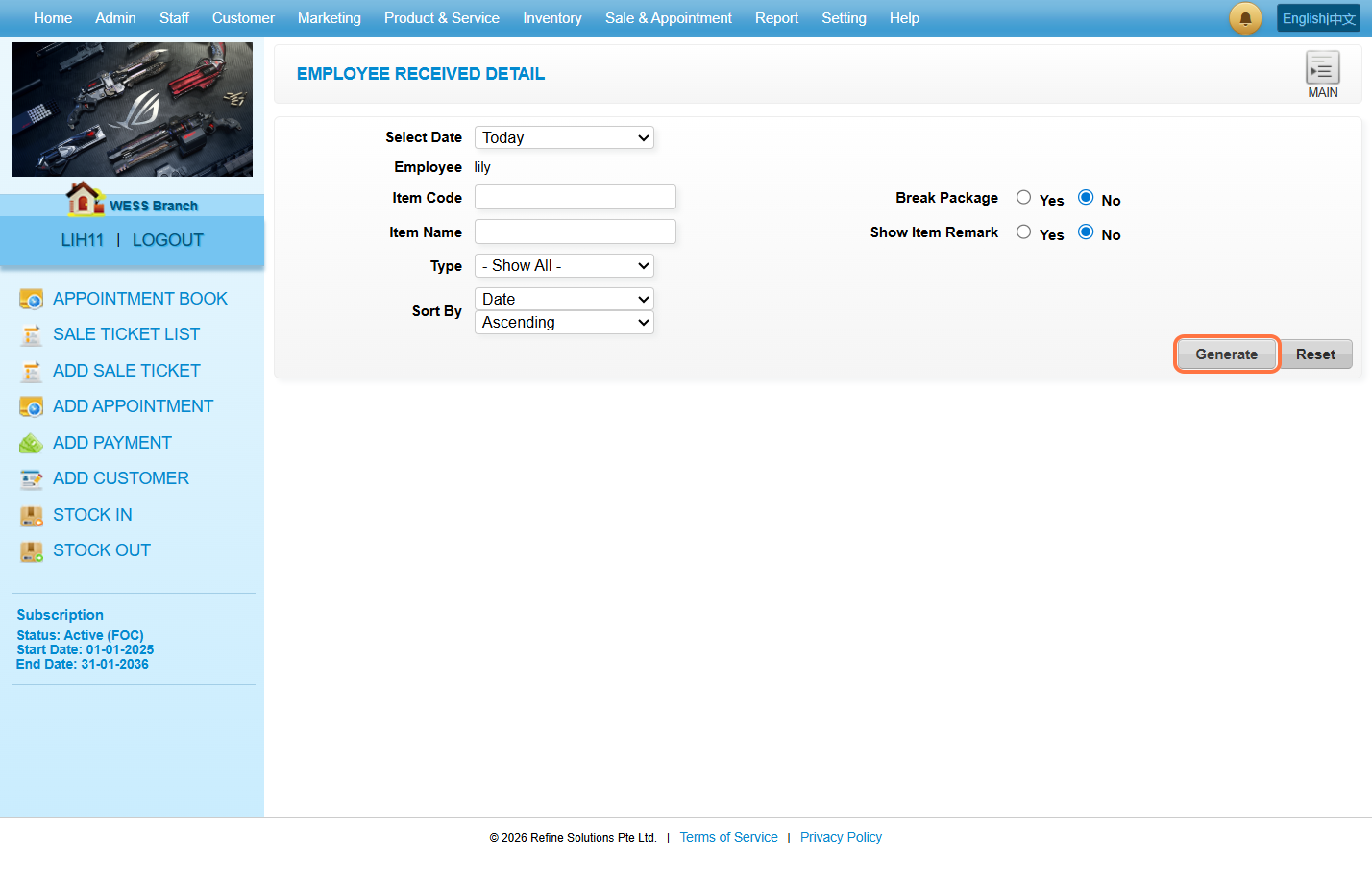
Step 34. Click on “Generate”.
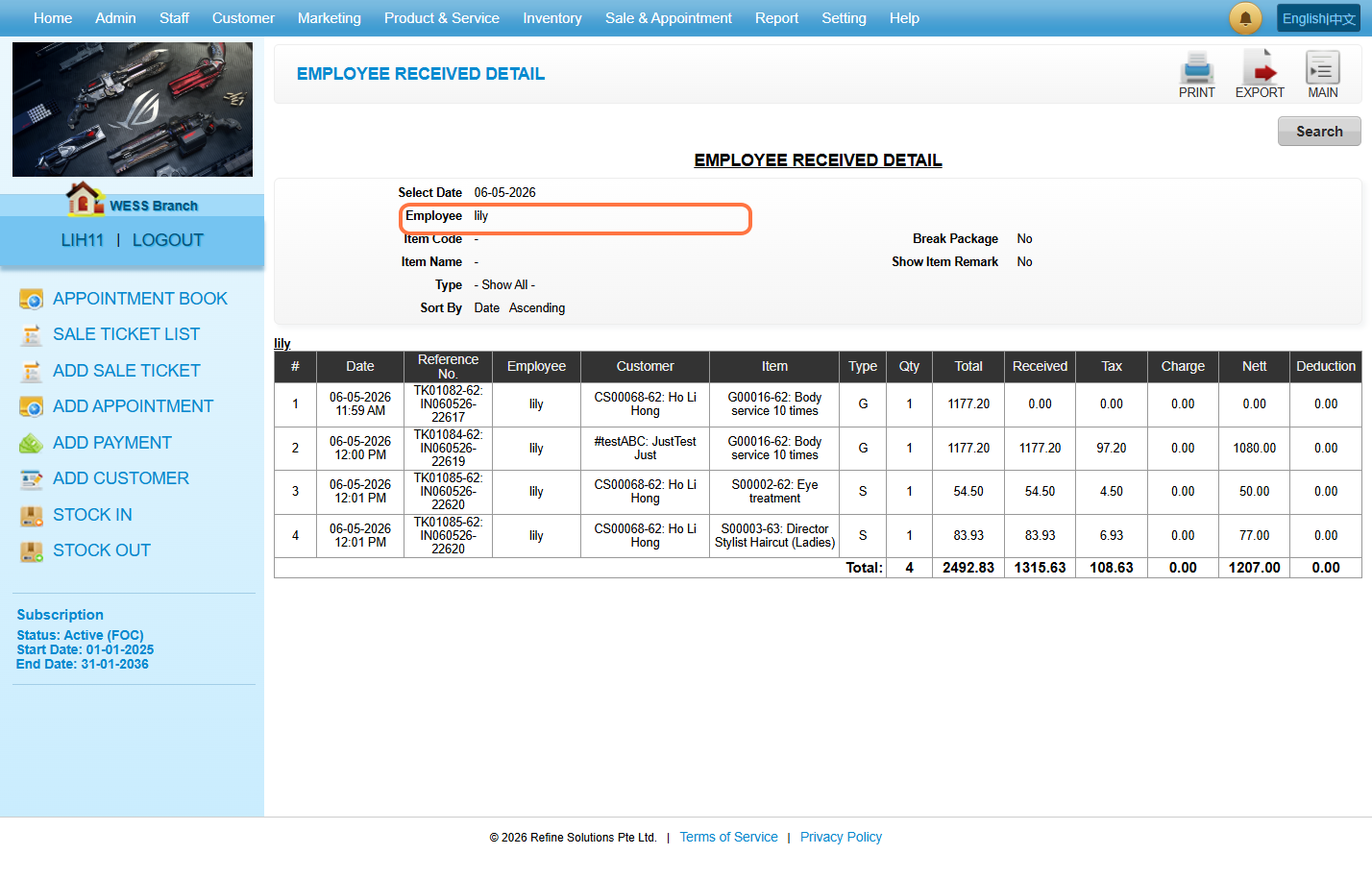
Step 35. So, it will generate the records that only include the employee “lily”.
Last Updated: May 2026