
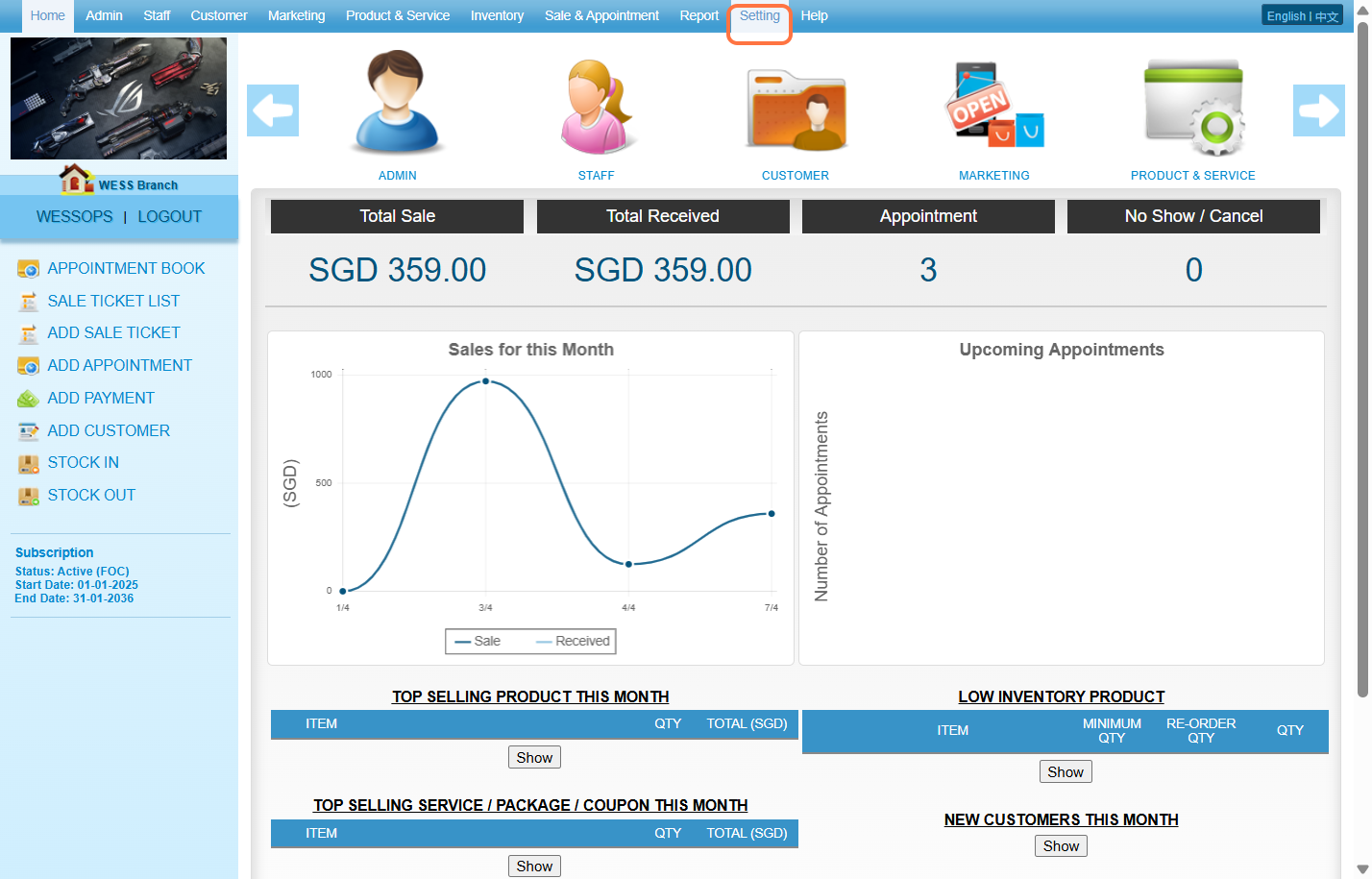
Step 1: Click on “Setting“.
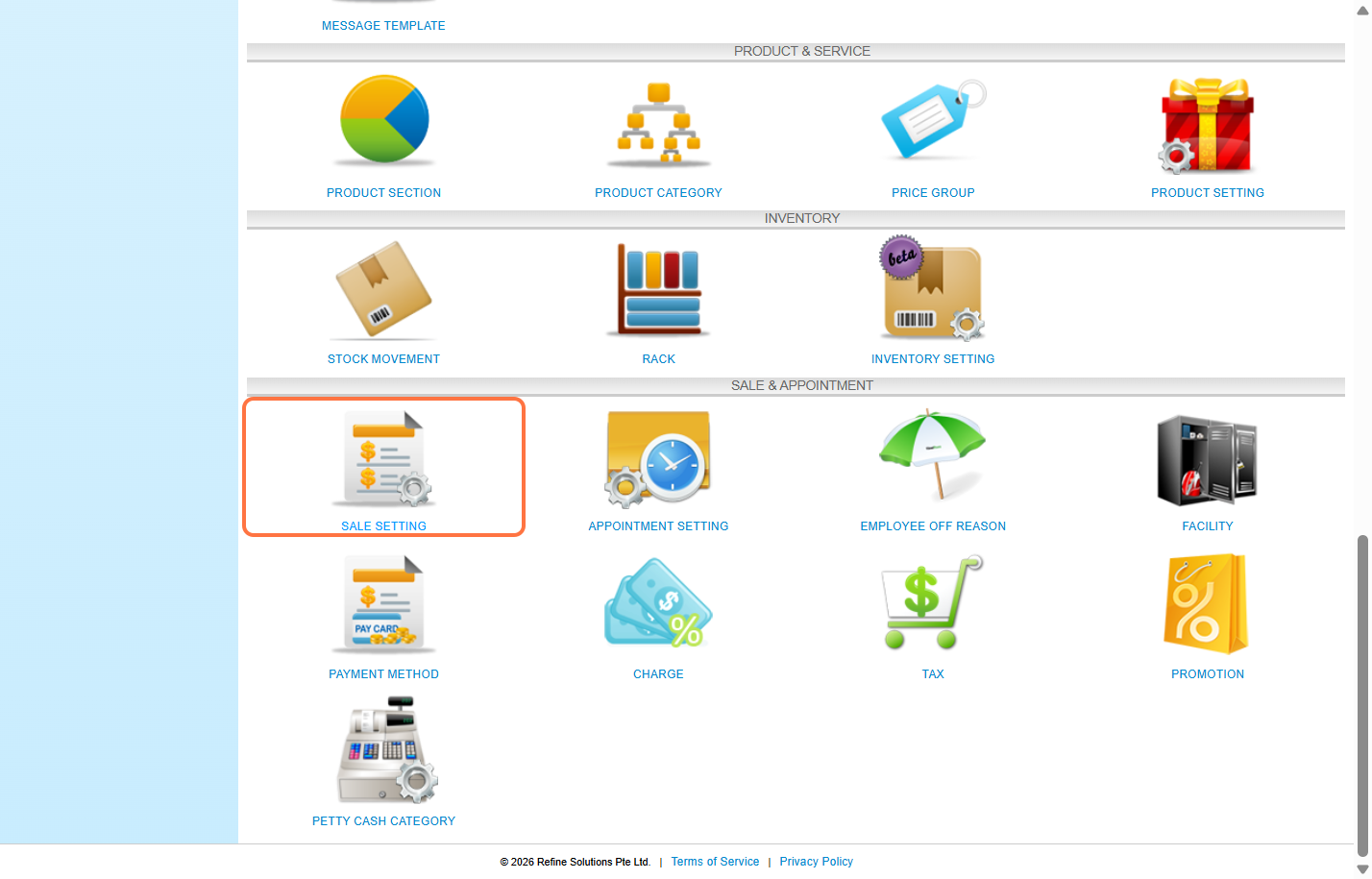
Step 2: Click on “SALE SETTING“.
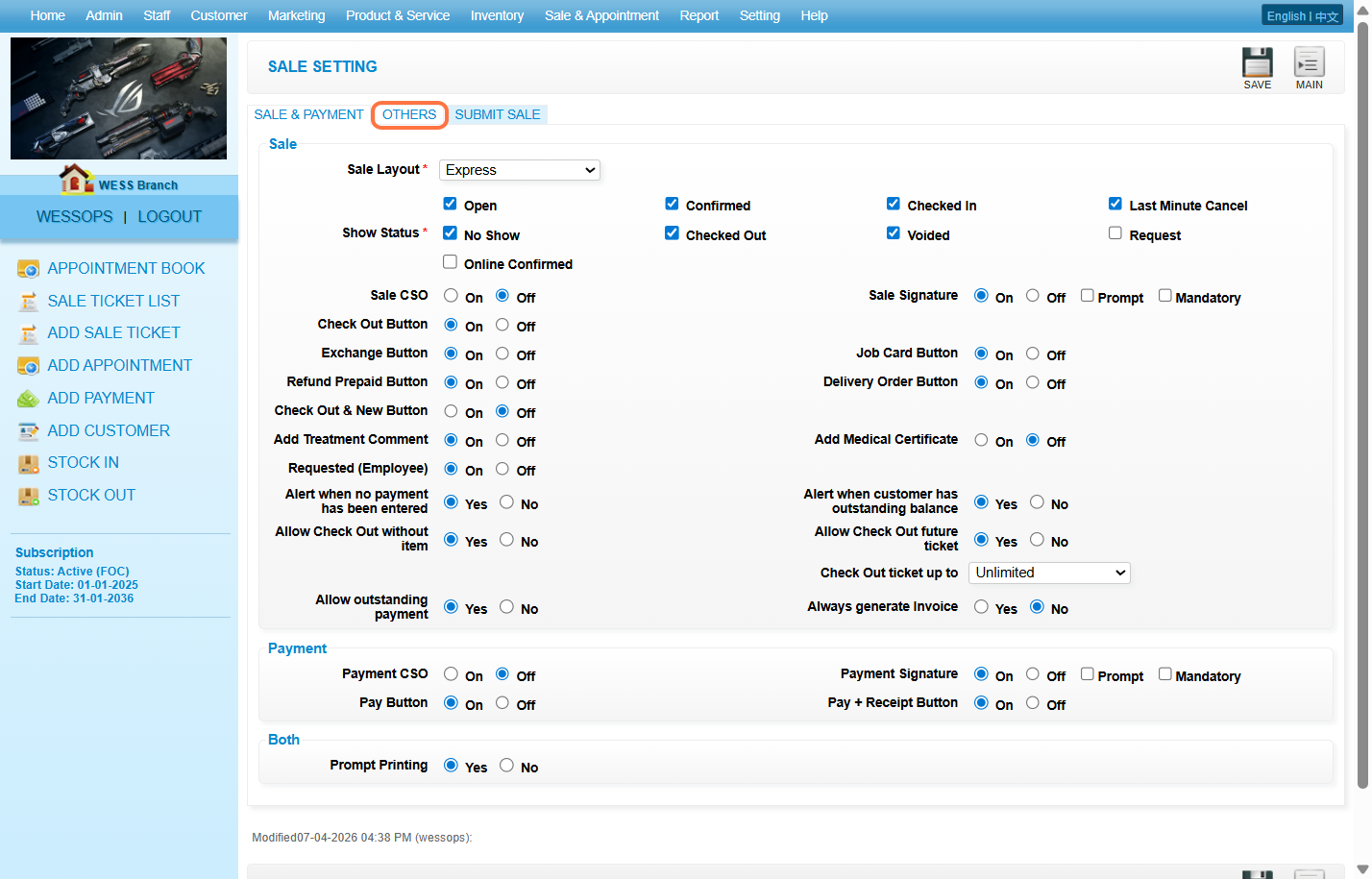
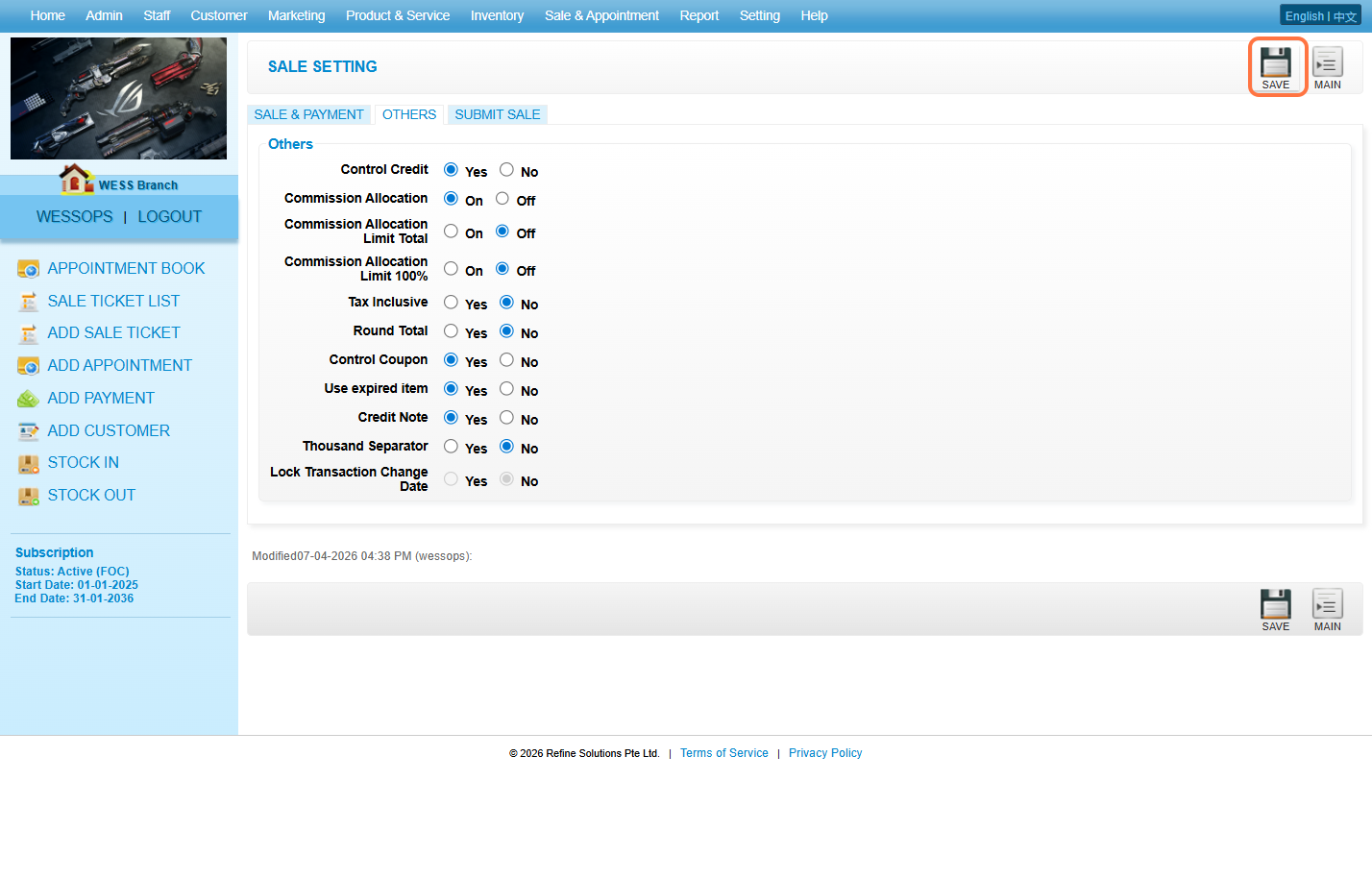
Step 3: Click on “OTHERS“.
Step 4: Select “Yes“.
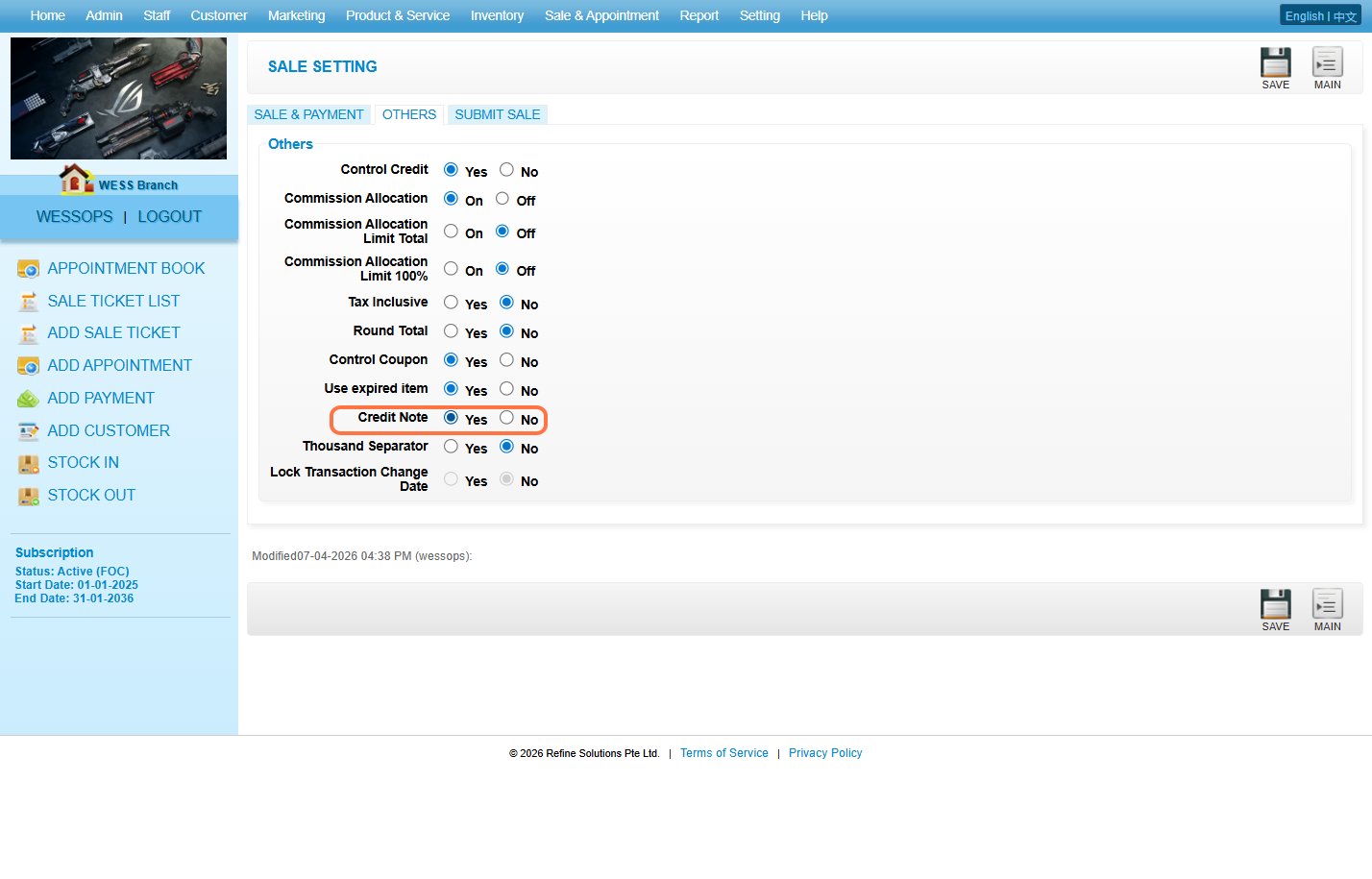
Step 5: Click the “Save” button.
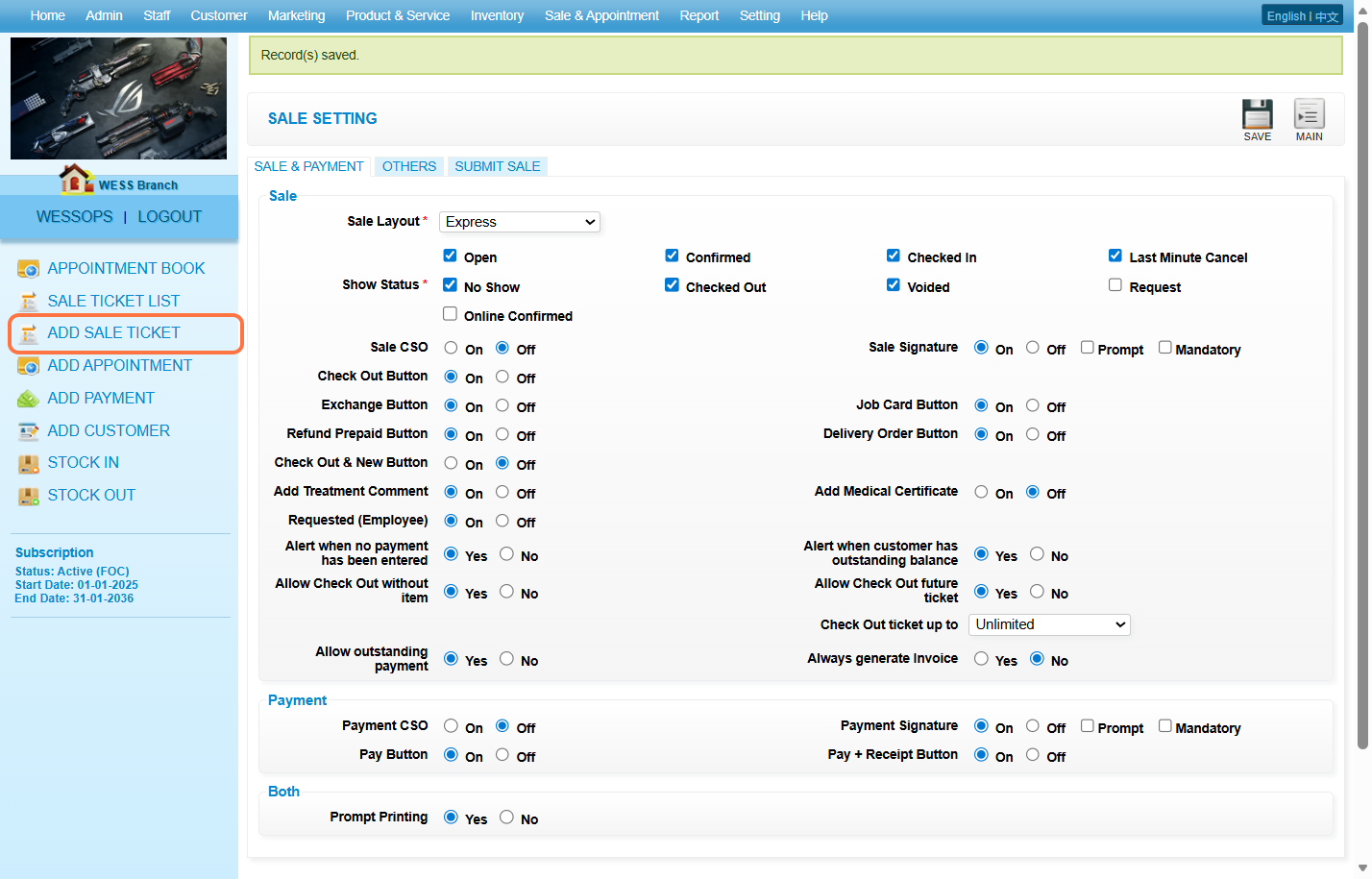
Step 6: Click on “ADD SALE TICKET“.
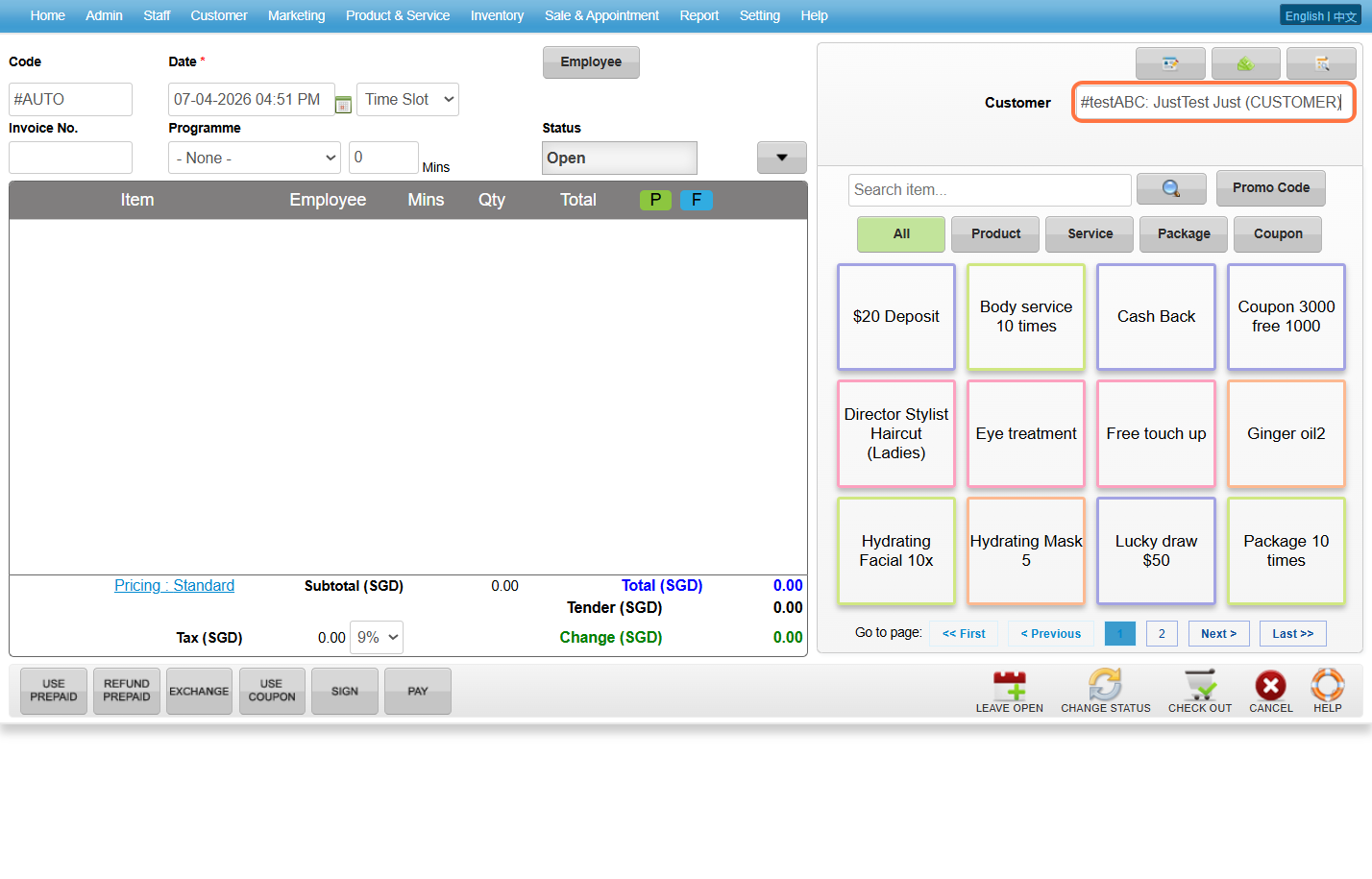
Step 7: Enter the customer’s name.
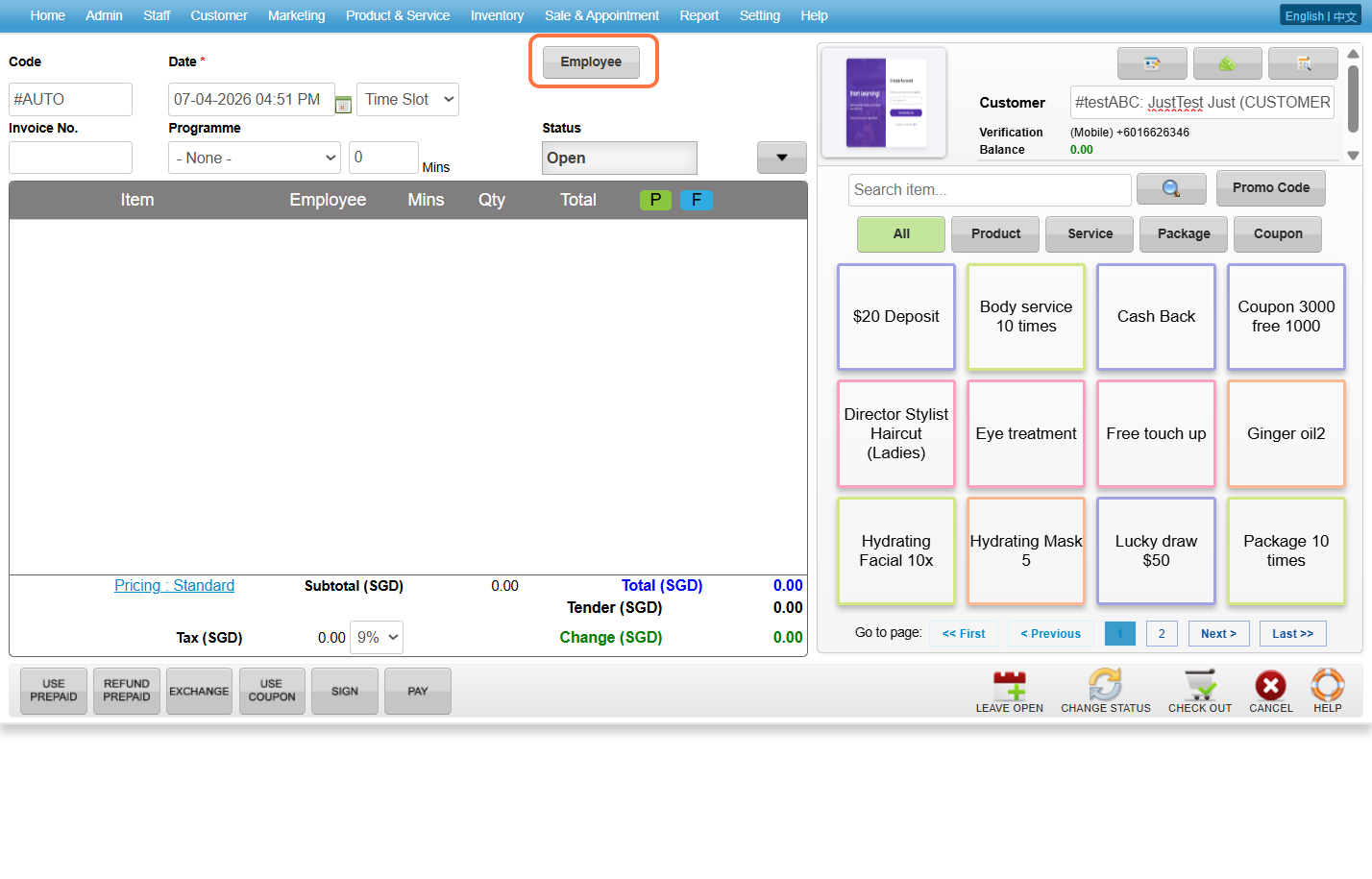
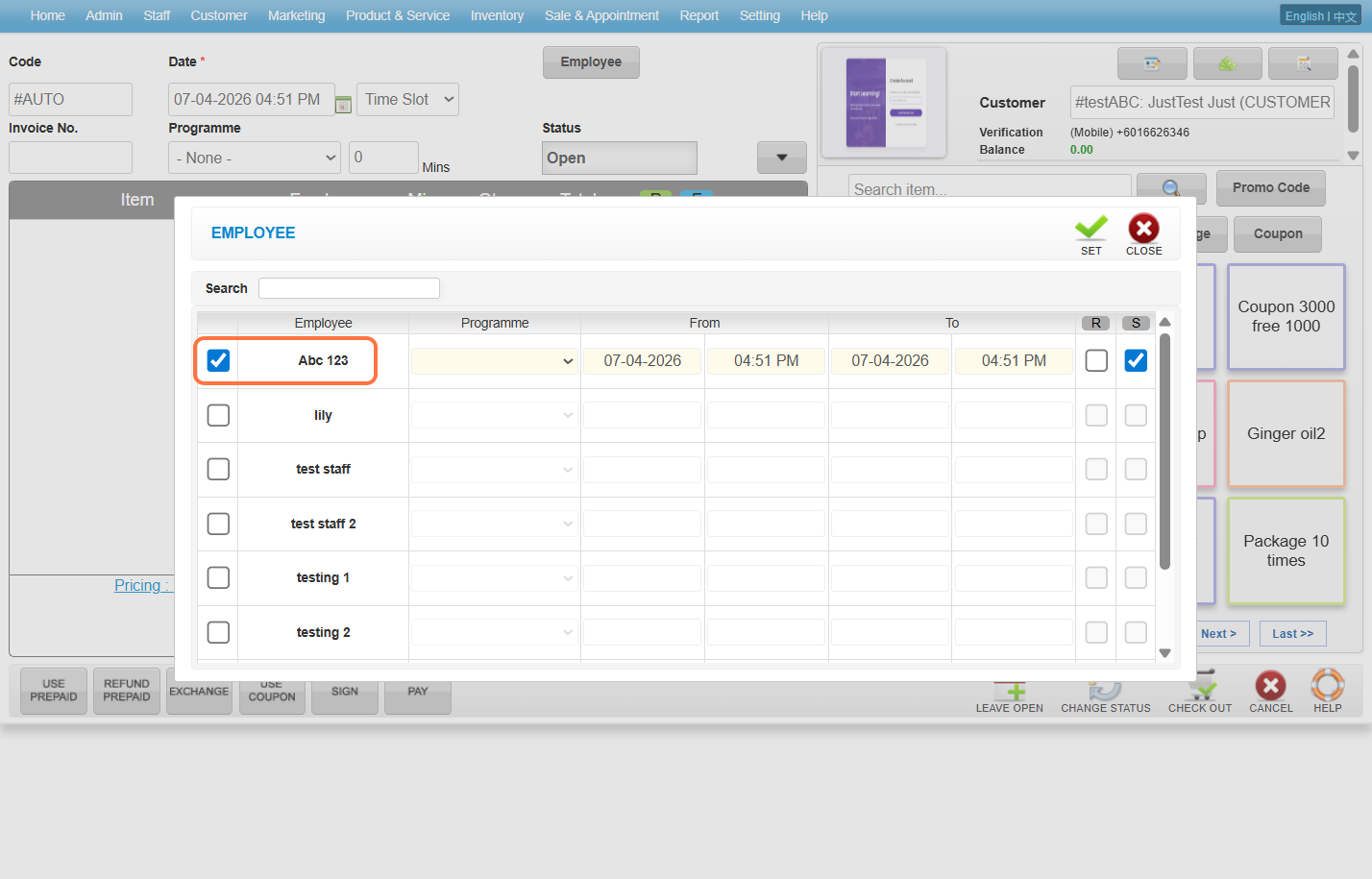
Step 8: Click on “Employee”.
Step 9: Select the employee.
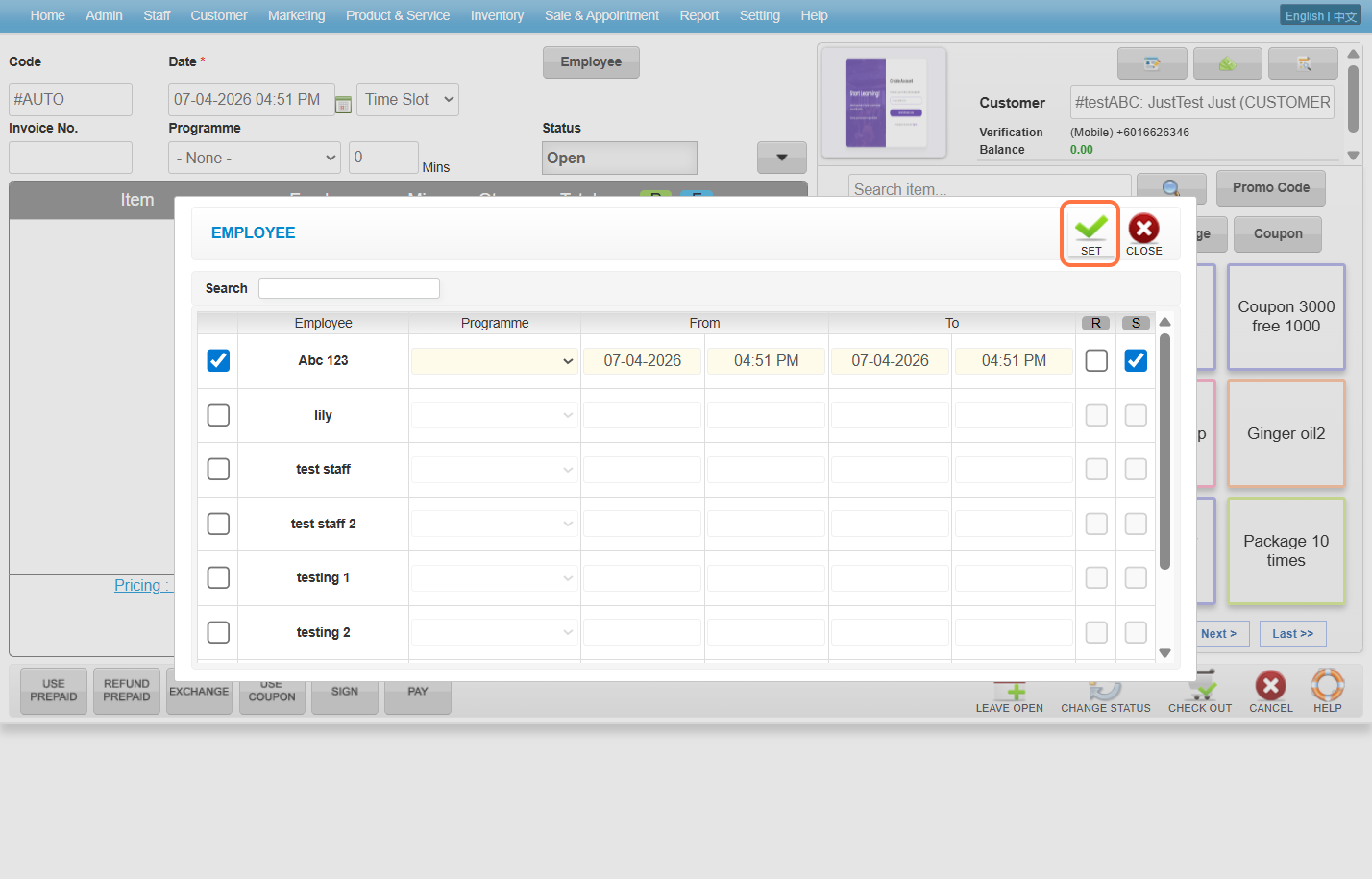
Step 10: Click on “SET“.
ℹ️ Method 1 for Non-Prepaid Item
Step 1: Select the service.
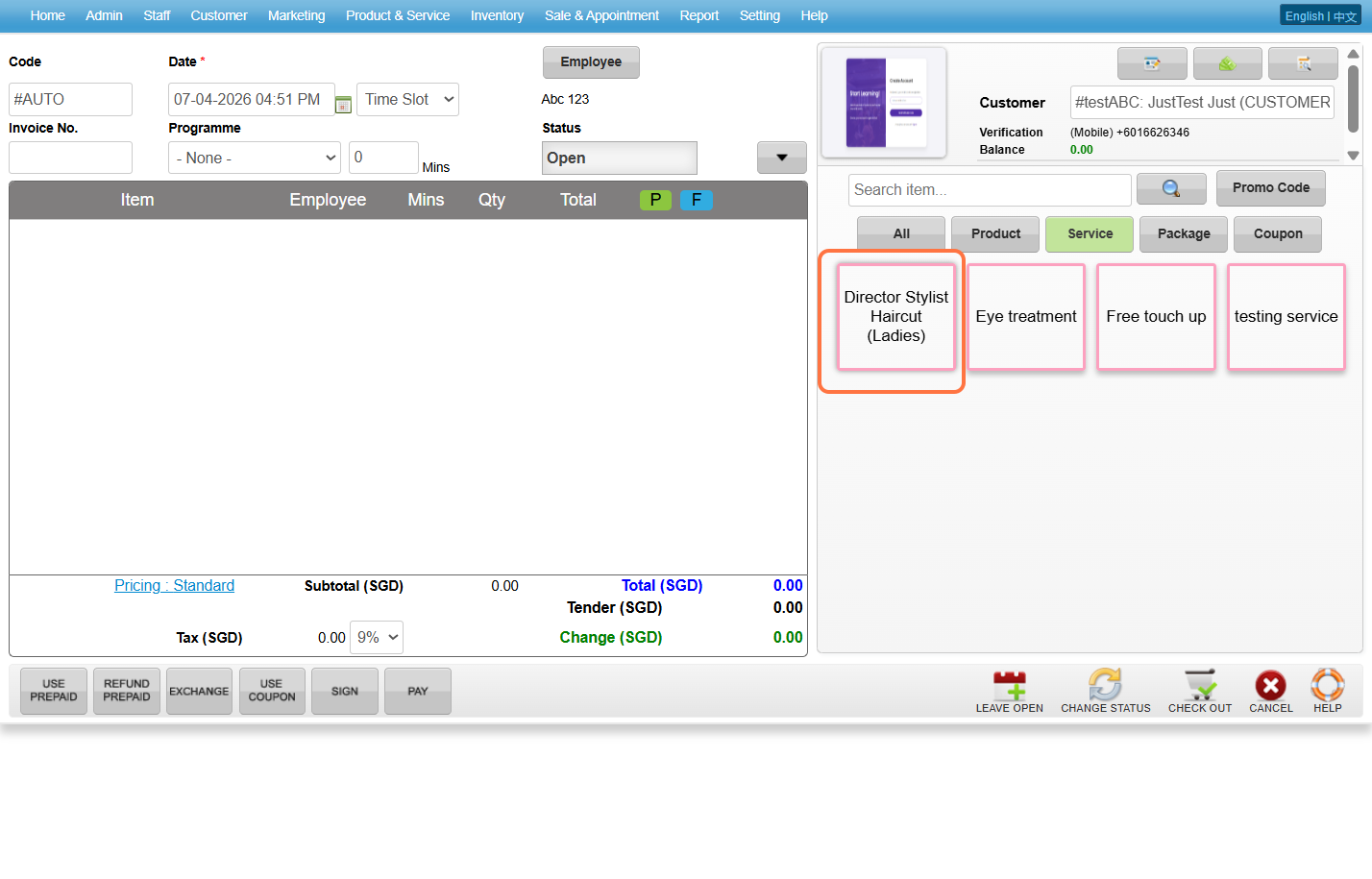
Step 2: Click on the service in the item list.
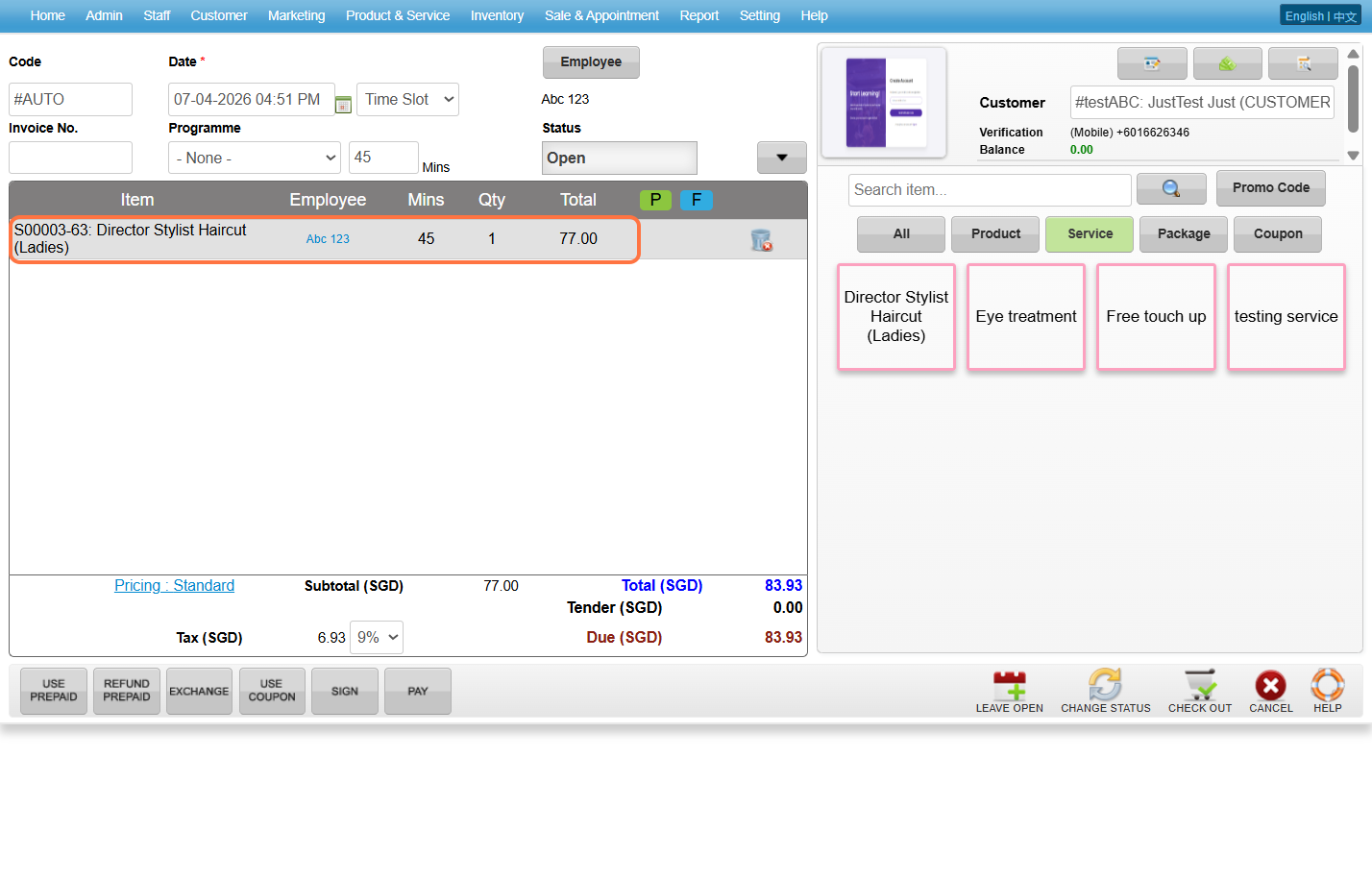
Step 3: Put a “–” in front of 1 to process a refund for the service.
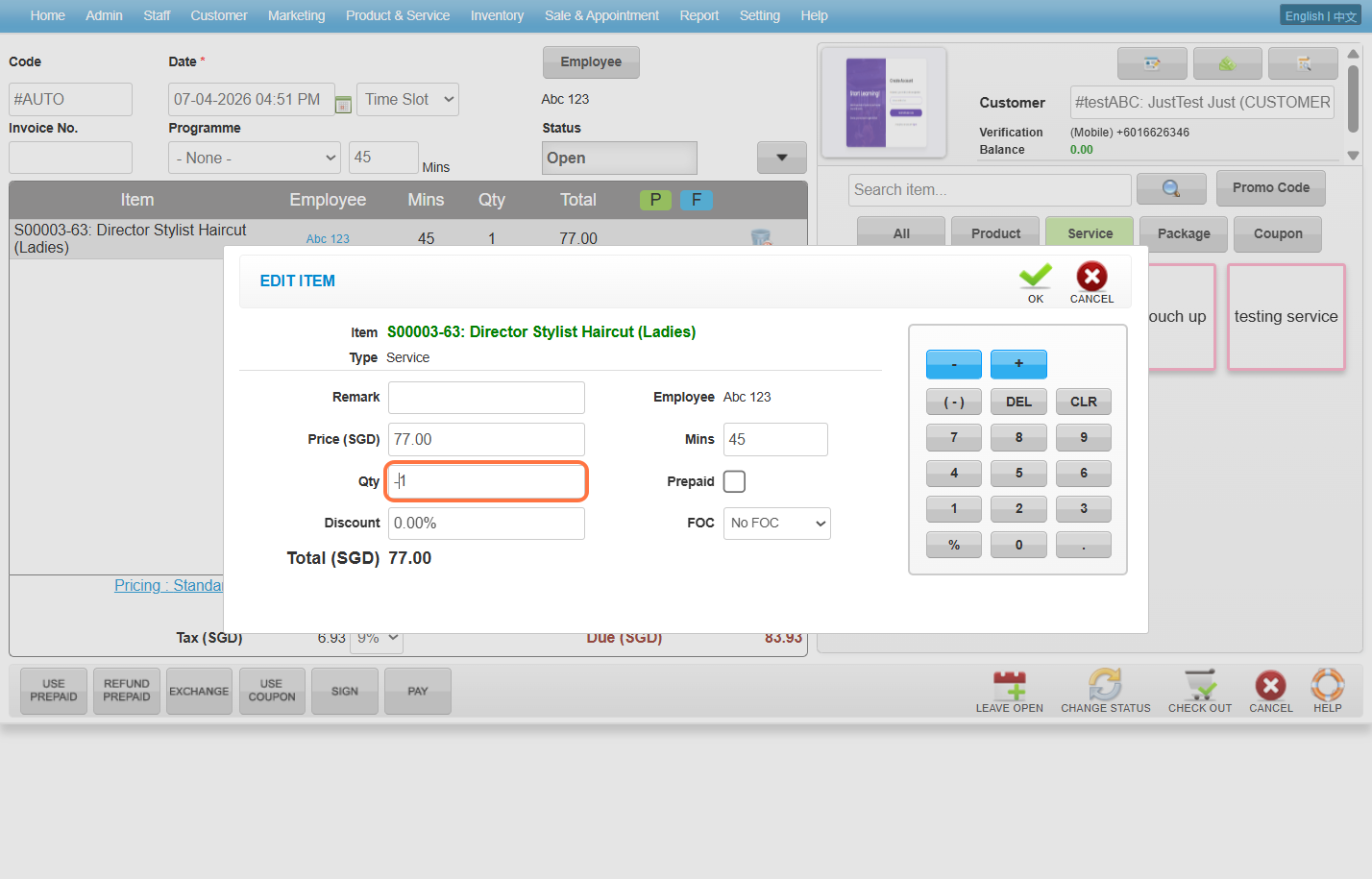
Step 4: Click on “OK“.
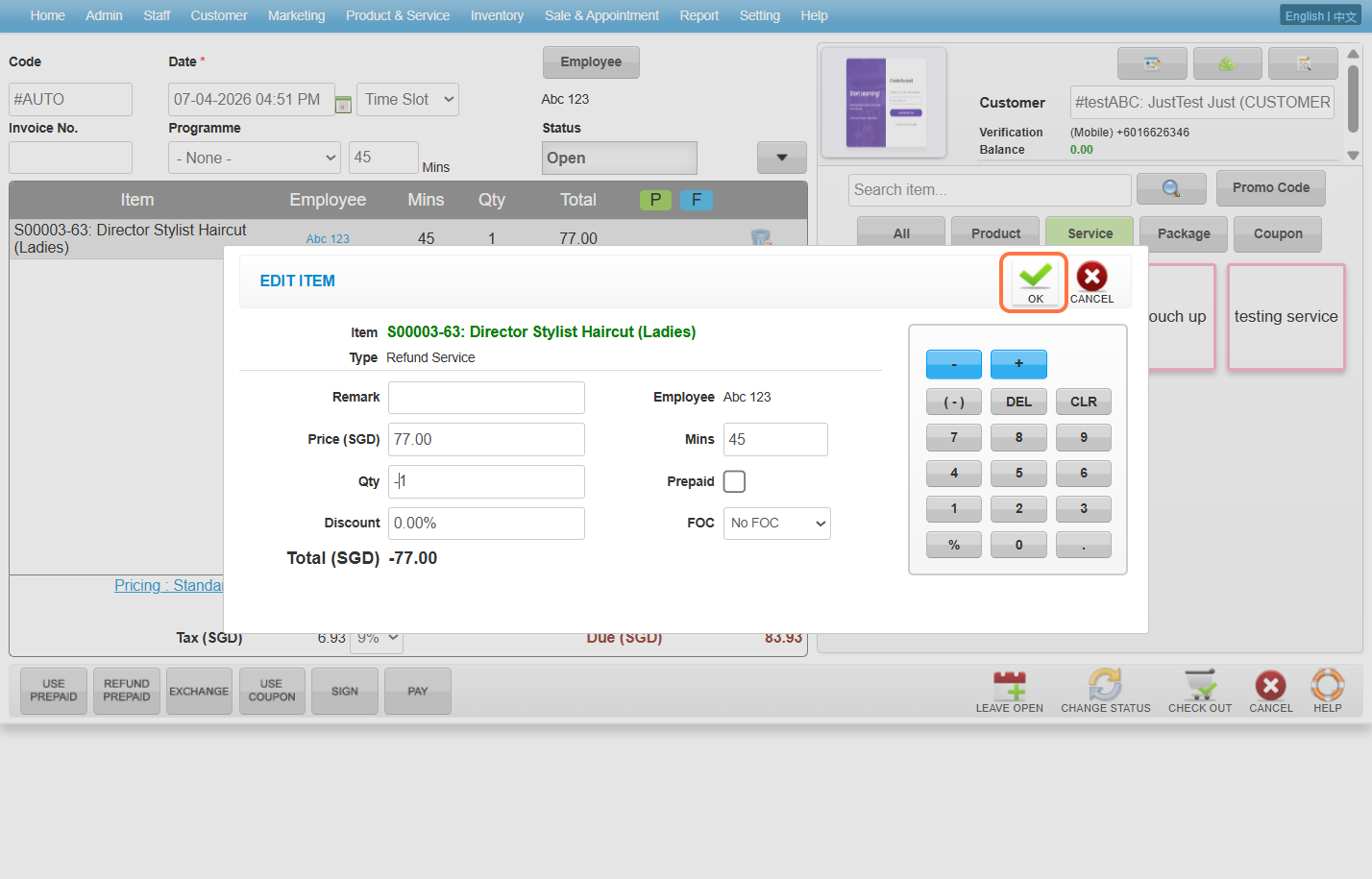
Step 5:Click on “CHECK OUT“.
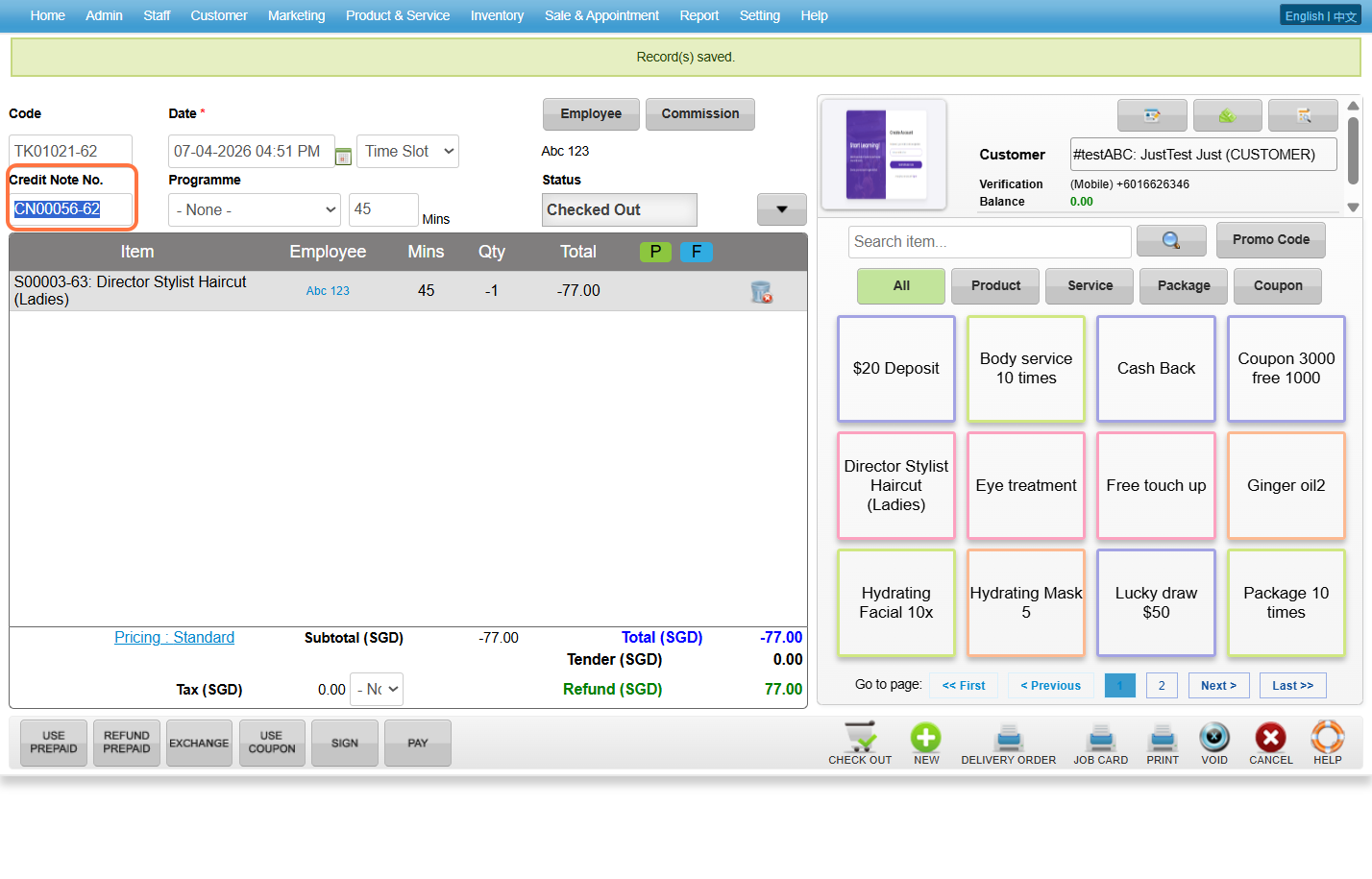
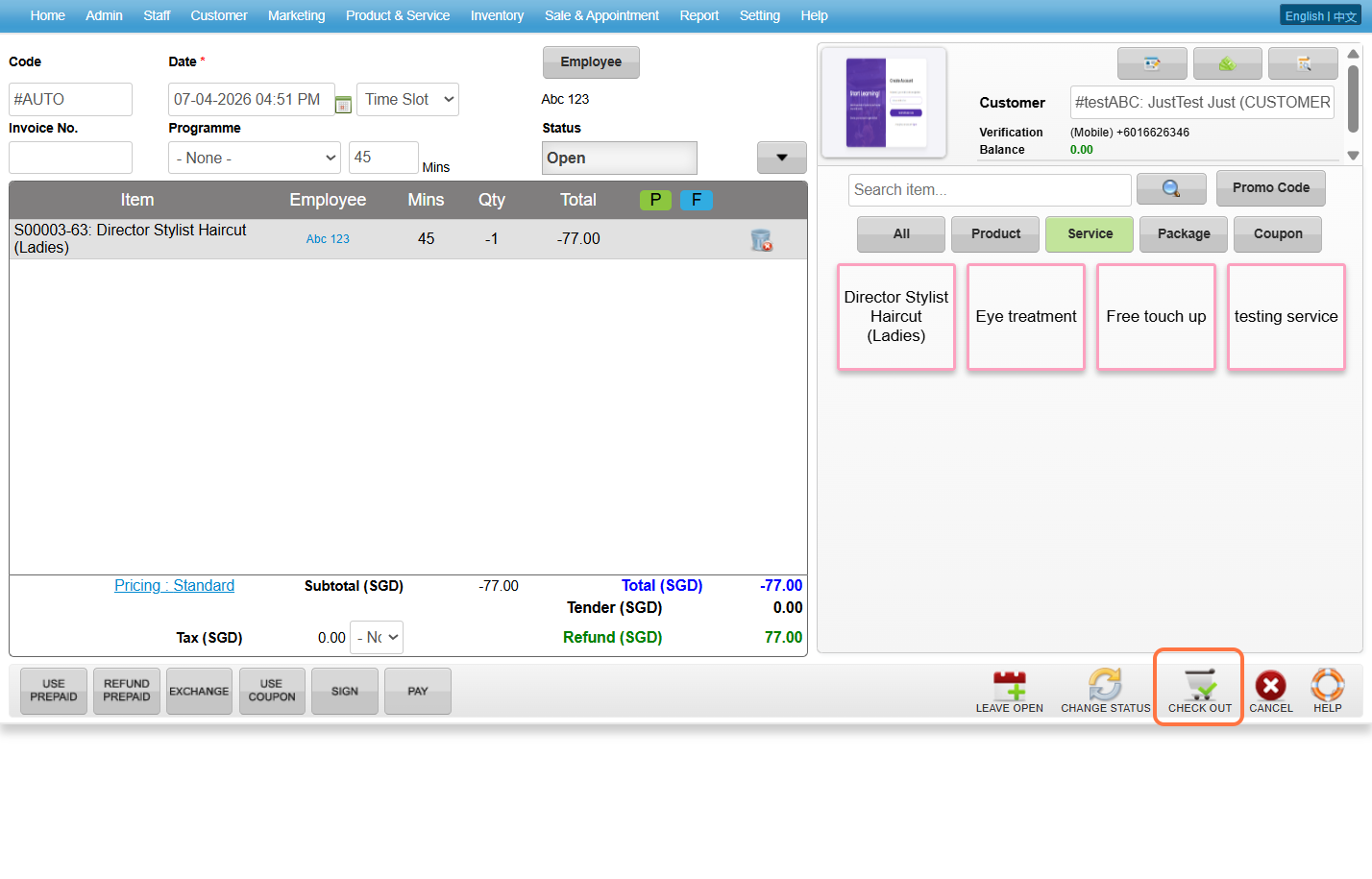 Step 6: System successful to generate the “Credit Note No“.
ℹ️ Method 2 for Prepaid Item
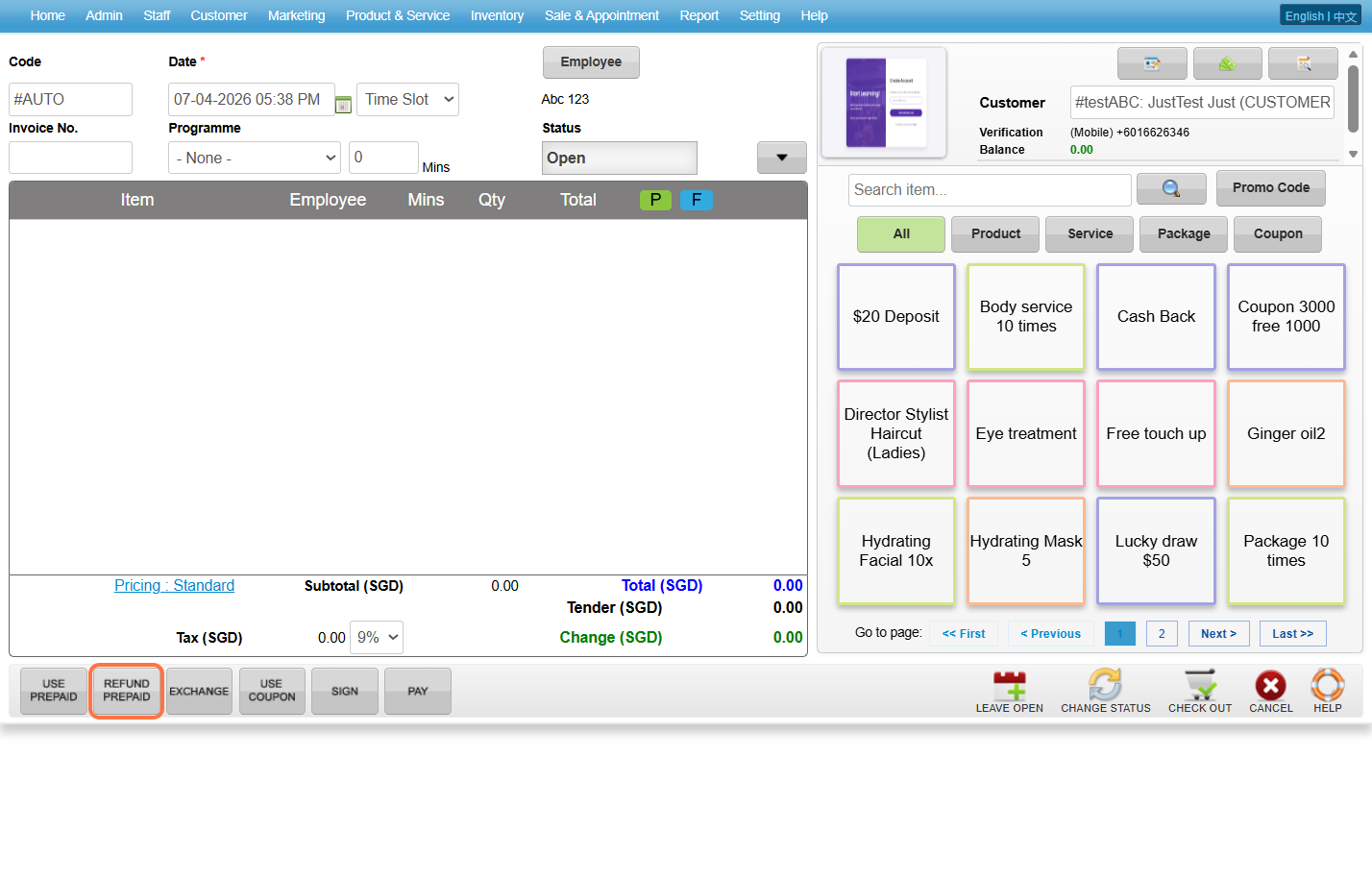
Step 1: Click on “Refund Prepaid“.
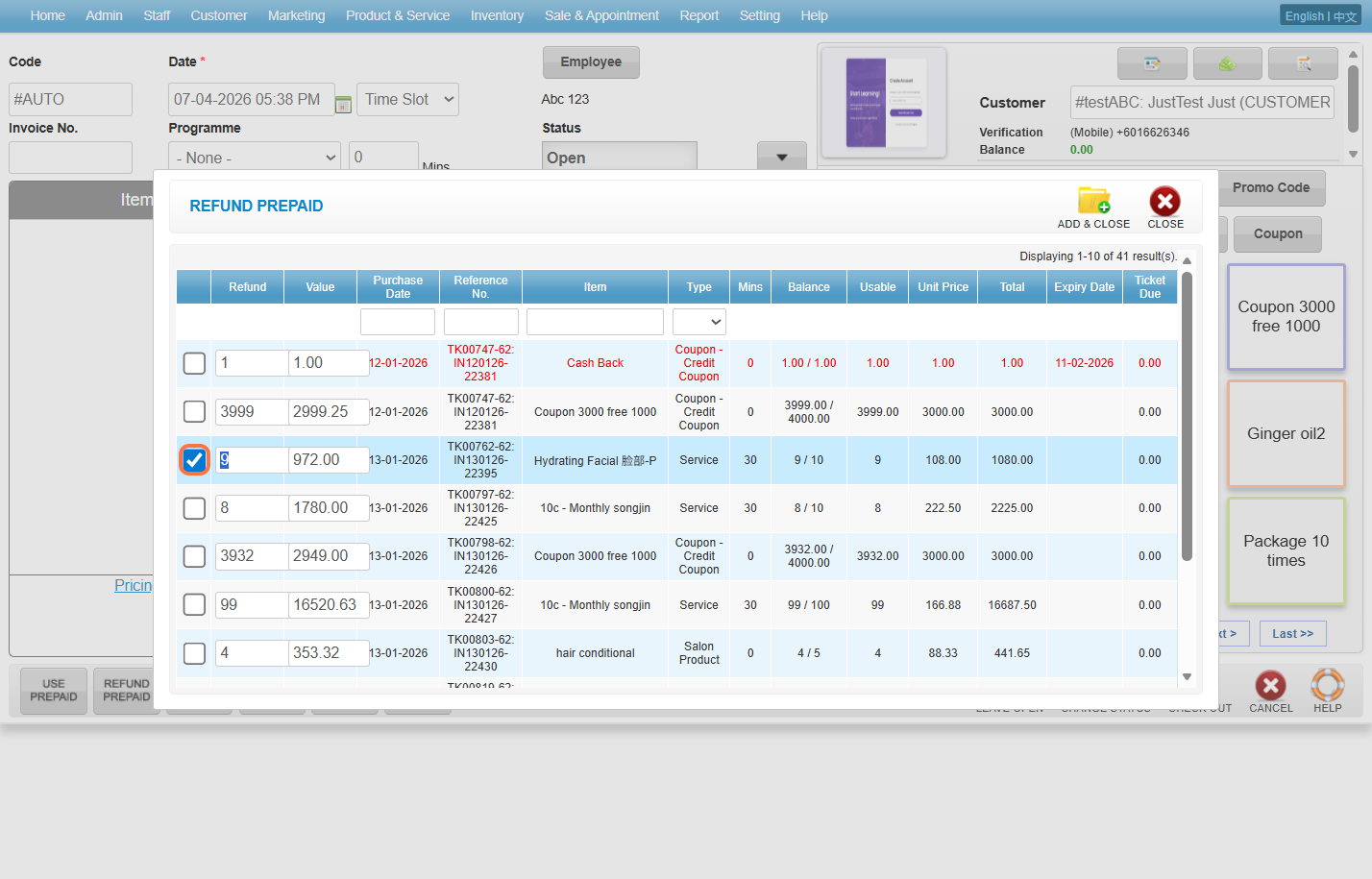
Step 2: Select which prepaid service you want to refund.
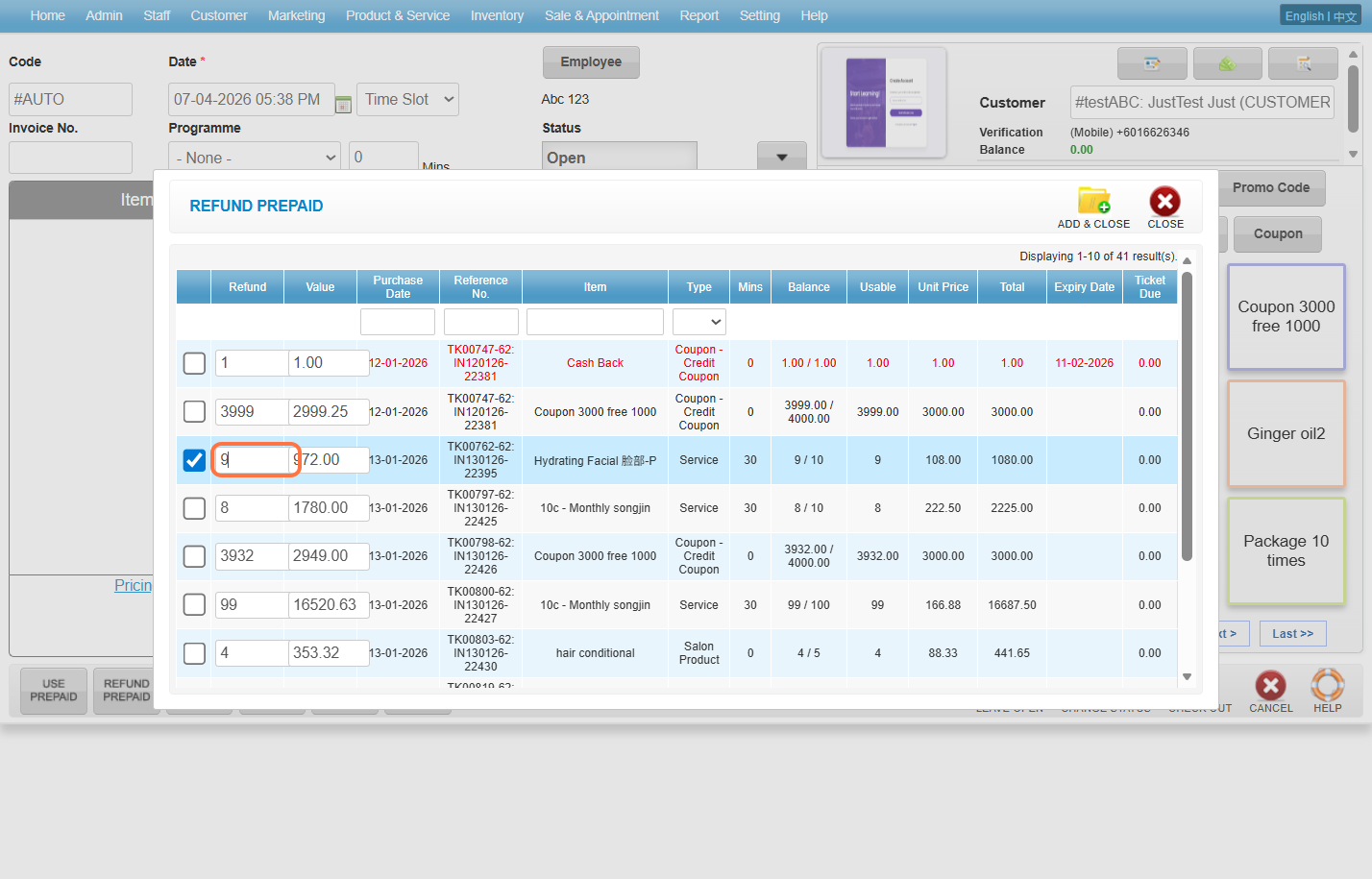
Step 3: Select the quantity need to be refund.
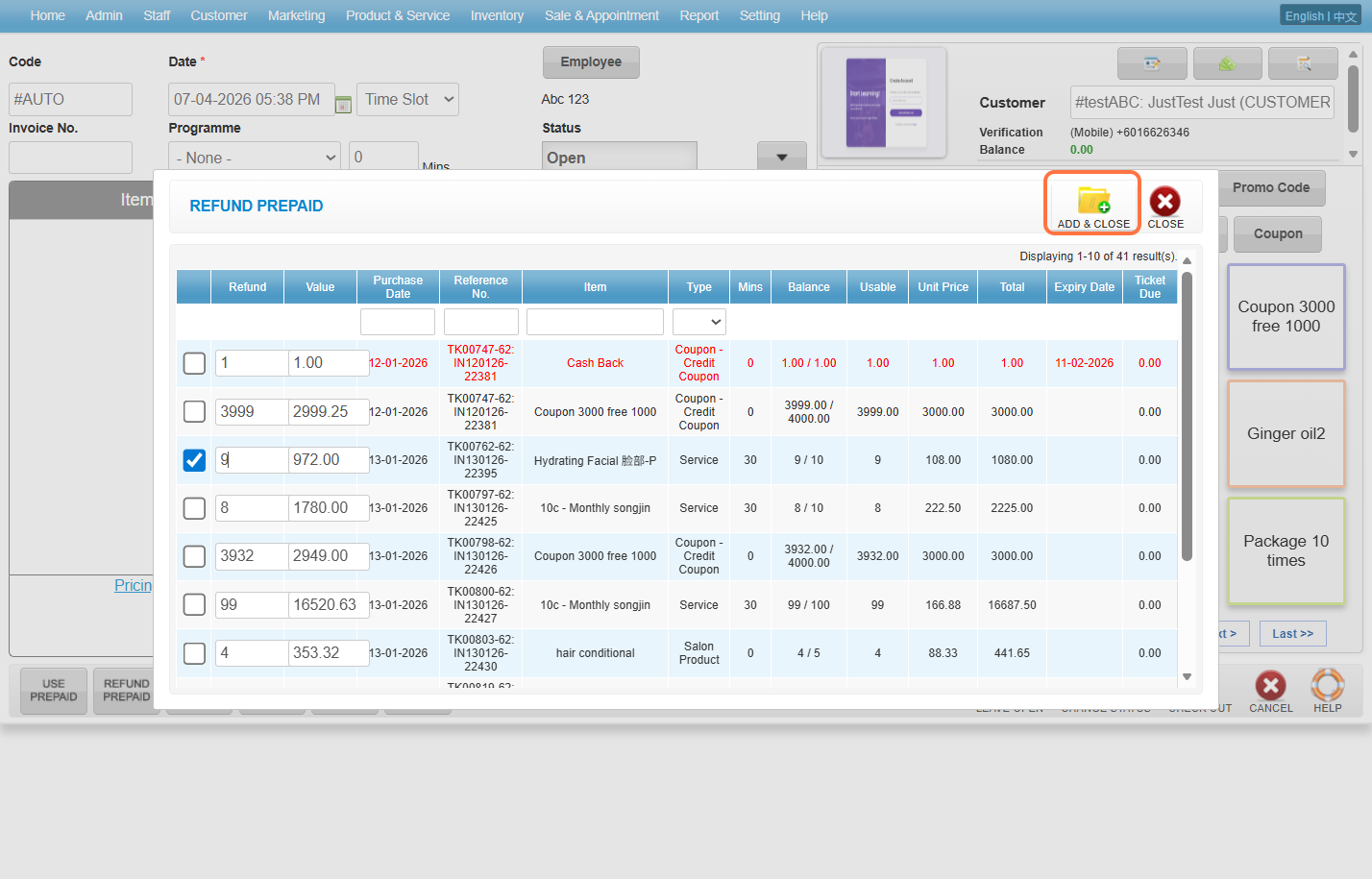
Step 4: Click on “ADD & CLOSE“.
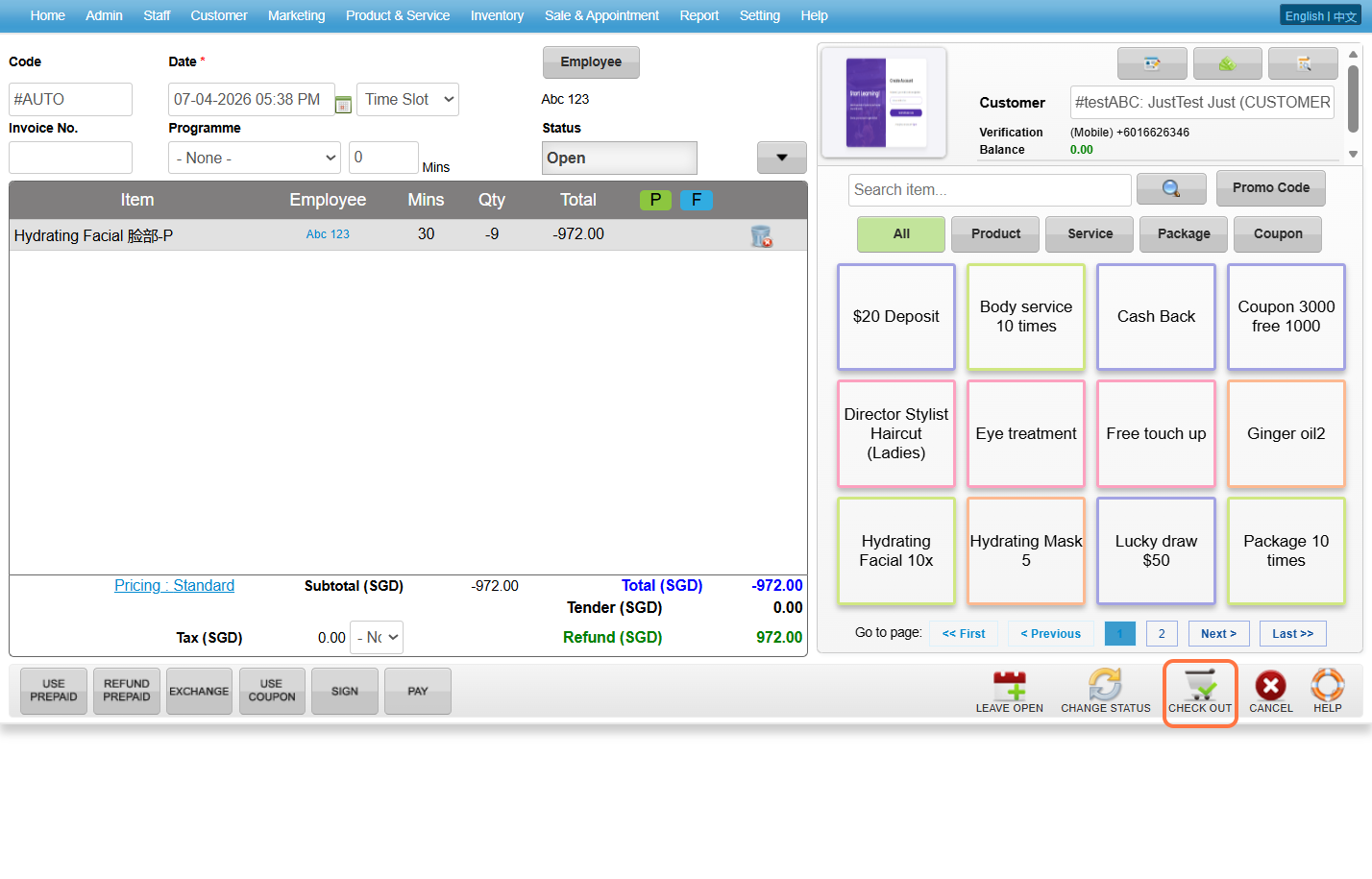
Step 5: Click on “CHECK OUT“.
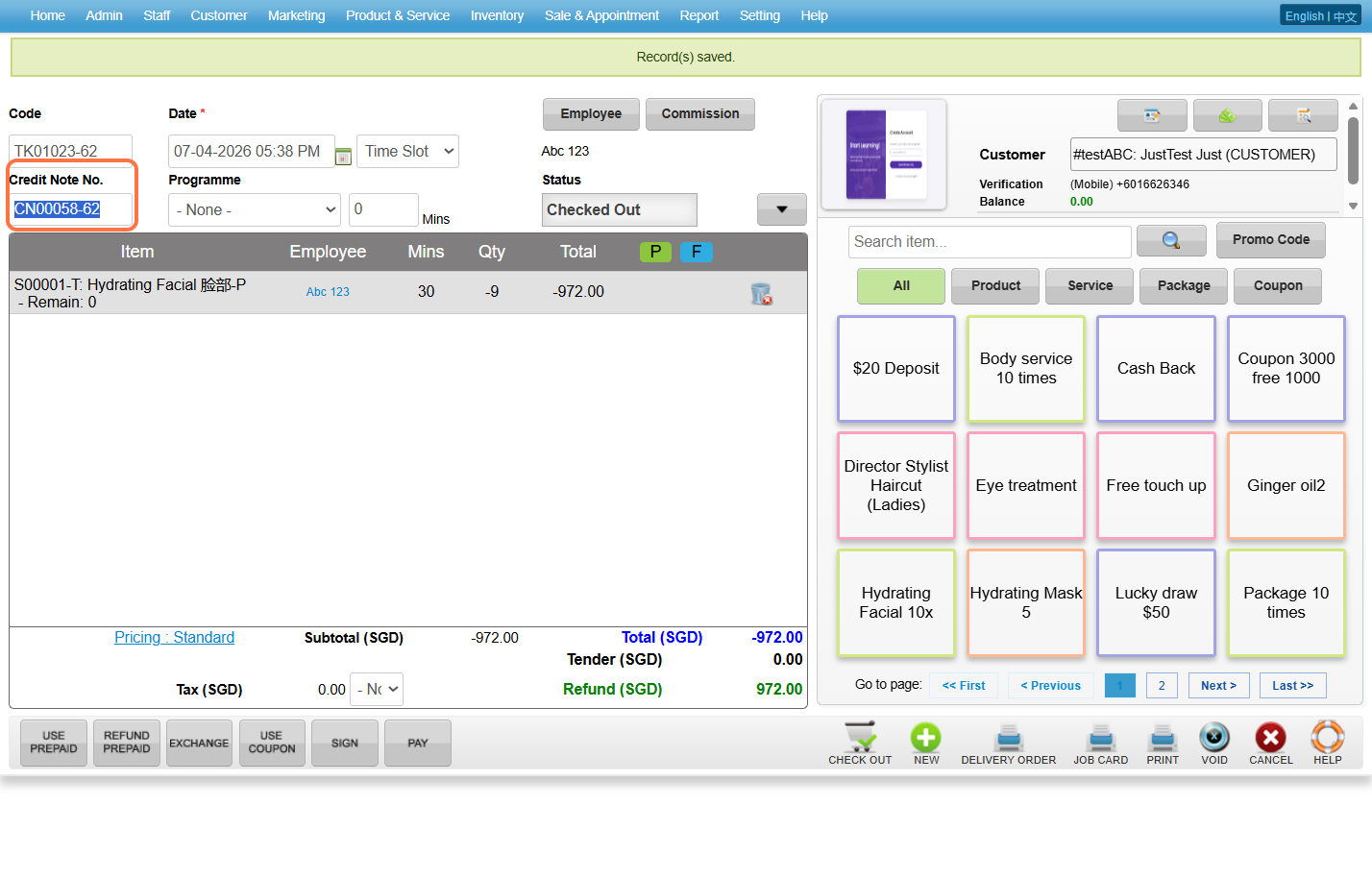
 Step 6: System successful to generate the Credit Note No.
Last Updated: April 2026