
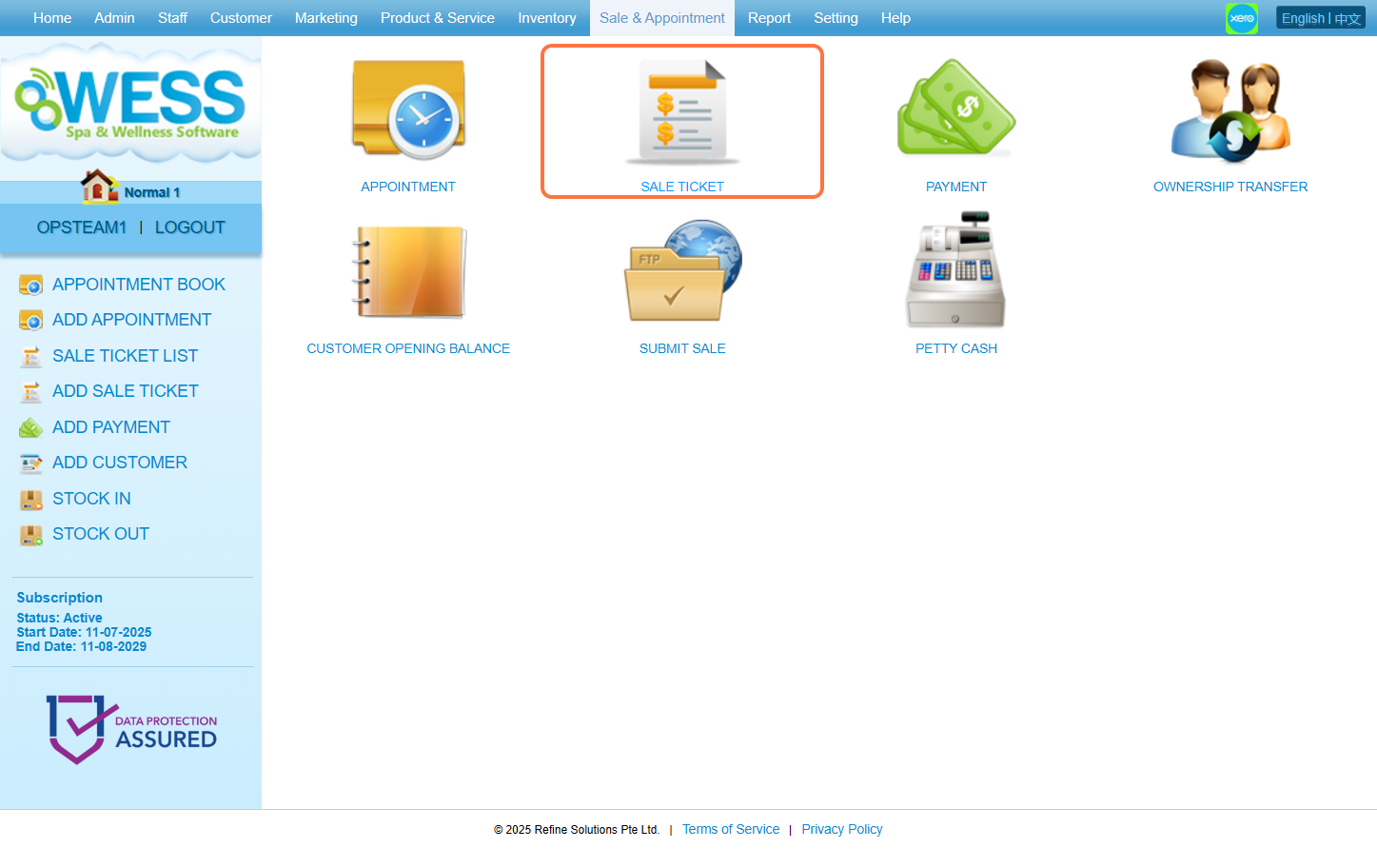
Step 1: Click “Sale & Appointment”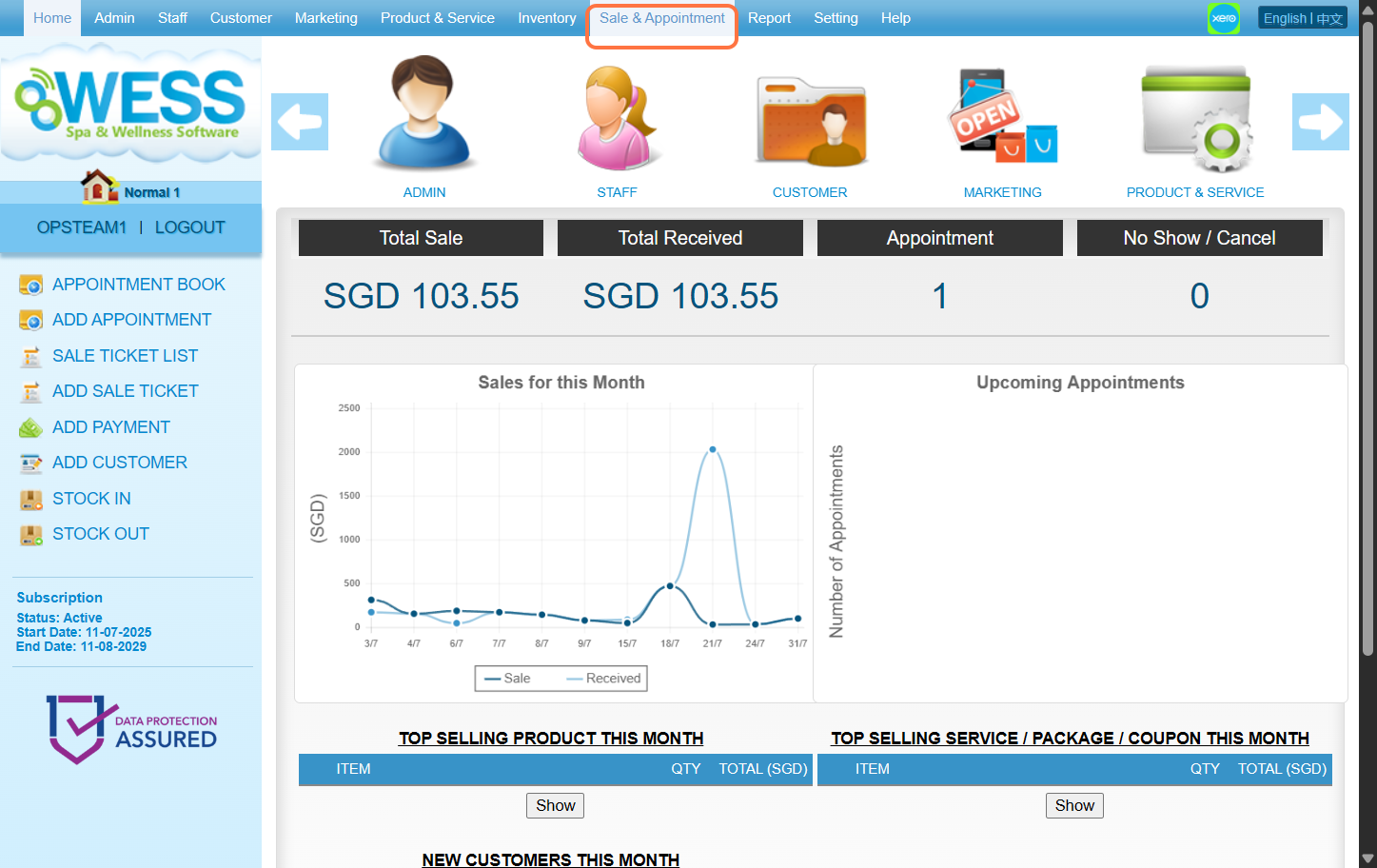 Step 2: Click “SALE TICKET”.
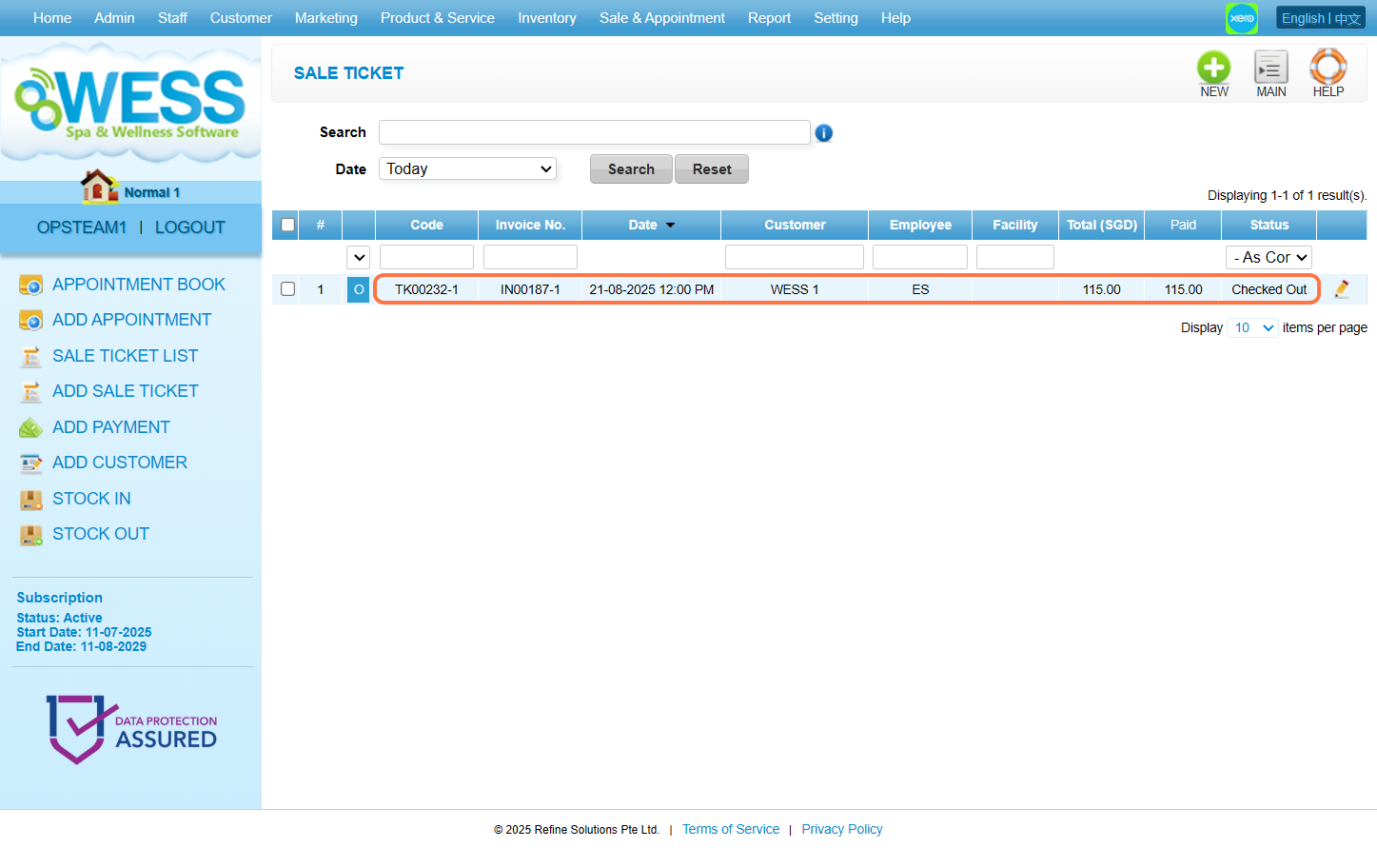
 Step 3: Click on any of the past sale ticket that you want to send the sale invoice to the customer.
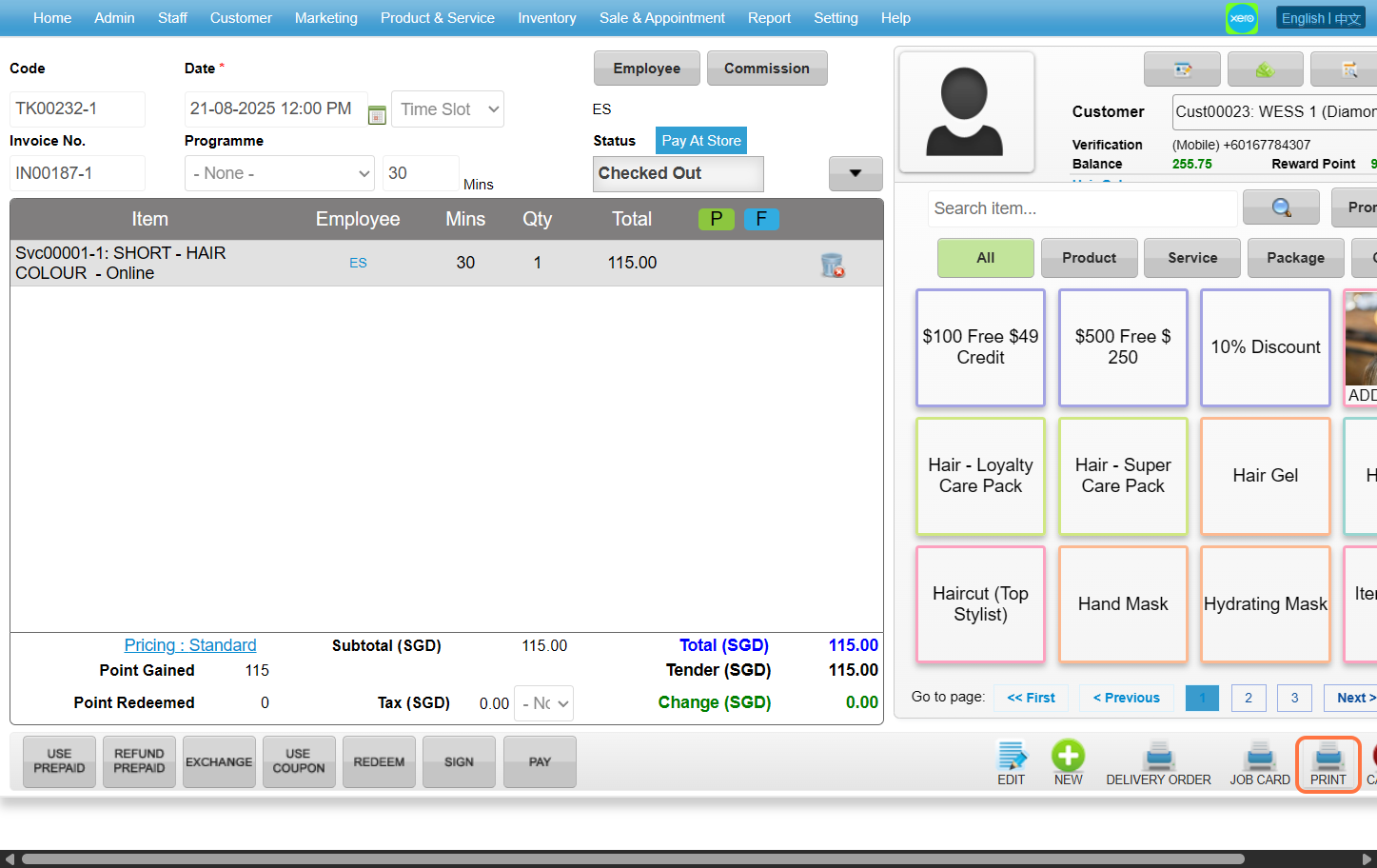
 Step 4: Click “PRINT”.
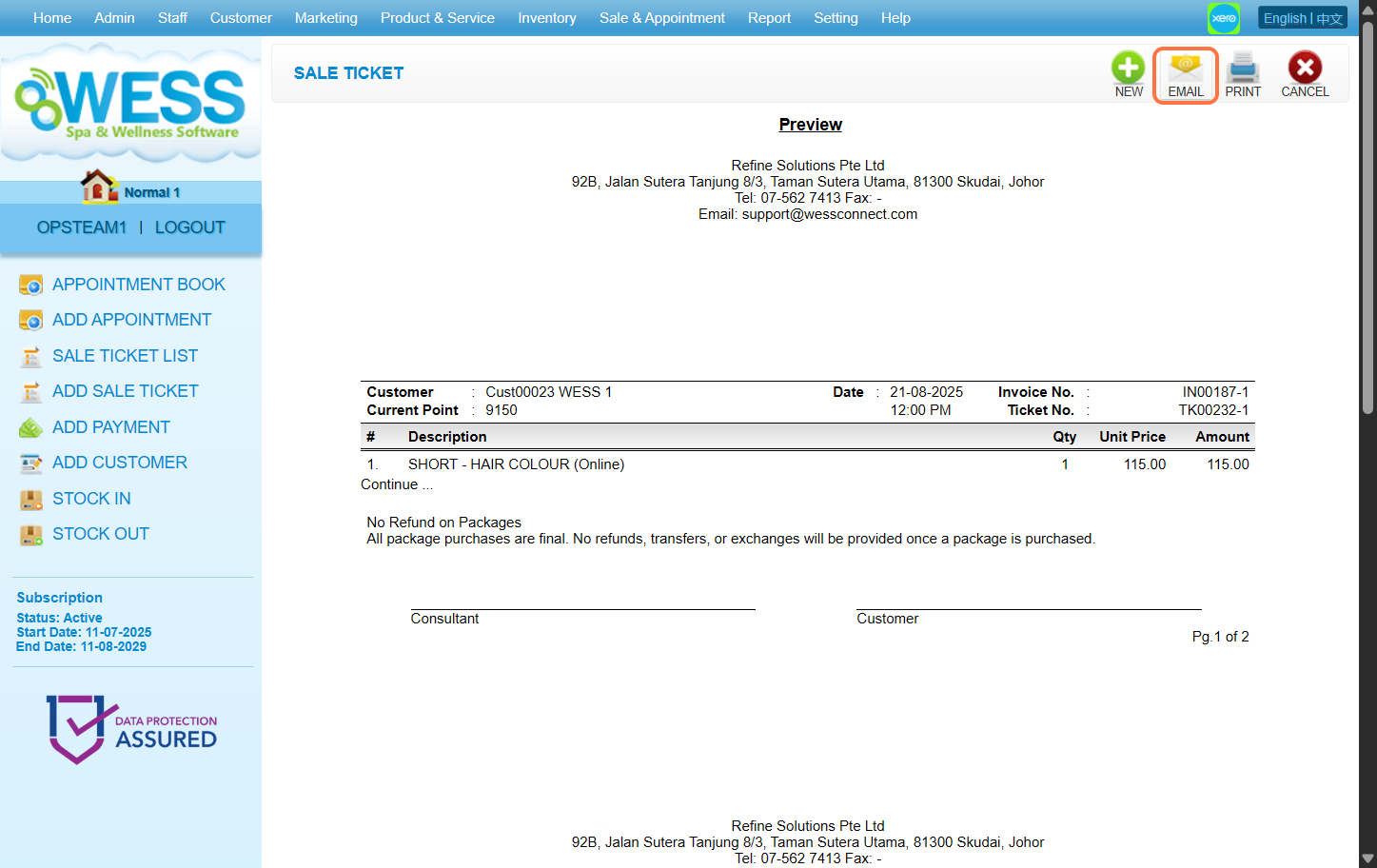
 Step 5: Click “EMAIL”.
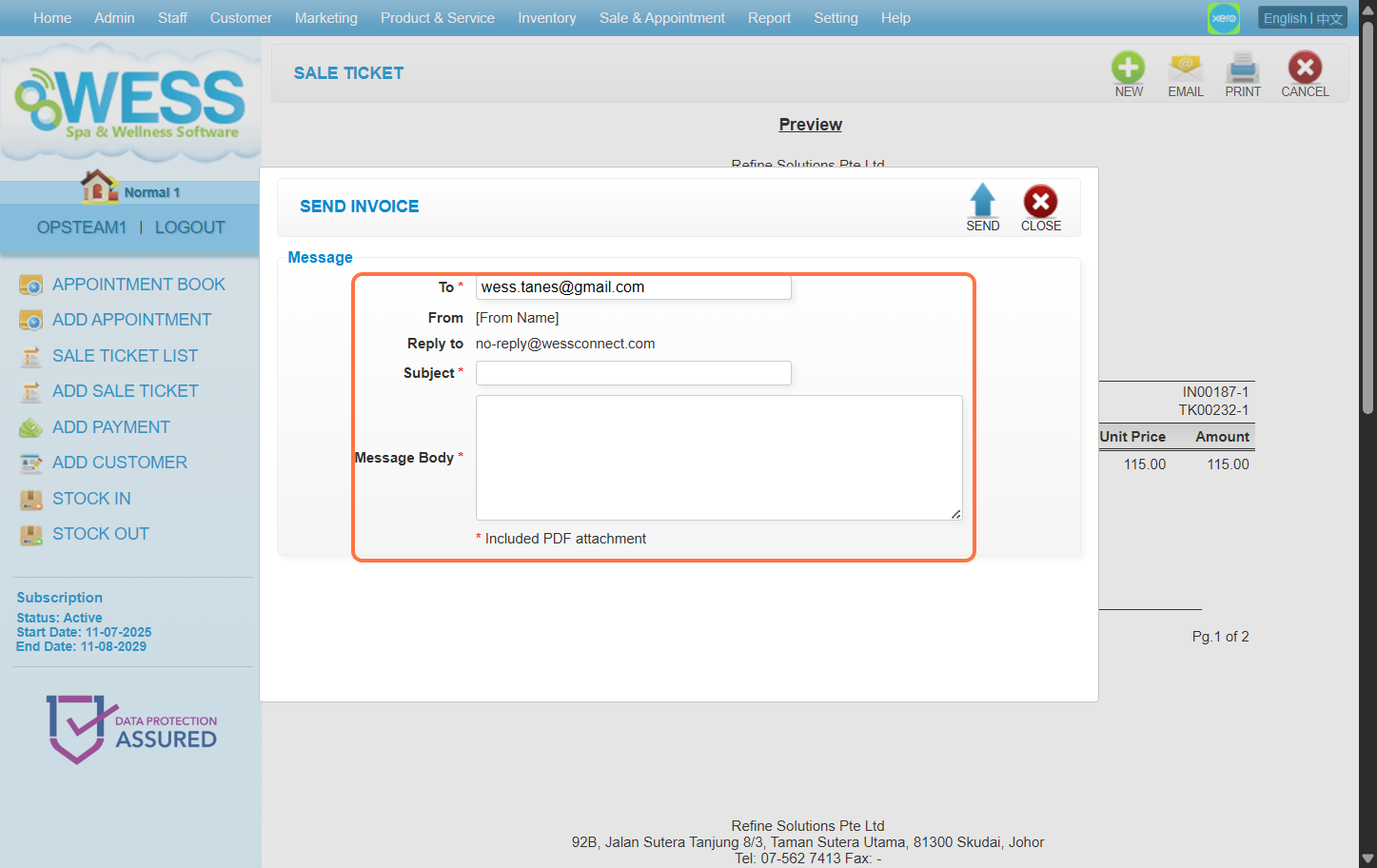
 Step 6: Fill the textbox with the respective information accordingly.
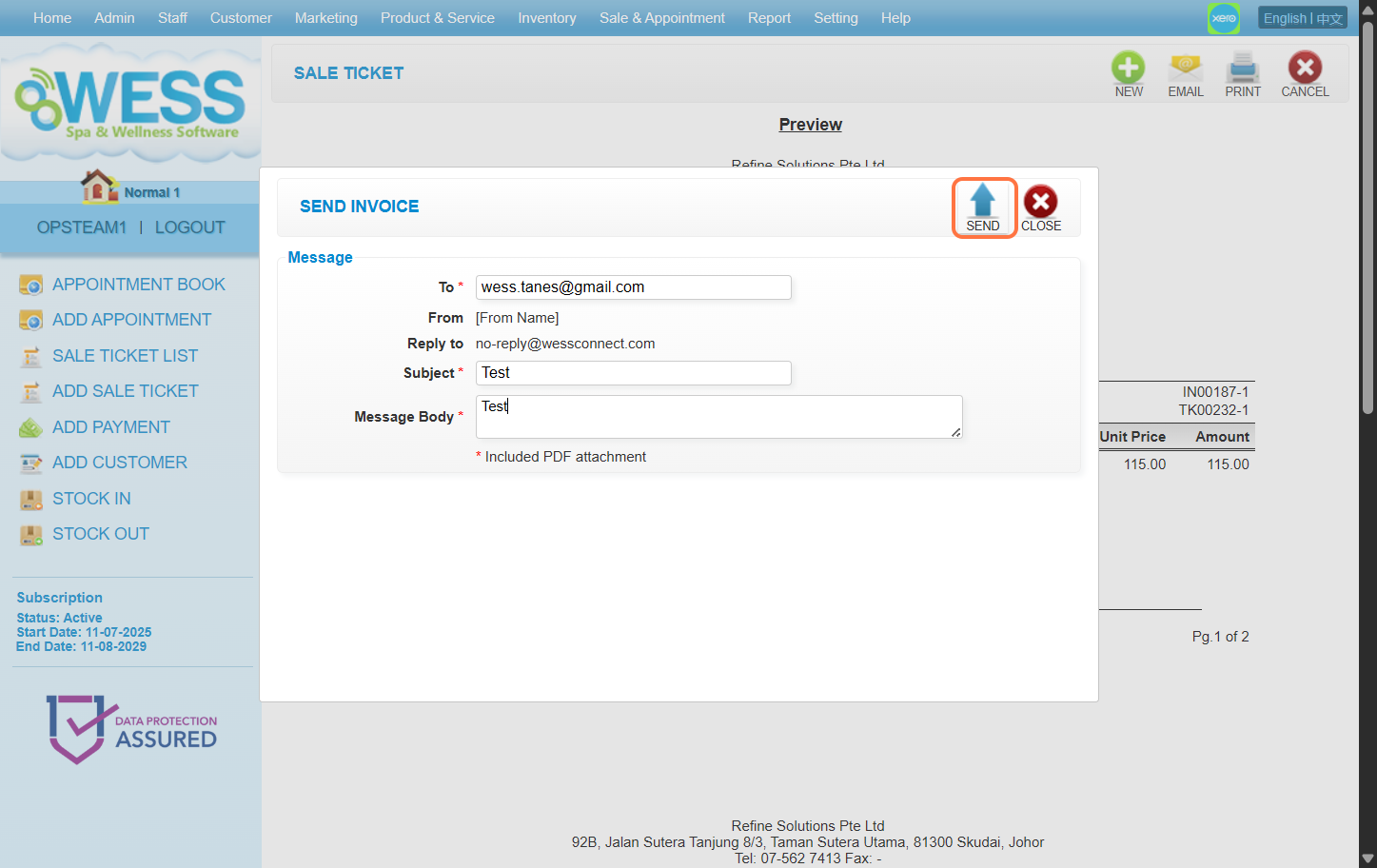
 Step 7: Click “SEND”.
 Last update: August 2025
Step 2: Click “SALE TICKET”.
Step 3: Click on any of the past sale ticket that you want to send the sale invoice to the customer.
Step 4: Click “PRINT”.
Step 5: Click “EMAIL”.
Step 6: Fill the textbox with the respective information accordingly.
Step 7: Click “SEND”.
Last update: August 2025