
This error is shown if the staff clocks in at the same time as the existing attendance record.
[!] This error may be caused by the user performing a clock in IN MULTIPLE TABS
Step 1: Click “Staff” .
Step 2: Click on “TIME ATTENDANCE” .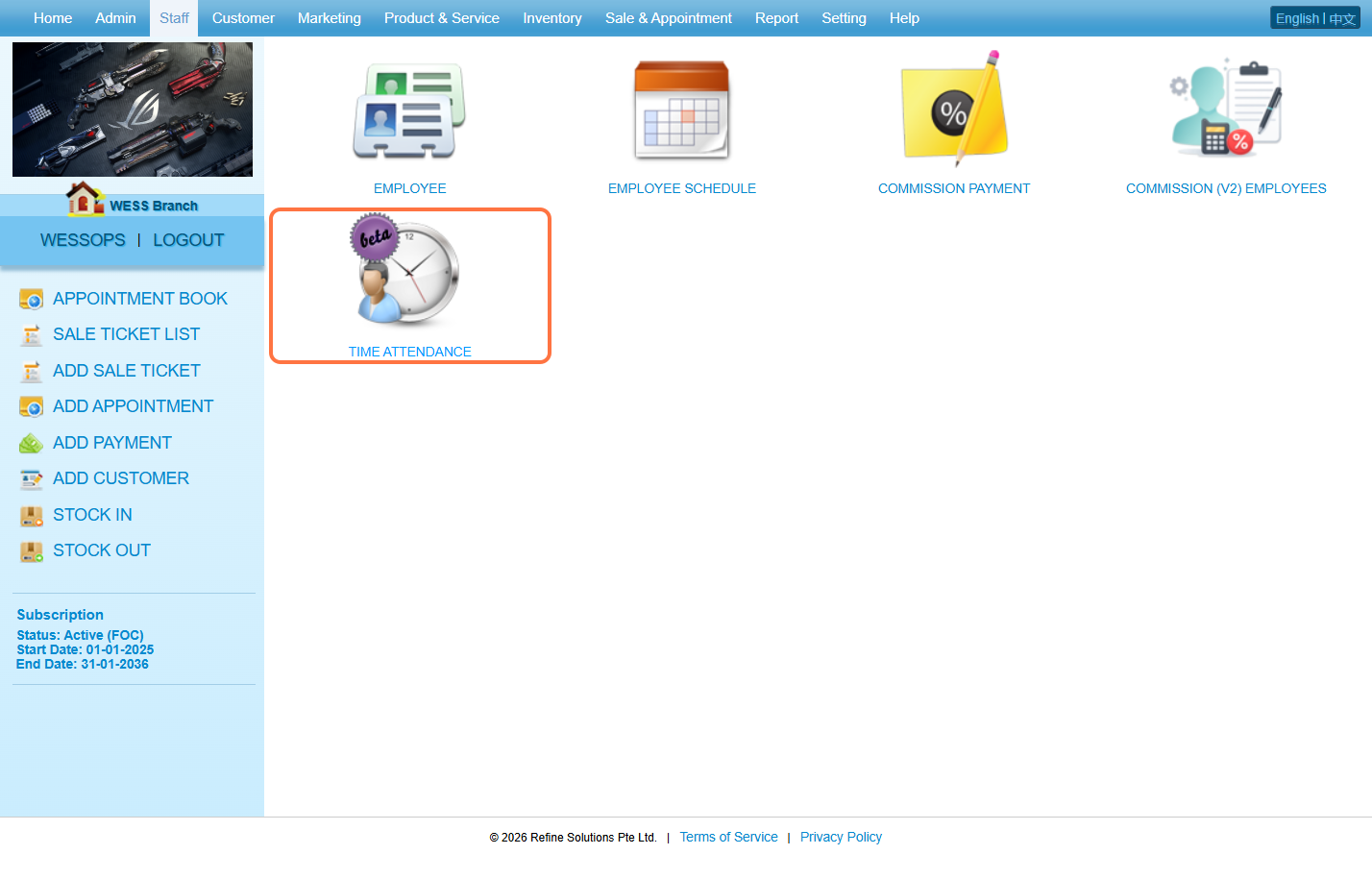
Step 3: Click on “MANAGER” .
Step 4: Select an “Employee” .
Step 5: Enter password.
Step 6: Click on “Manage” .
Step 7: Tick the checkbox “☑️” to select the record.
Step 8: Click on DELETE “🛢❌” .
Step 9: Make sure the record has been deleted.
Step 10: Click on MAIN icon “📄” .
Step 11: Click on “TIME ATTENDANCE” .
Step 12: Click on “Clock In” .
Step 13: Enter the “Password” .
Step 14: Click on “Clock In” .
Step 15: Make sure the clock-in is saved.
Last Updated: March 2026