
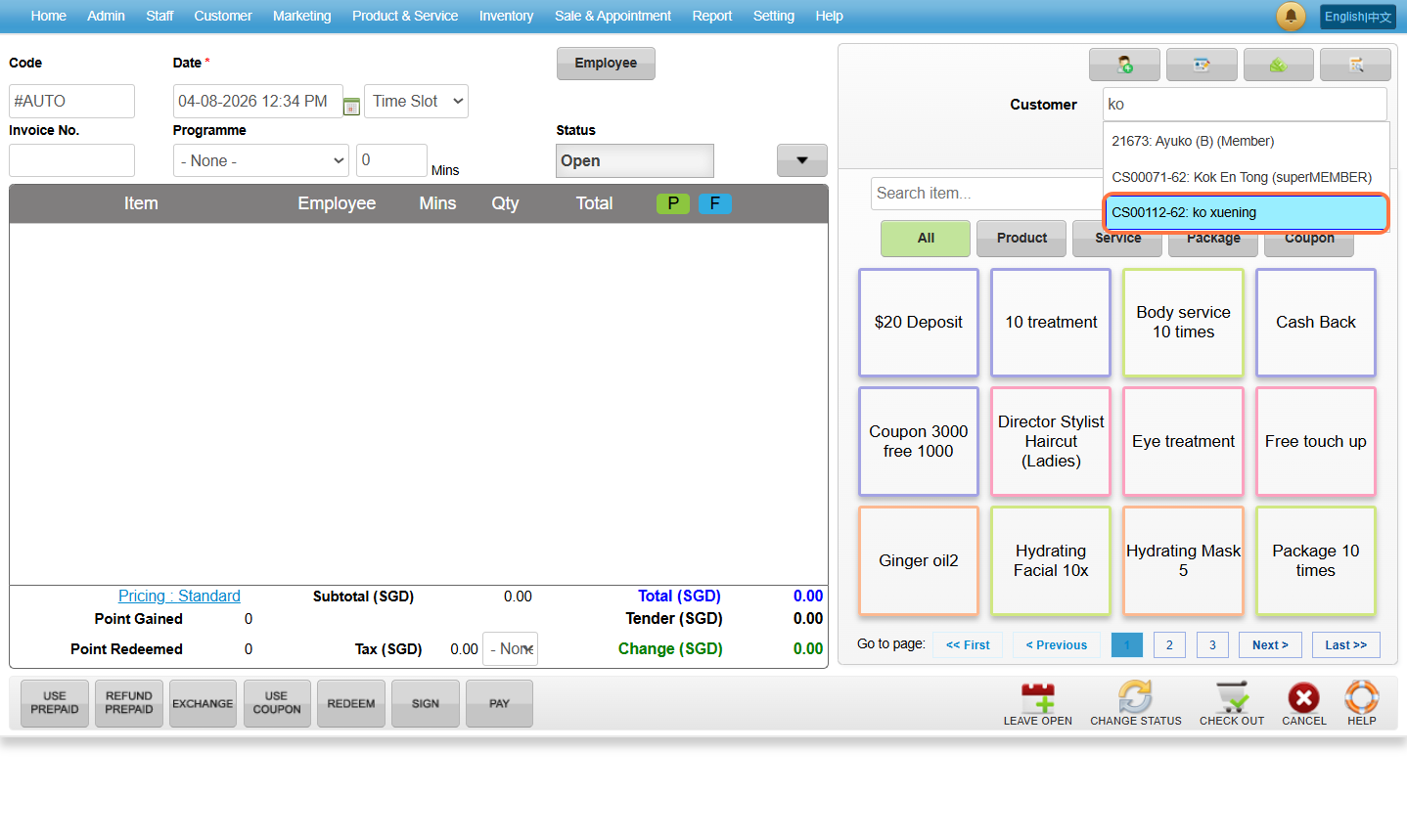
Step 1: Click “ADD SALE TICKET”.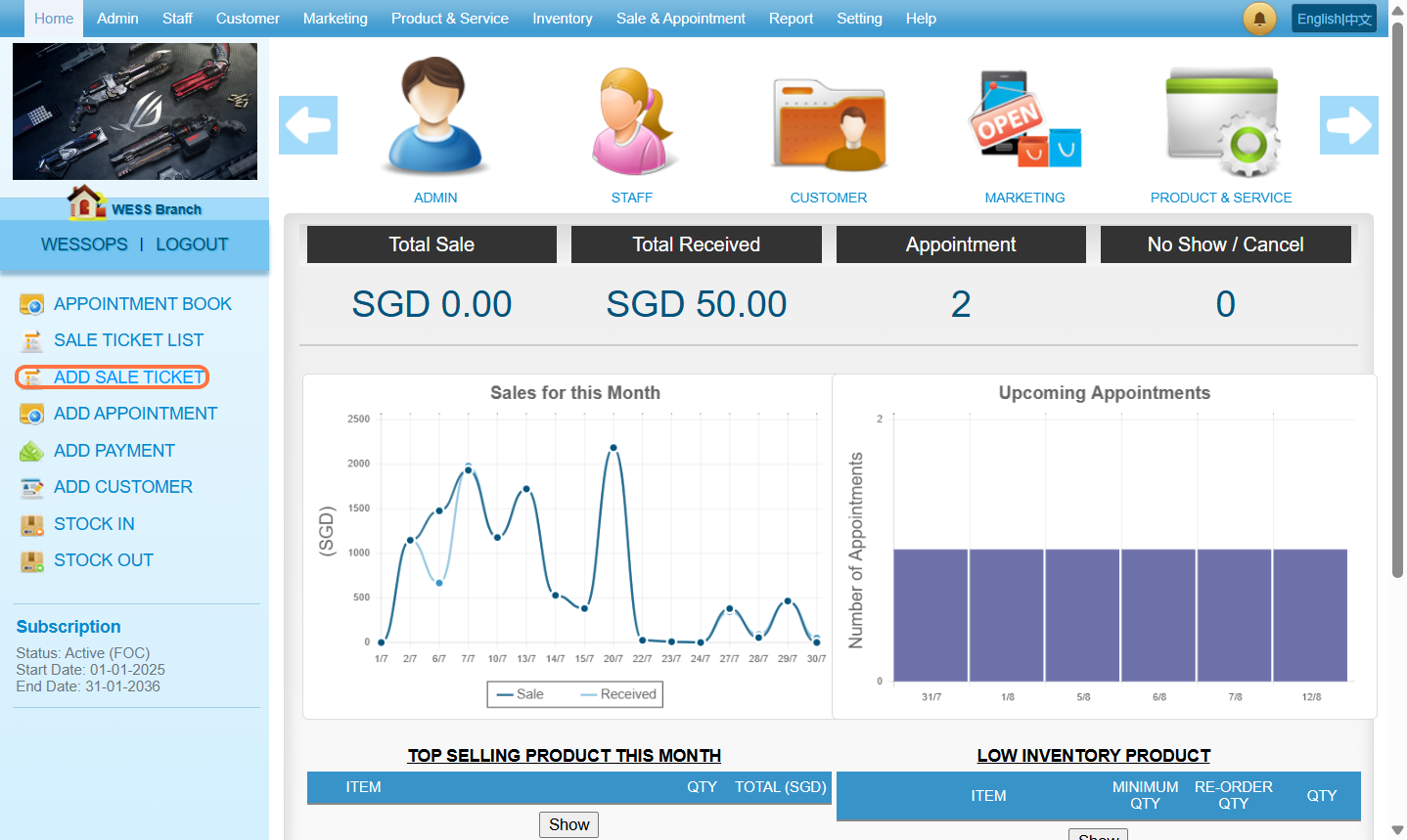 Step 2: Enter the customer name / code / phone number to search the customer you wanted.
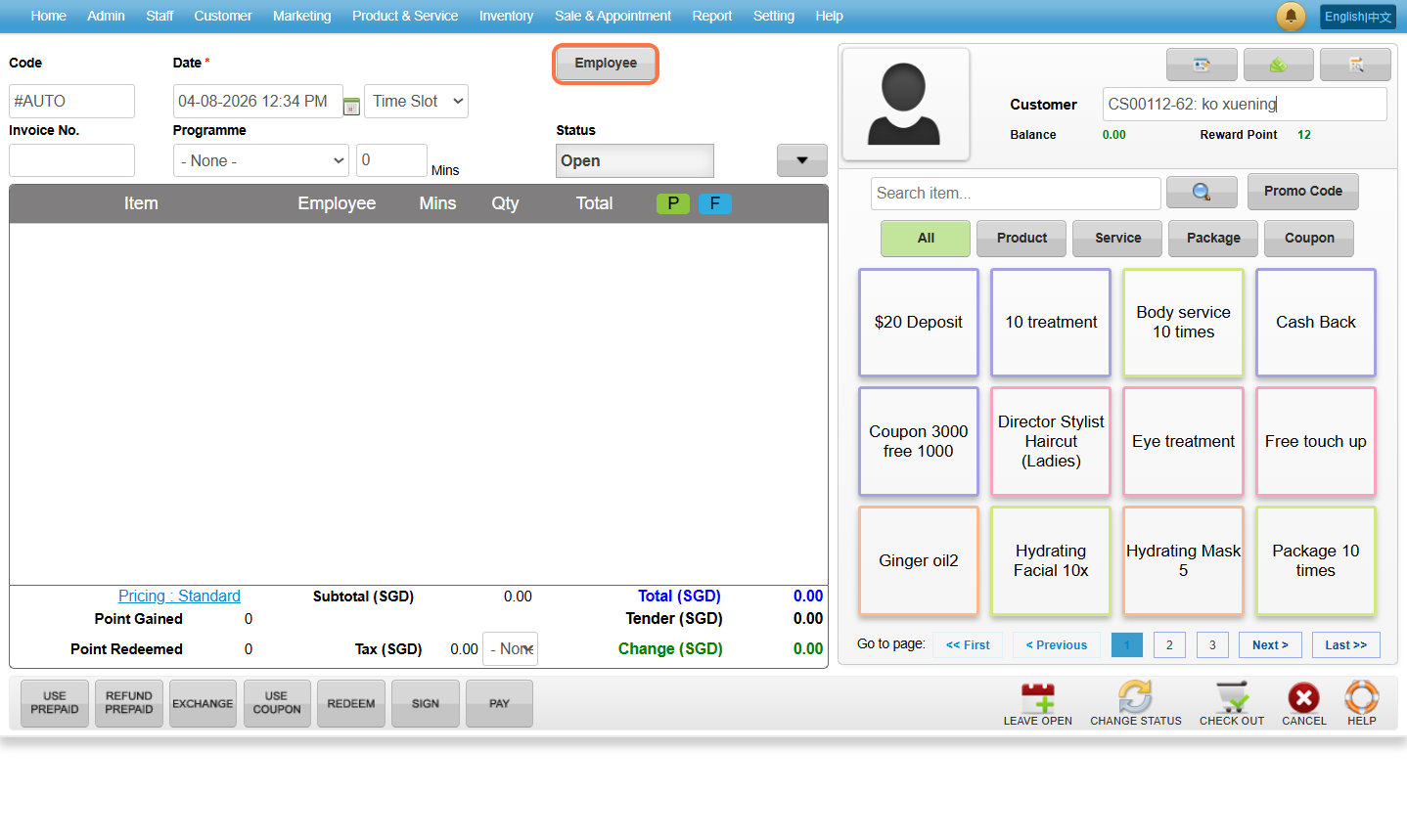
 Step 3: Click “Employee”.
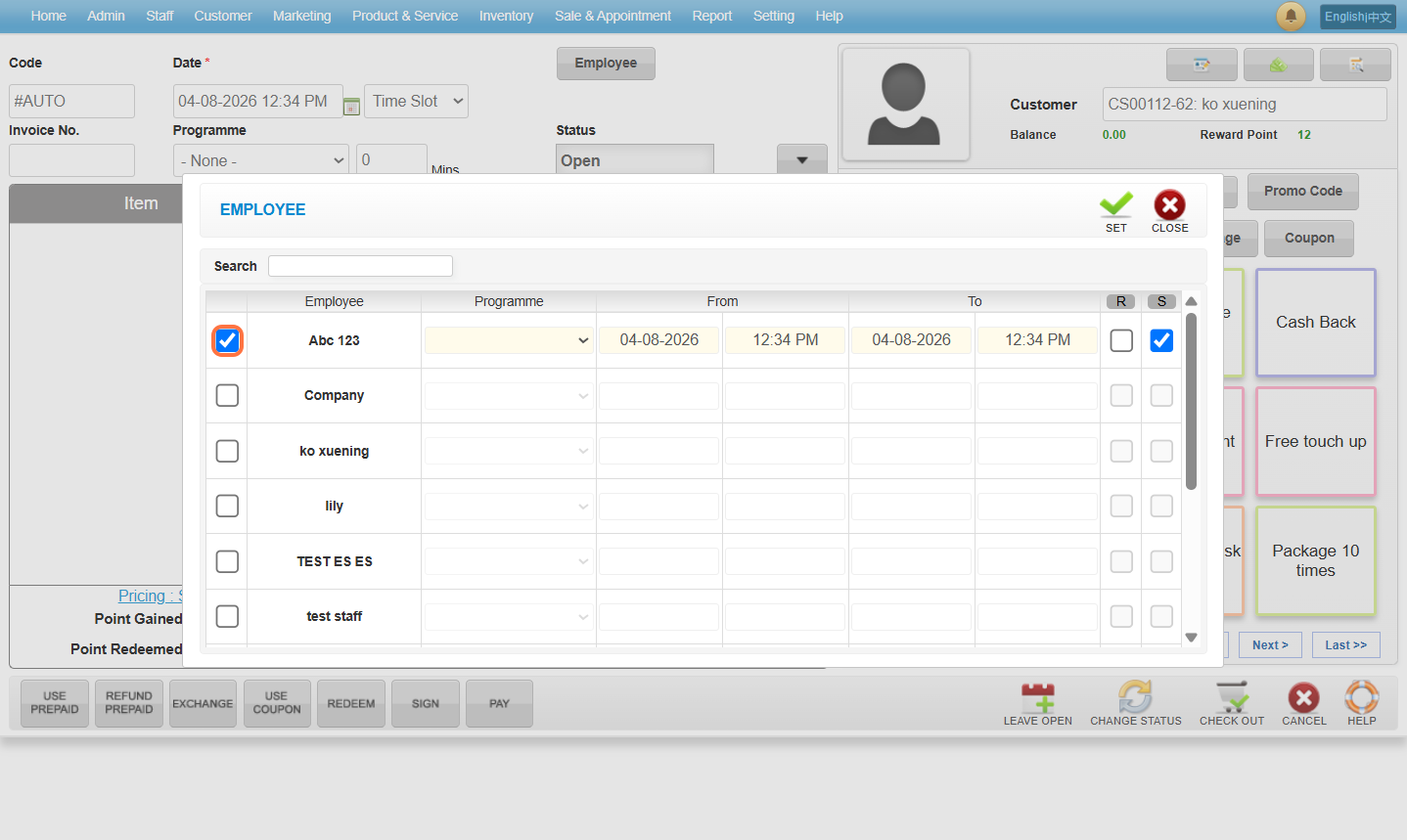
 Step 4: Choose any employee you want then click “SET” .
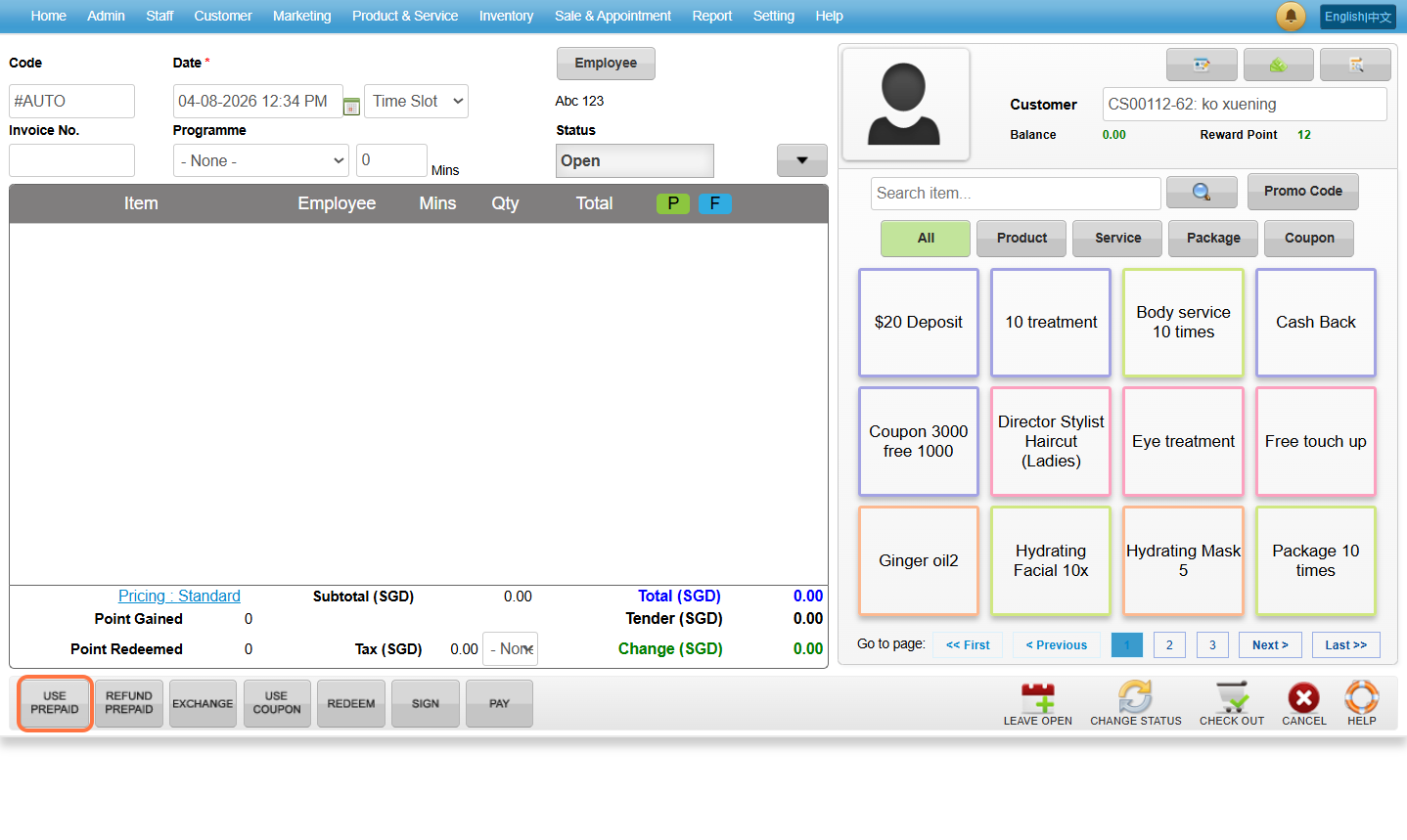
 Step 5: Click “USE PREPAID“.
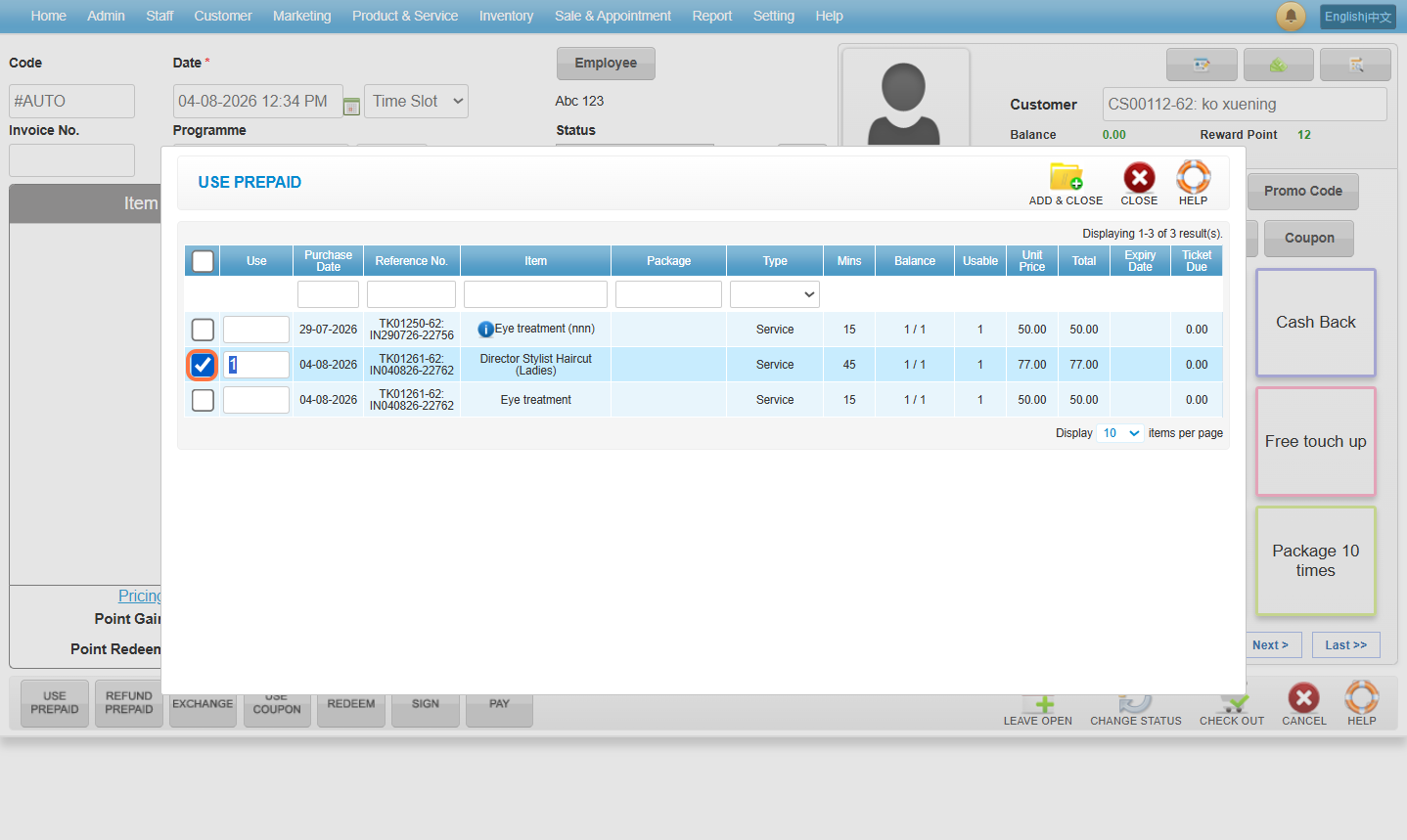
 Step 6: Select the prepaid item to be used.
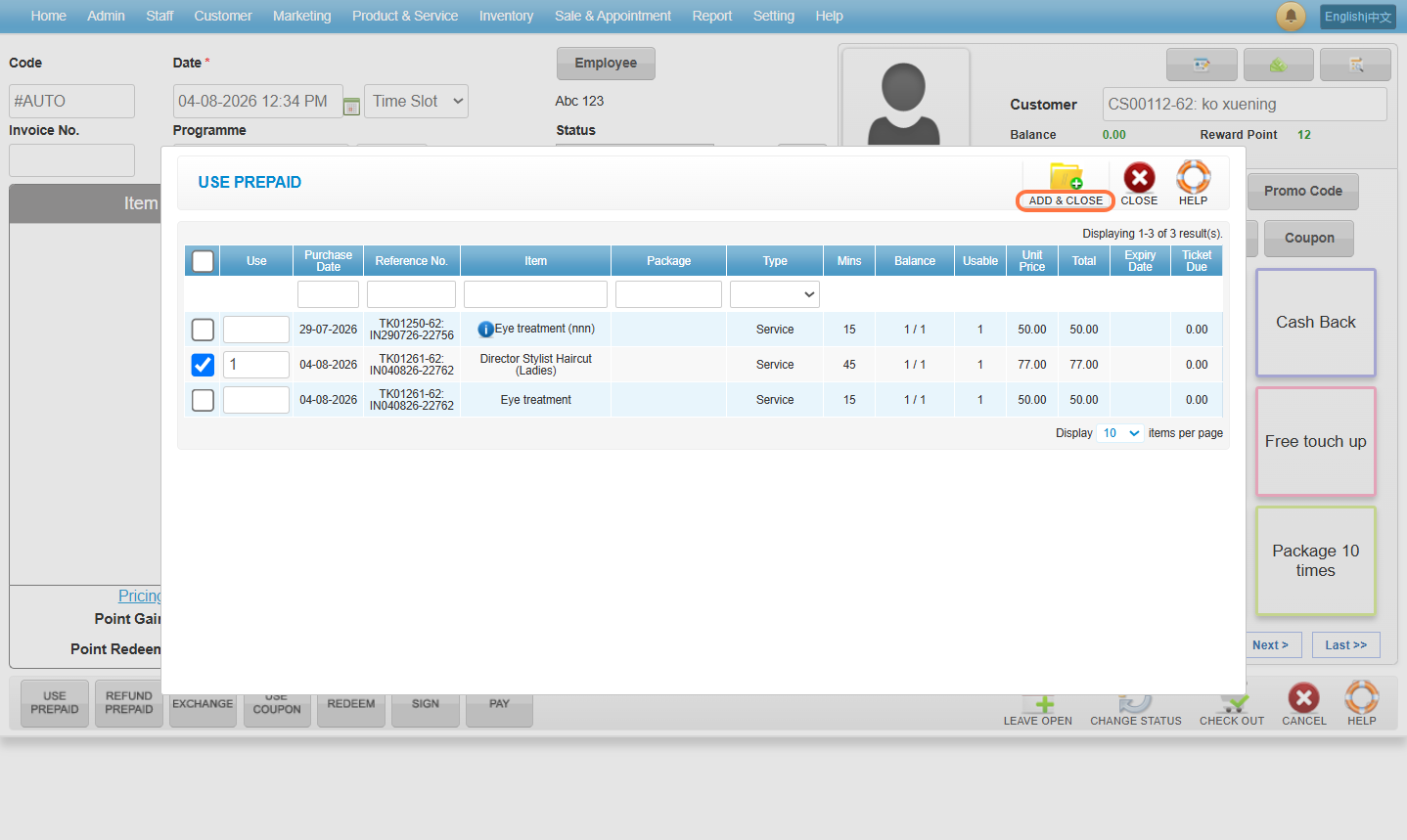
 Step 7: Click on “ADD & CLOSE”.
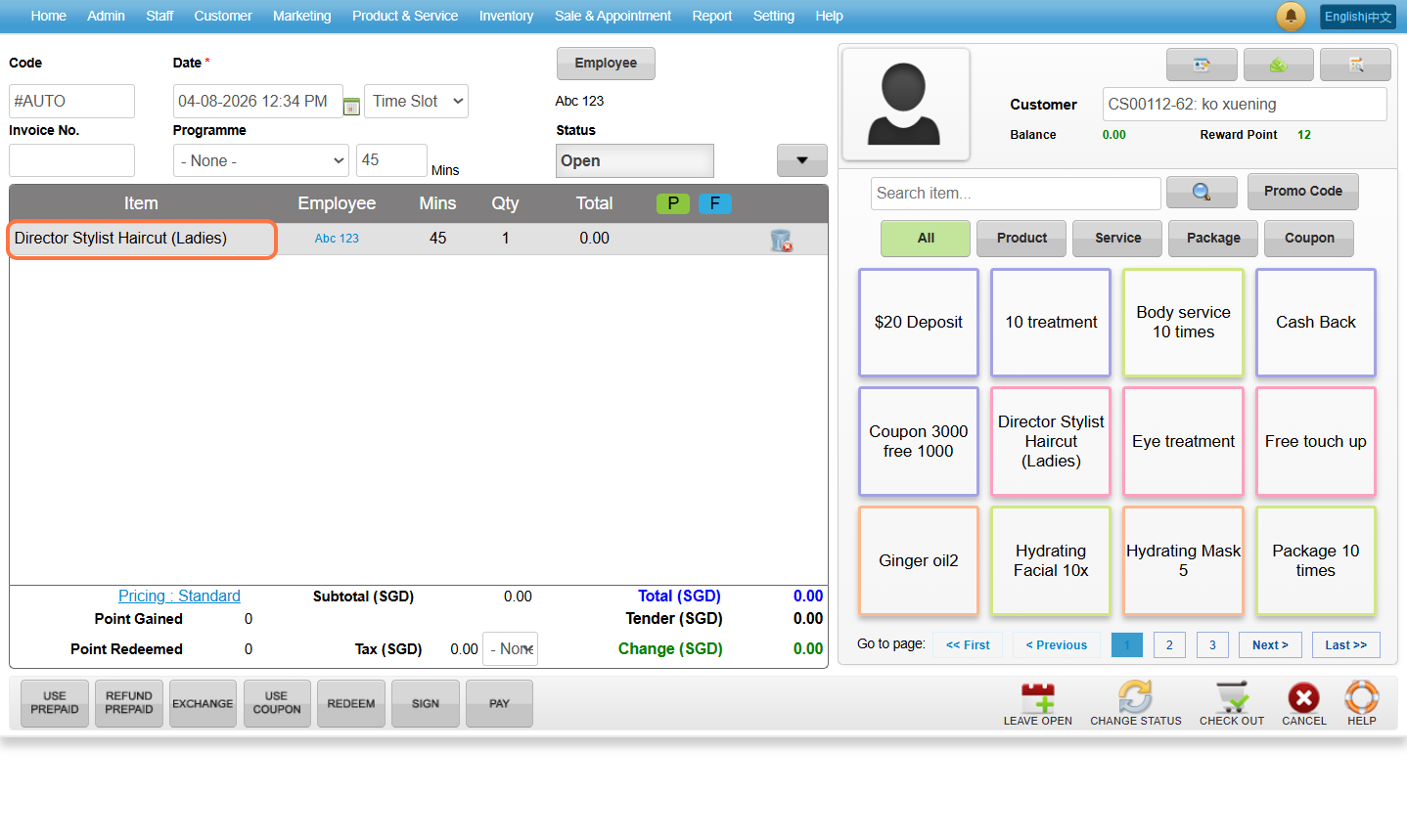
 Step 8: Click on the selected prepaid item.
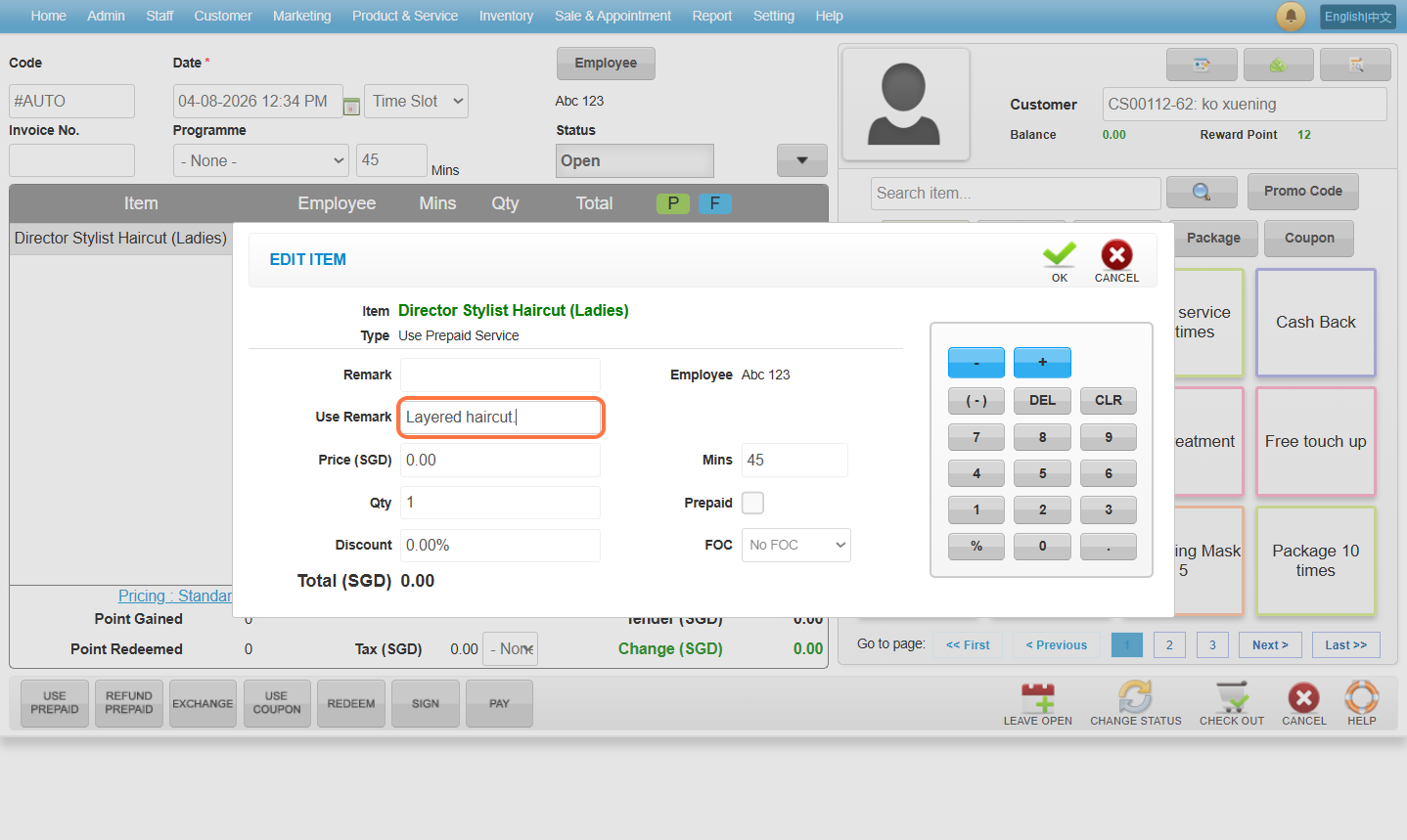
 Step 9: Enter a remark in the “Use Remark” field.
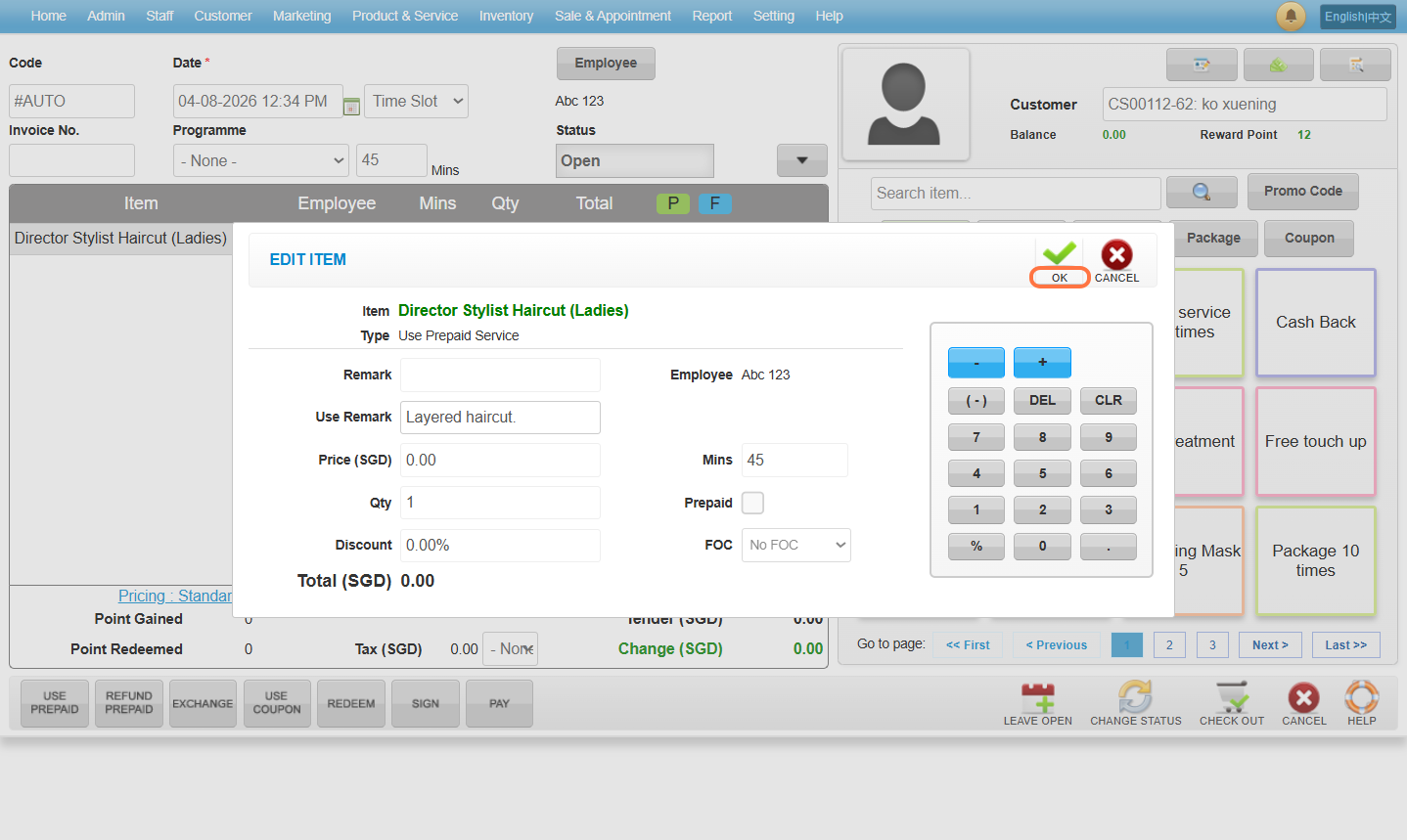
 Step 10: Click “OK”.
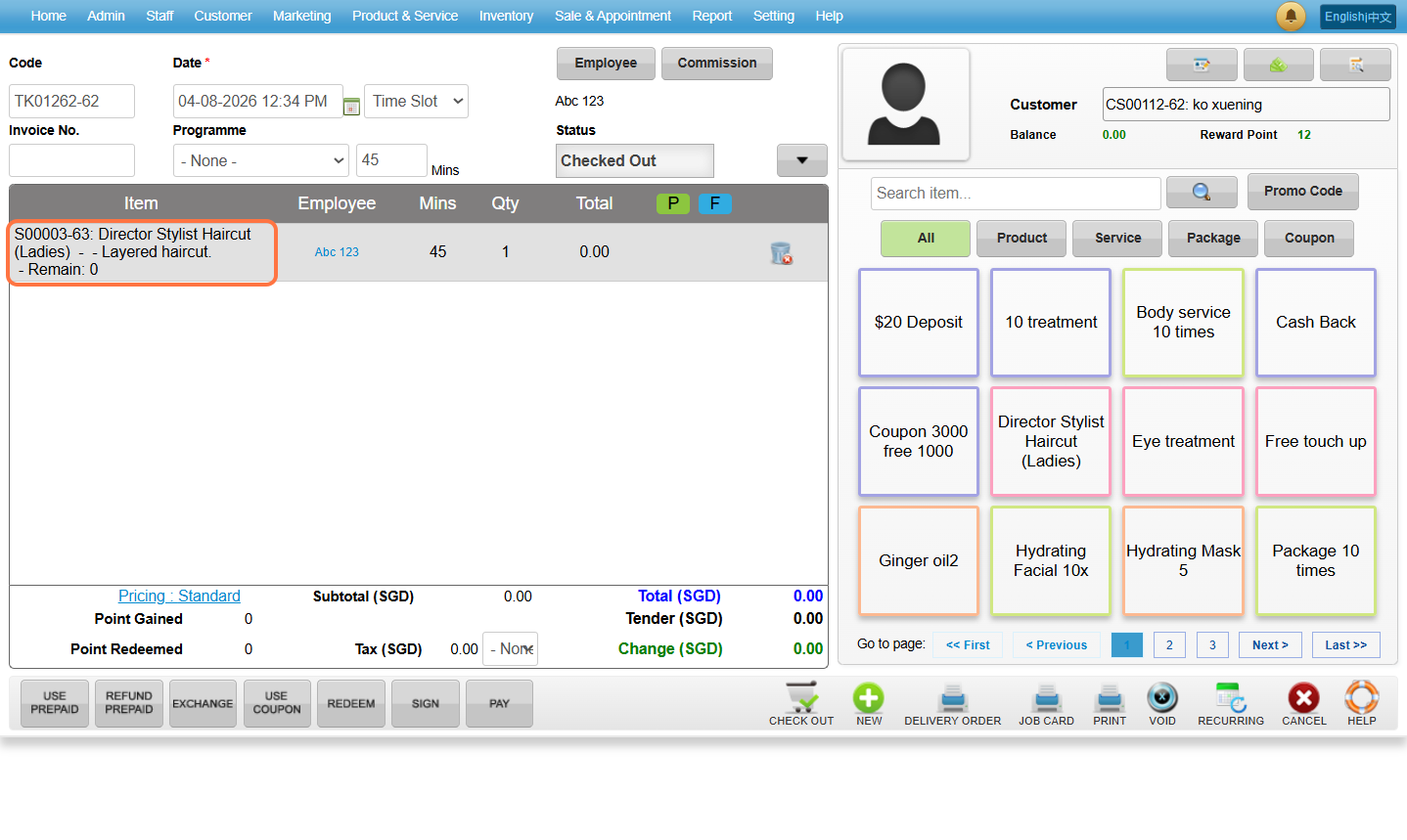
 Step 11: View the remark entered for the prepaid item.
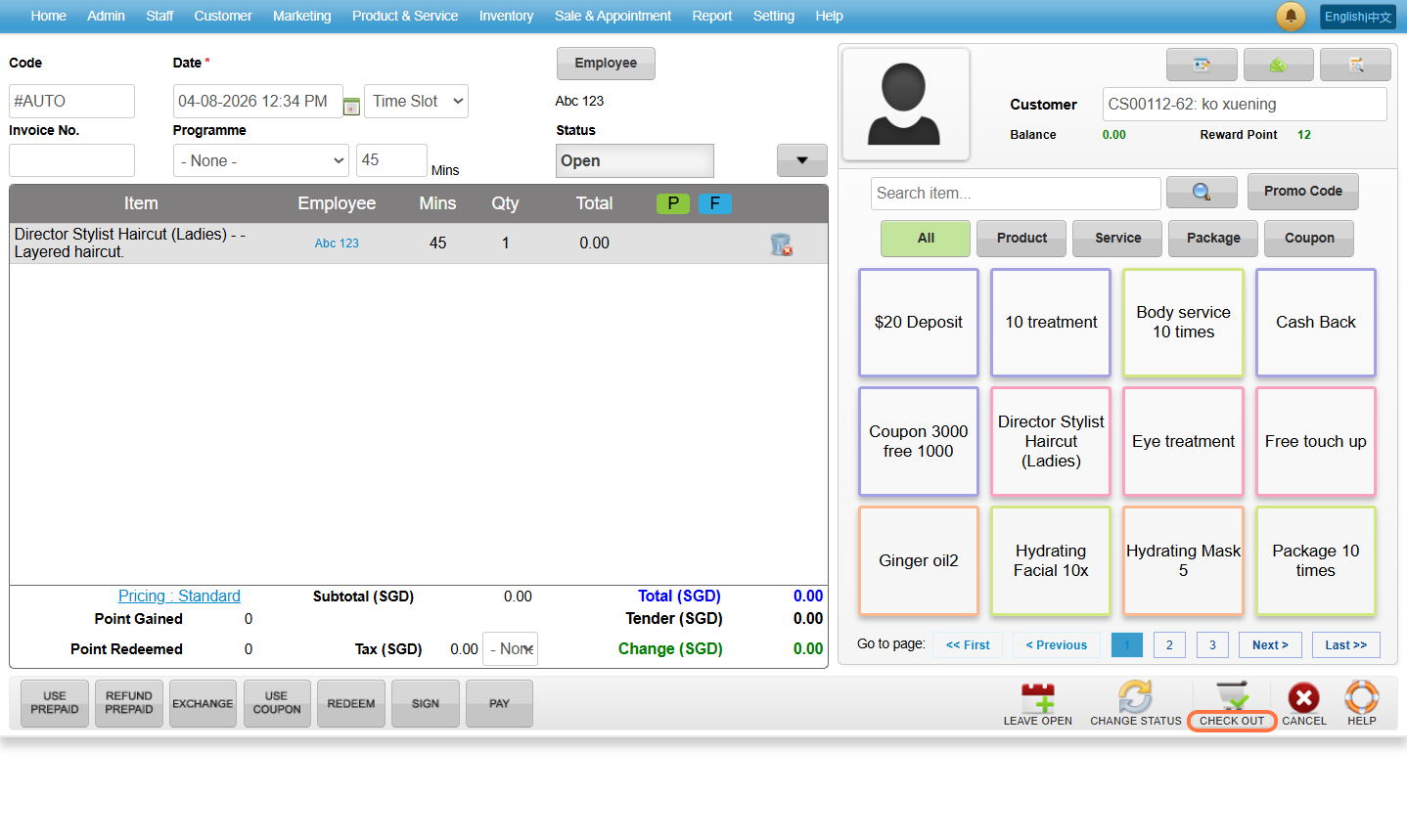
 Step 12: Click “CHECK OUT” .
 Last update: August 2026
Step 2: Enter the customer name / code / phone number to search the customer you wanted.Step 3: Click “Employee”.Step 4: Choose any employee you want then click “SET” .
Step 5: Click “USE PREPAID“.
Step 6: Select the prepaid item to be used.
Step 7: Click on “ADD & CLOSE”.
Step 8: Click on the selected prepaid item.
Step 9: Enter a remark in the “Use Remark” field.
Step 10: Click “OK”.
Step 11: View the remark entered for the prepaid item.
Step 12: Click “CHECK OUT” .
Last update: August 2026