
Step 1: Click “Setting”.
Step 2: Click “CONSUMER WEB APP SETTING”.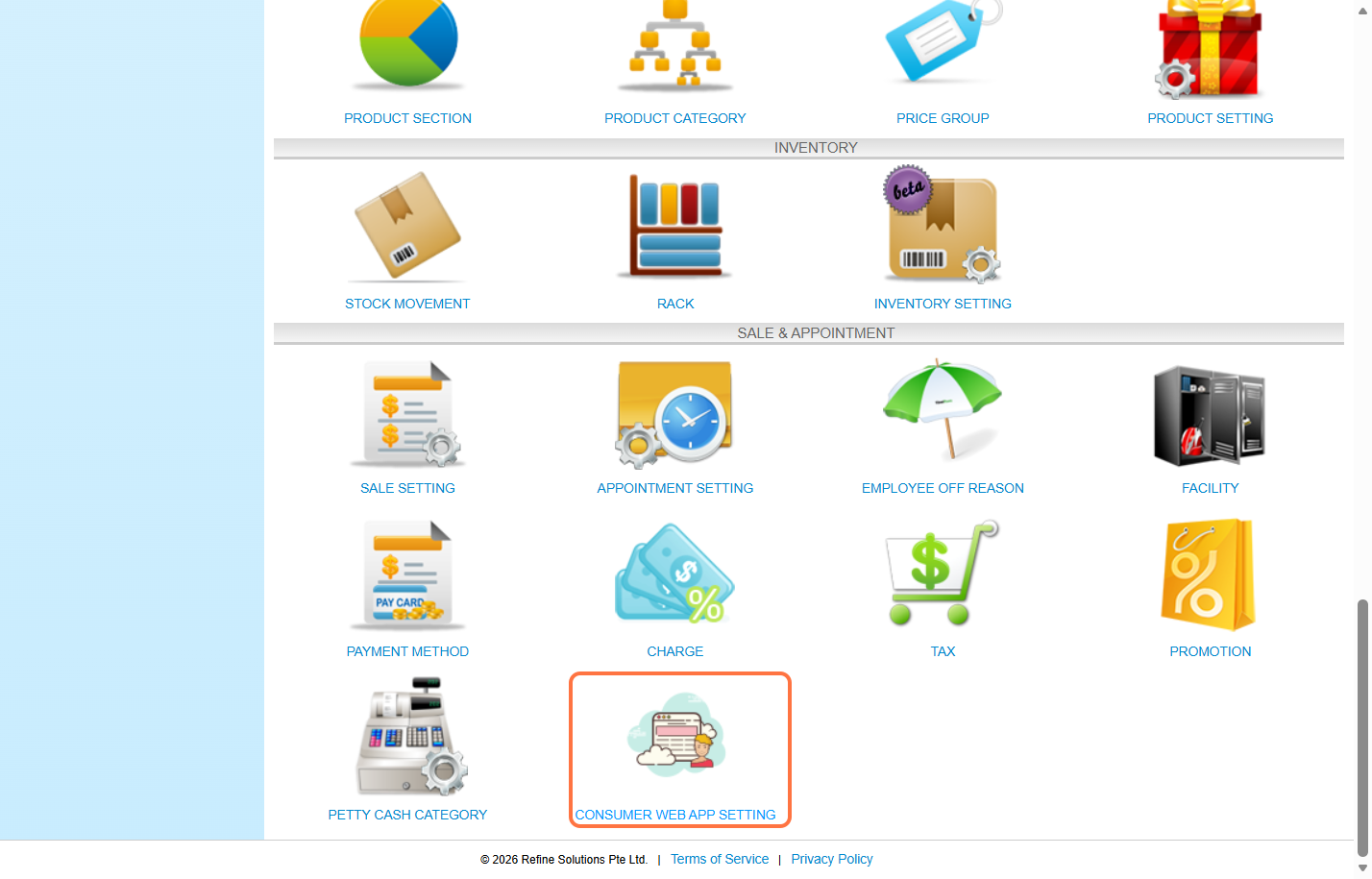
Step 3: Fill in company name, app name, upload images and set “Allow e Store” to “Yes” or “No”.
Step 4: Set “Hide Service Booking Price” to “Yes” or “No” and fill in the terms and conditions.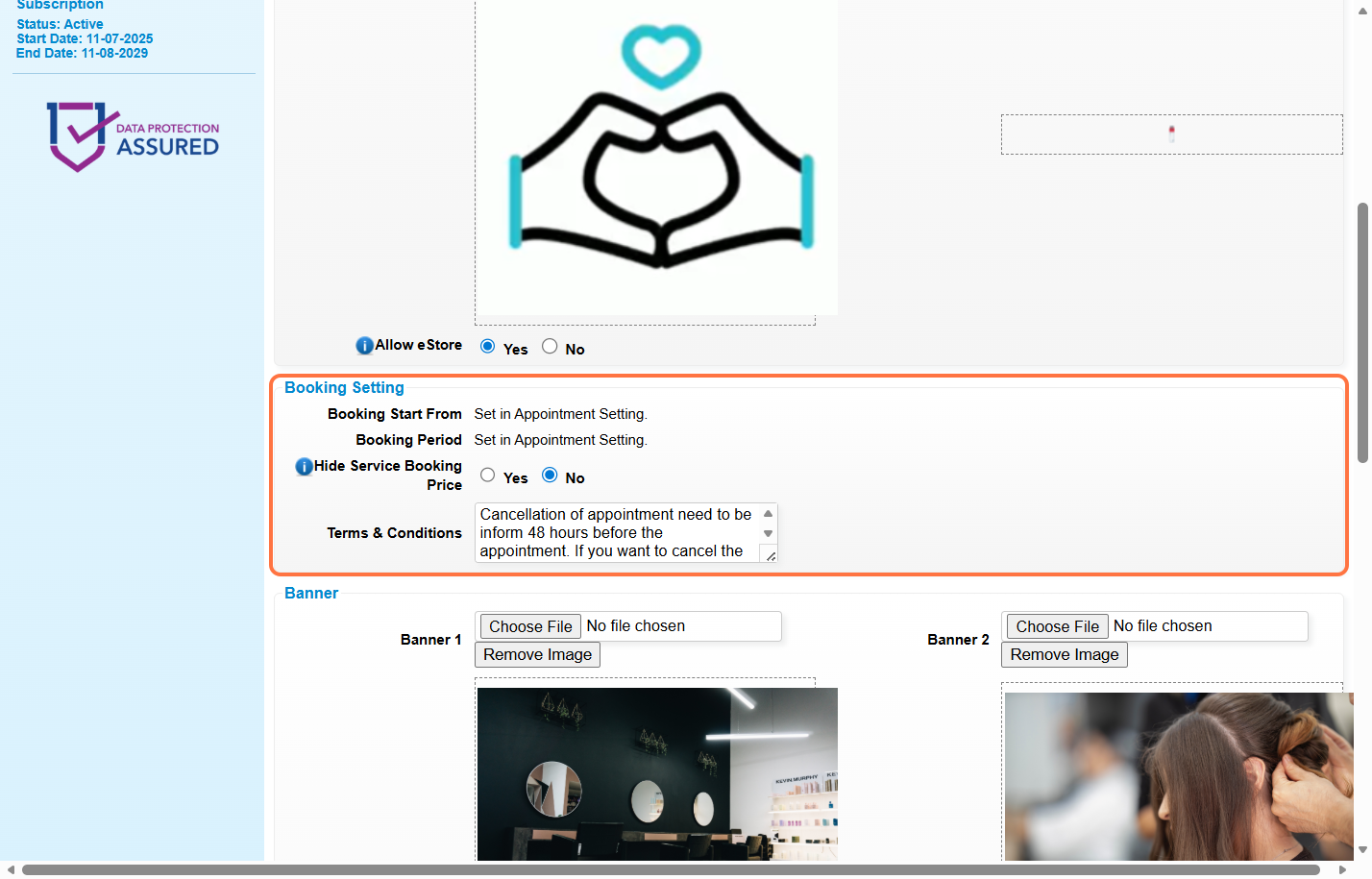
Step 5: Upload banner if you have any.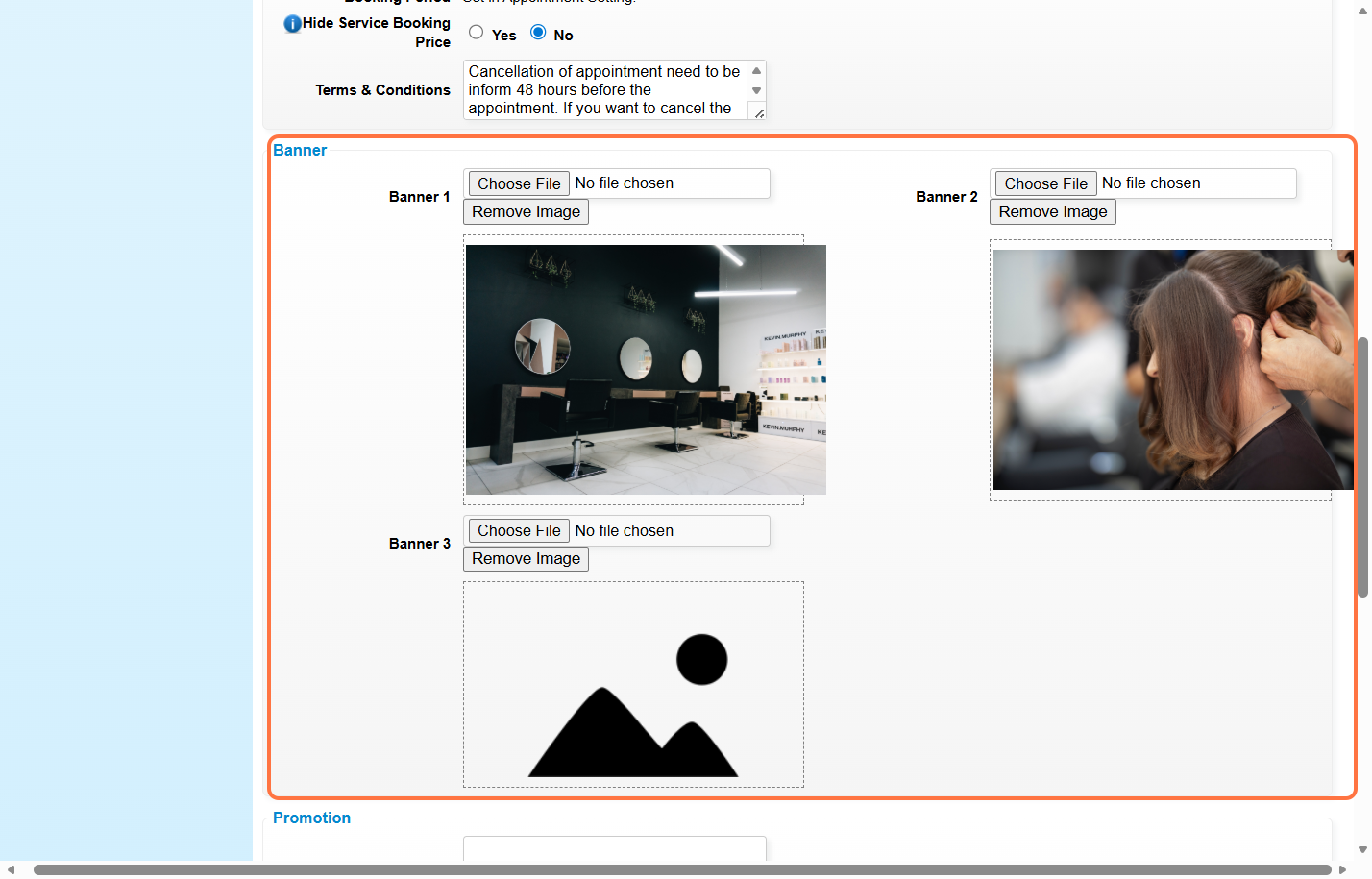
Step 6: You may fill in the promotion text, set “Promotion Published” to “Yes” or “No” and upload promotion banner if you have any.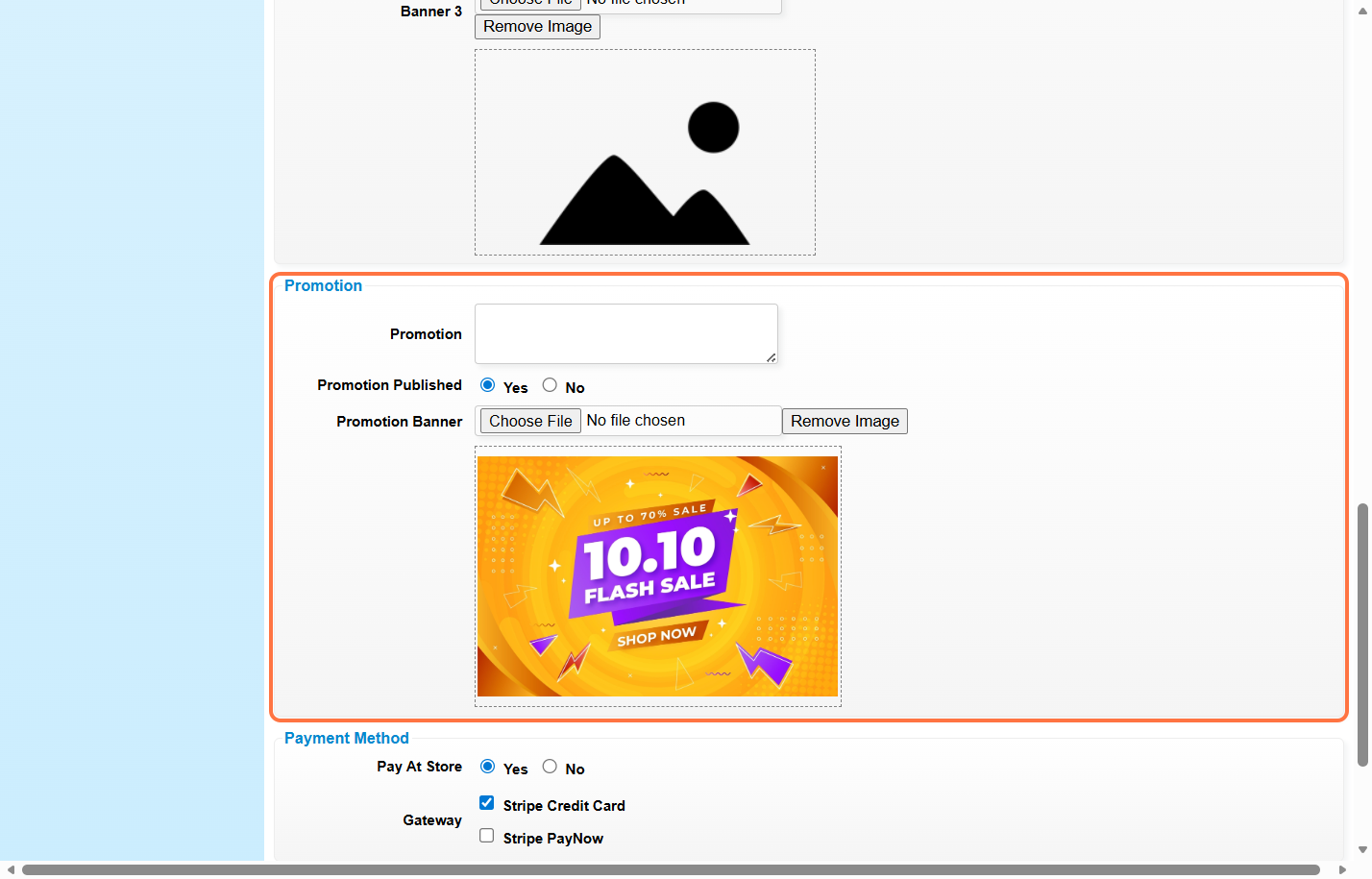
Step 7: Choose the payment method.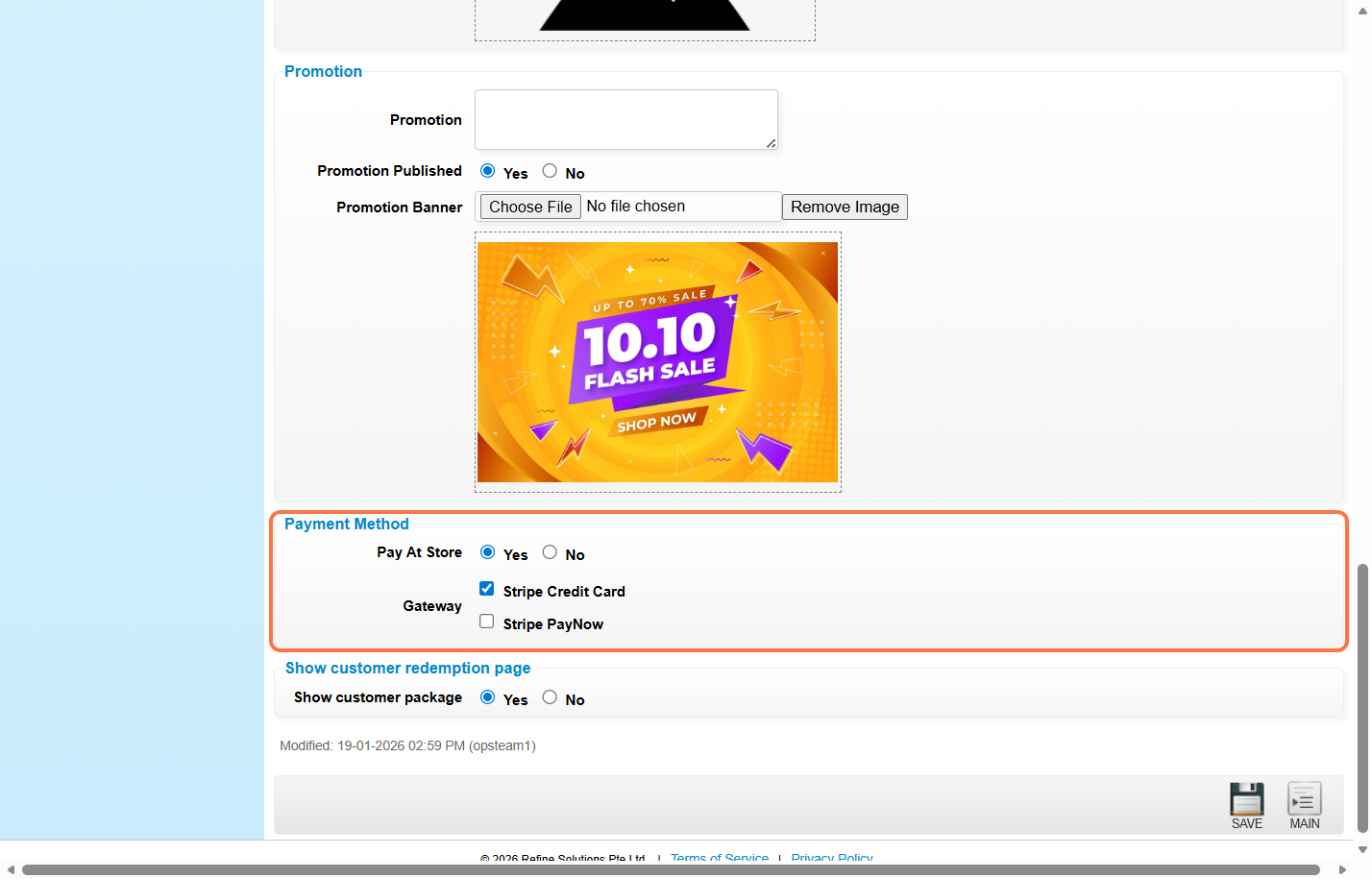
Step 8: Select “Yes” to show “My Package” option, allowing customers to view their packages details on the “My Account” Page.
Select “No” to hide this option. 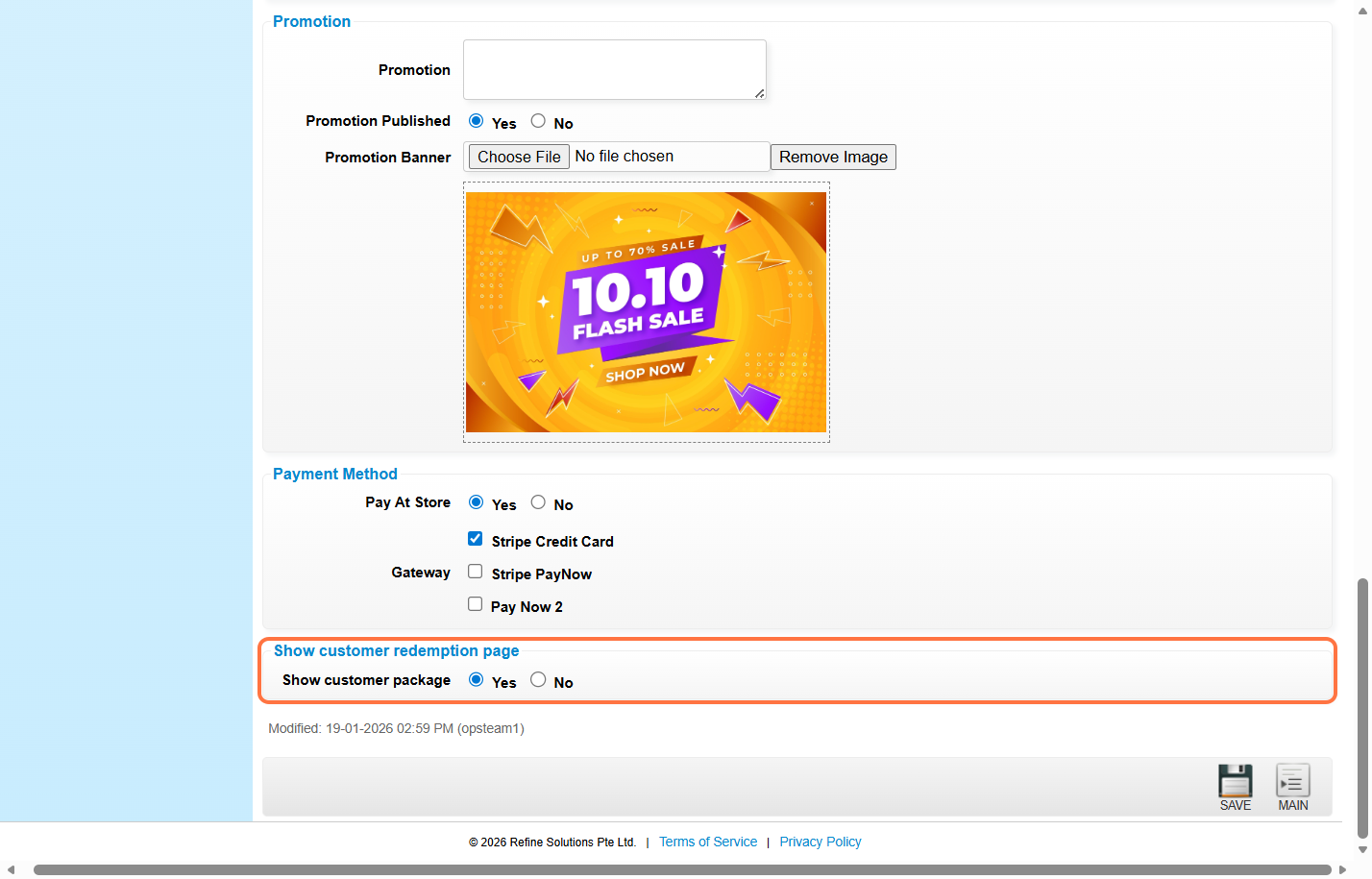
Step 9: Click “Save”.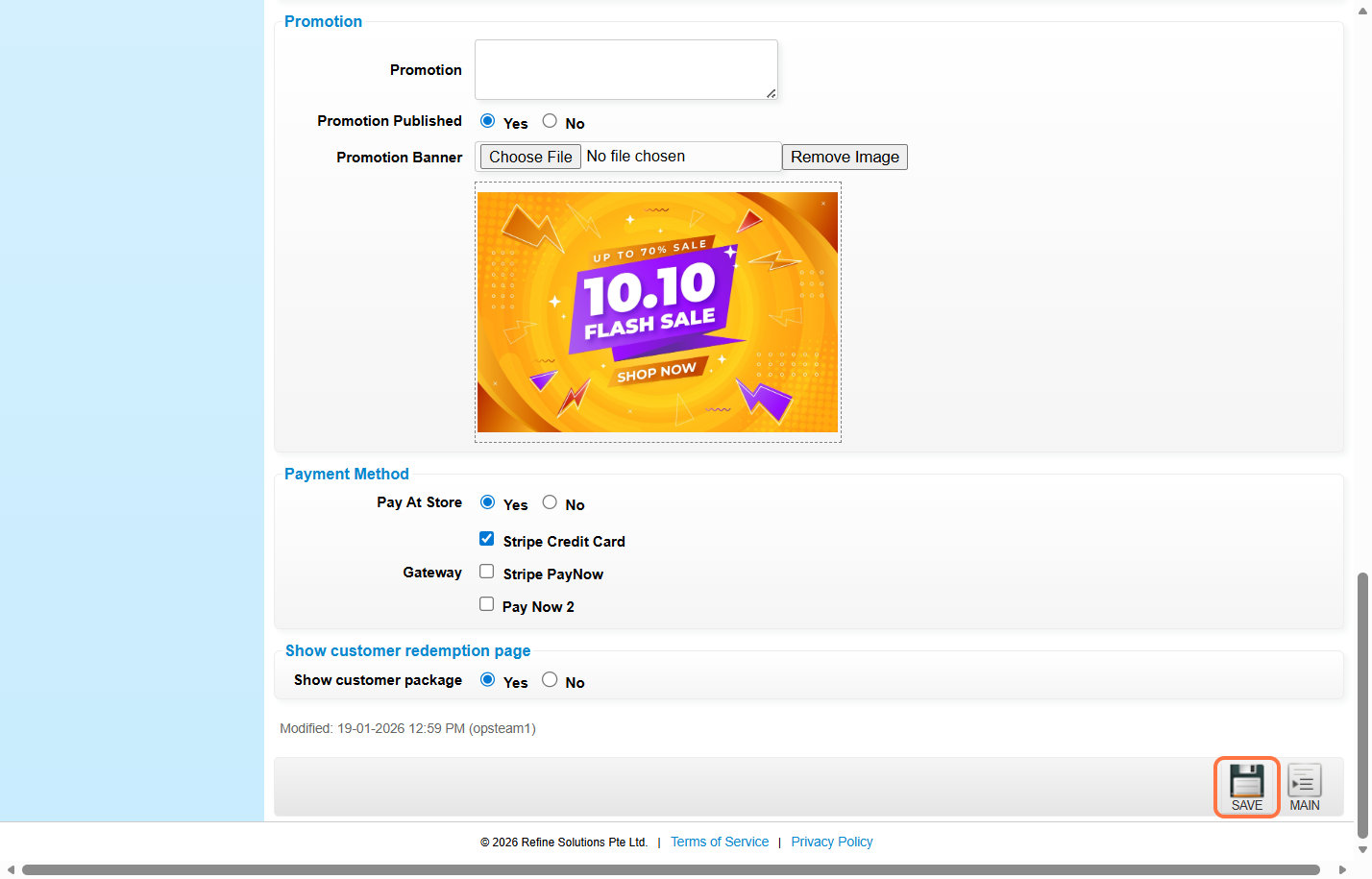
Step 10: Make sure the change has been saved.
Last Updated: January 2026