
Step 1: Click “PRODUCT & SERVICE” .
Step 2: Click “COUPON” .
Step 3: Click “NEW” .
Step 4: Fill in coupon details .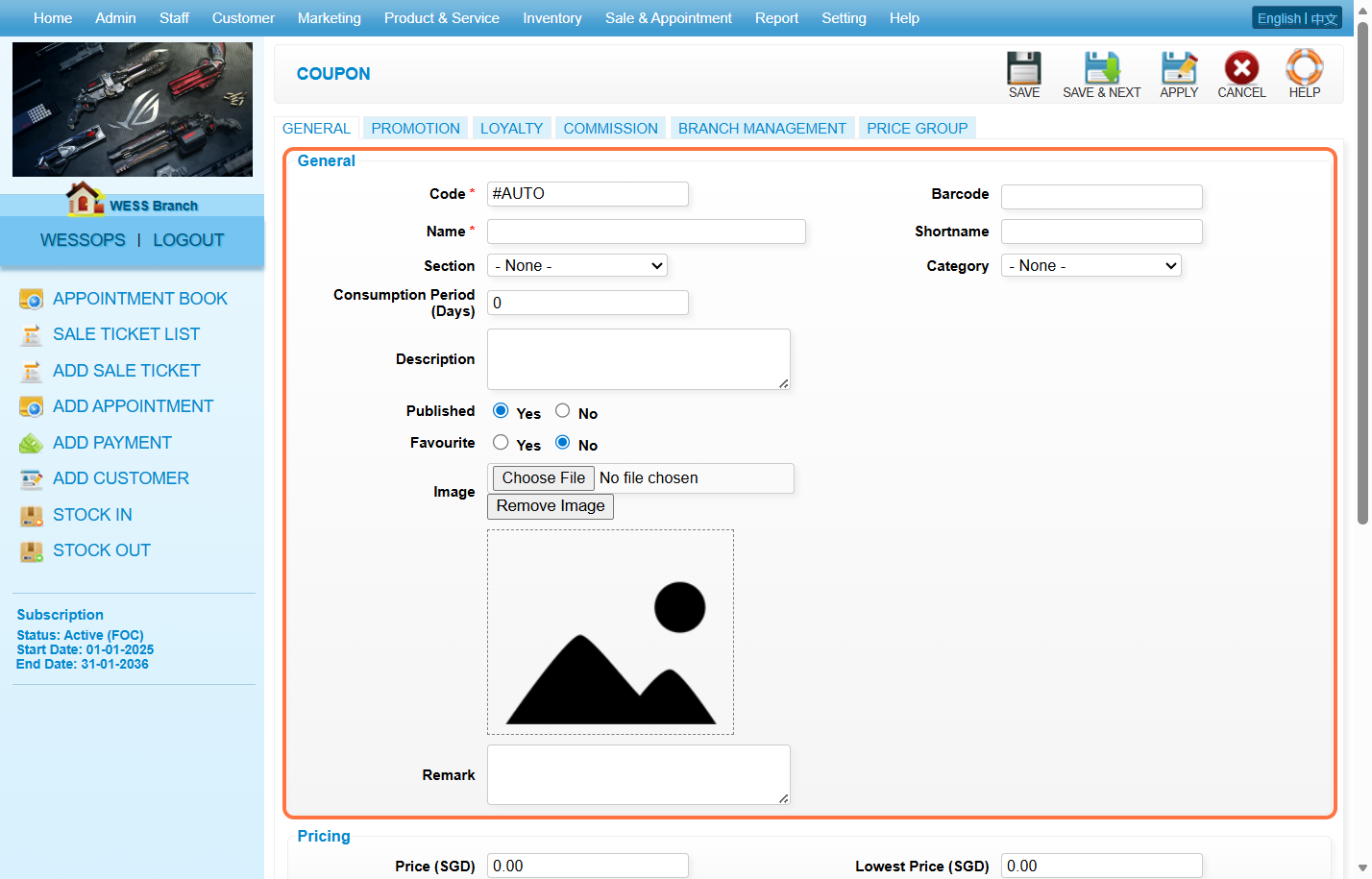
Step 5: [Optional] If need to sell this discount coupon then fill in the “Price” field with the price.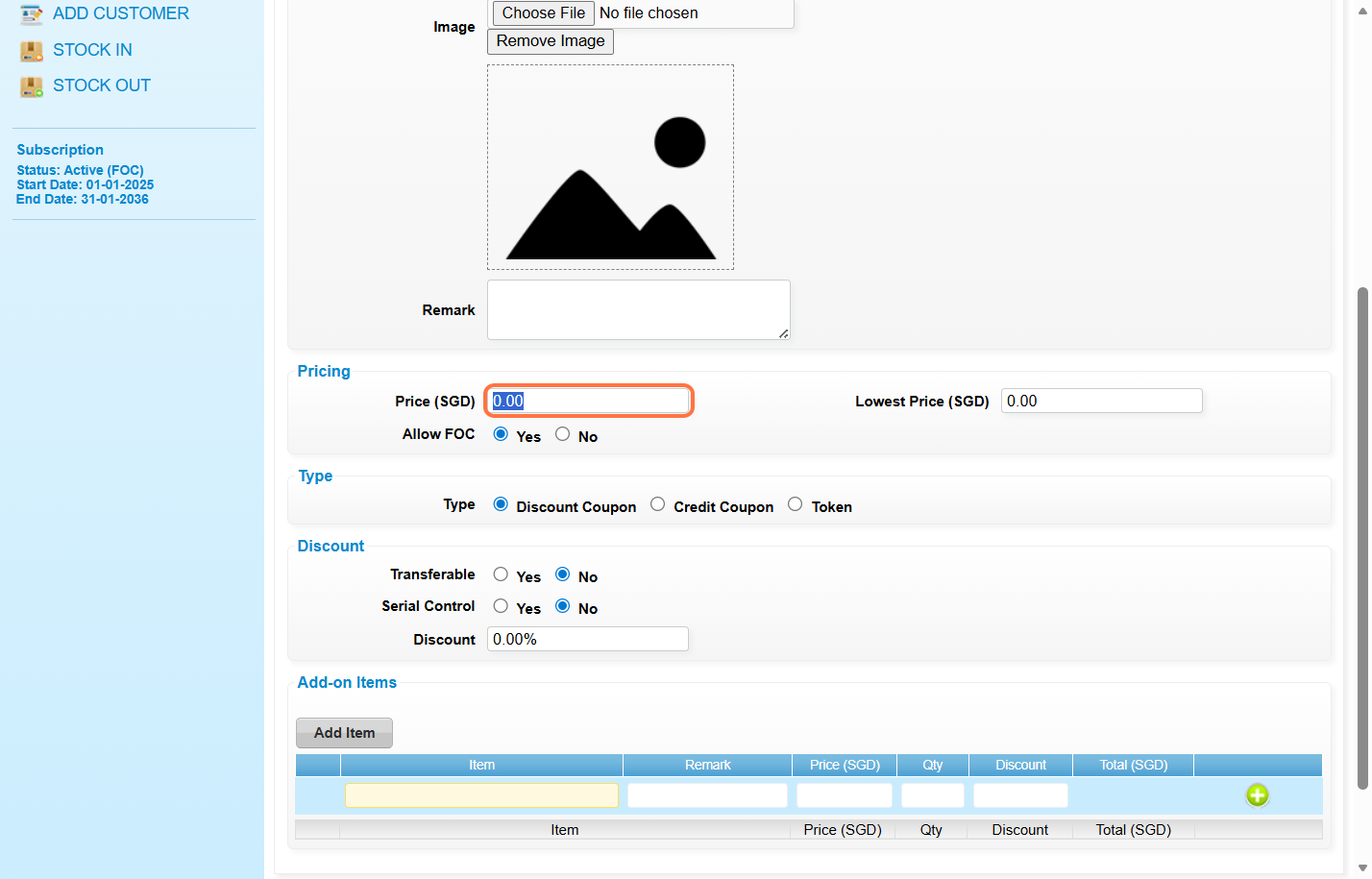
Step 6: Click “Discount Coupon” to select the type of coupon.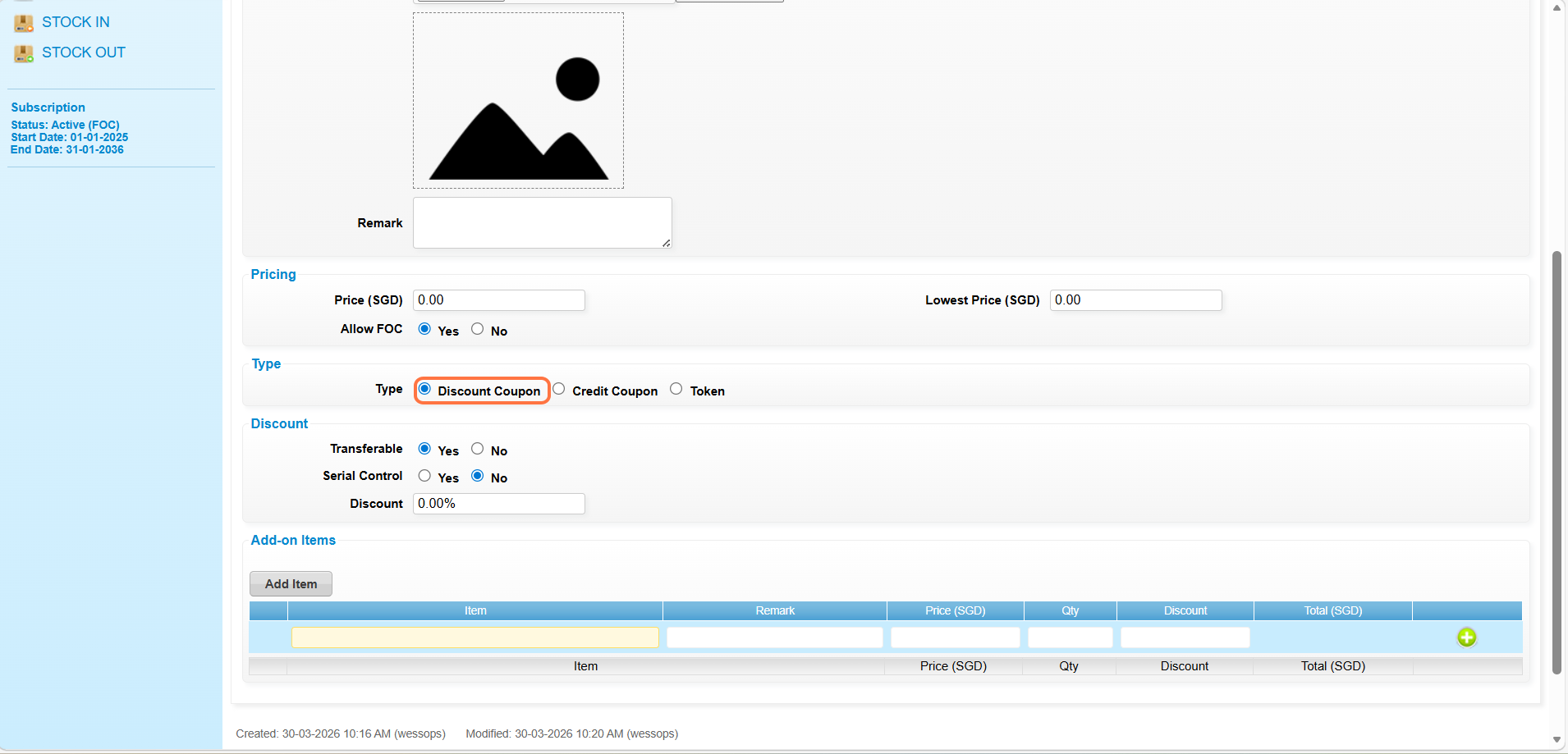
Step 7: Next in the “Transferable” field, choose and click “YES” or “NO” .
*YES – Anyone can redeem this coupon.
*NO – The person who holds the coupon can redeem this coupon.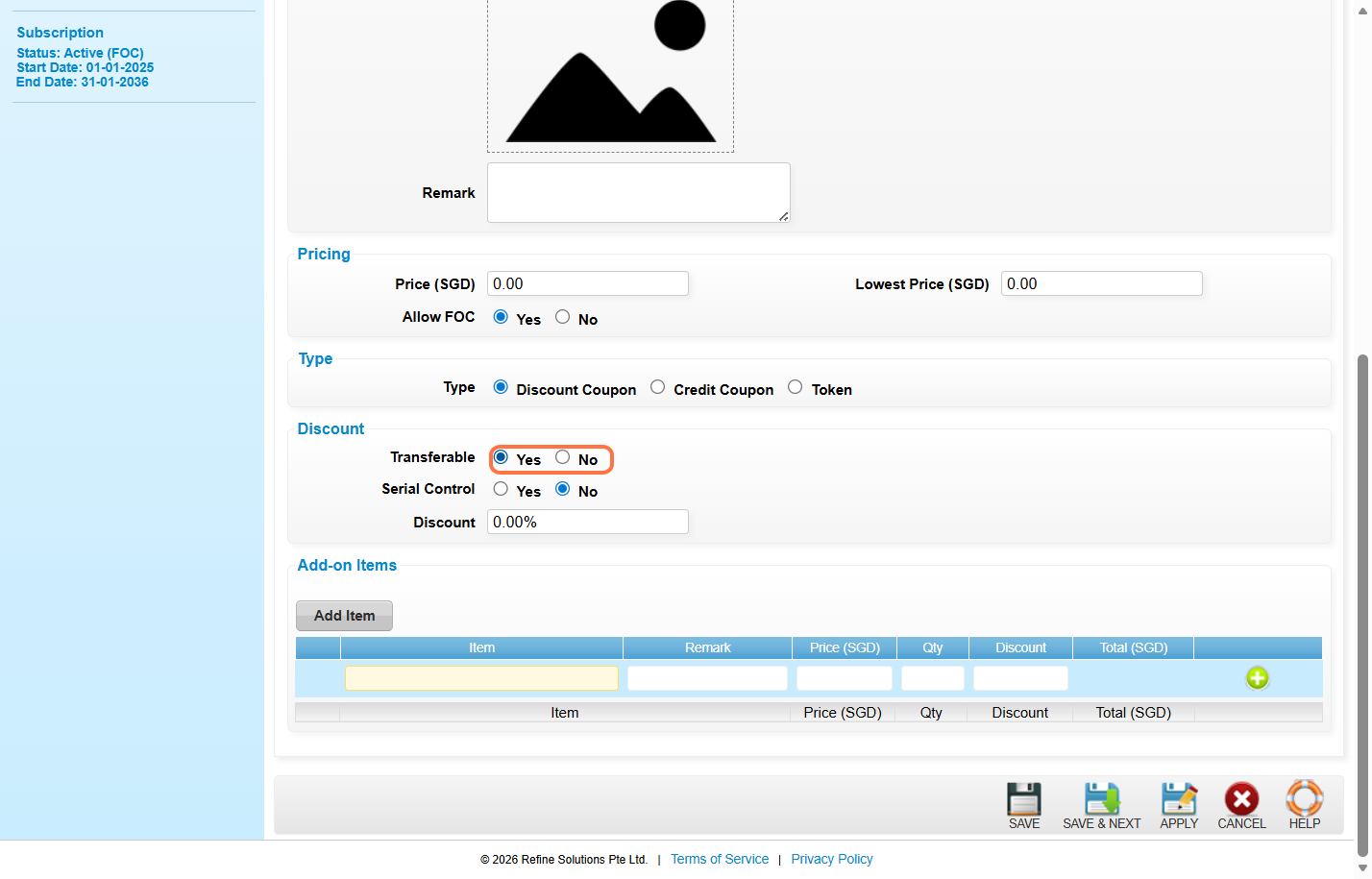
Step 8: Enter the discount amount or discount percentage.
For example : 10 or 10%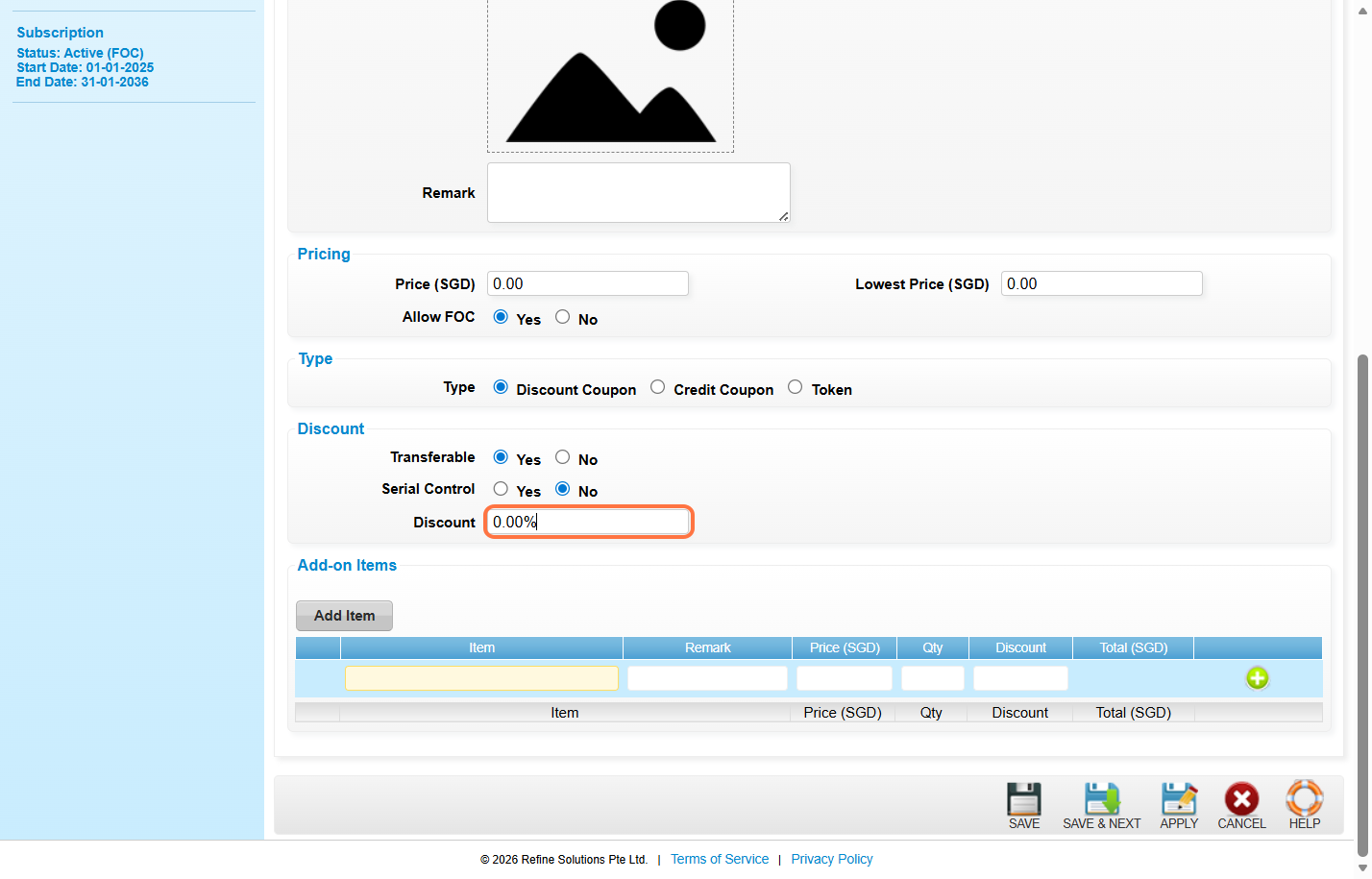
Step 9: If you want to add a specific item to this coupon, you can click “Add Item”, then search for the item you want to add.
After that, fill in the price, quantity, and discount fields. Then click the “+” button to add. 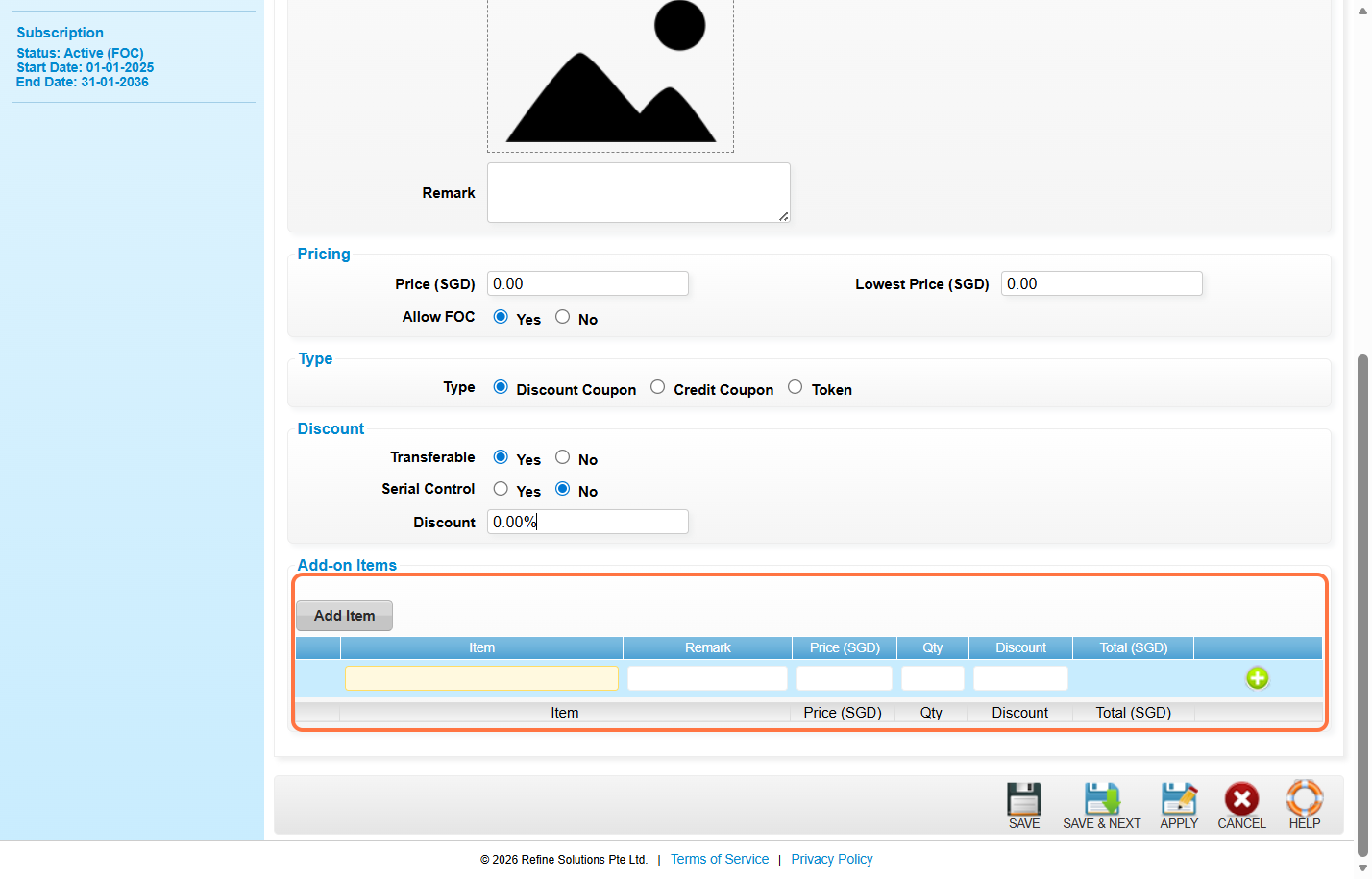
Step 10: Click “SAVE” .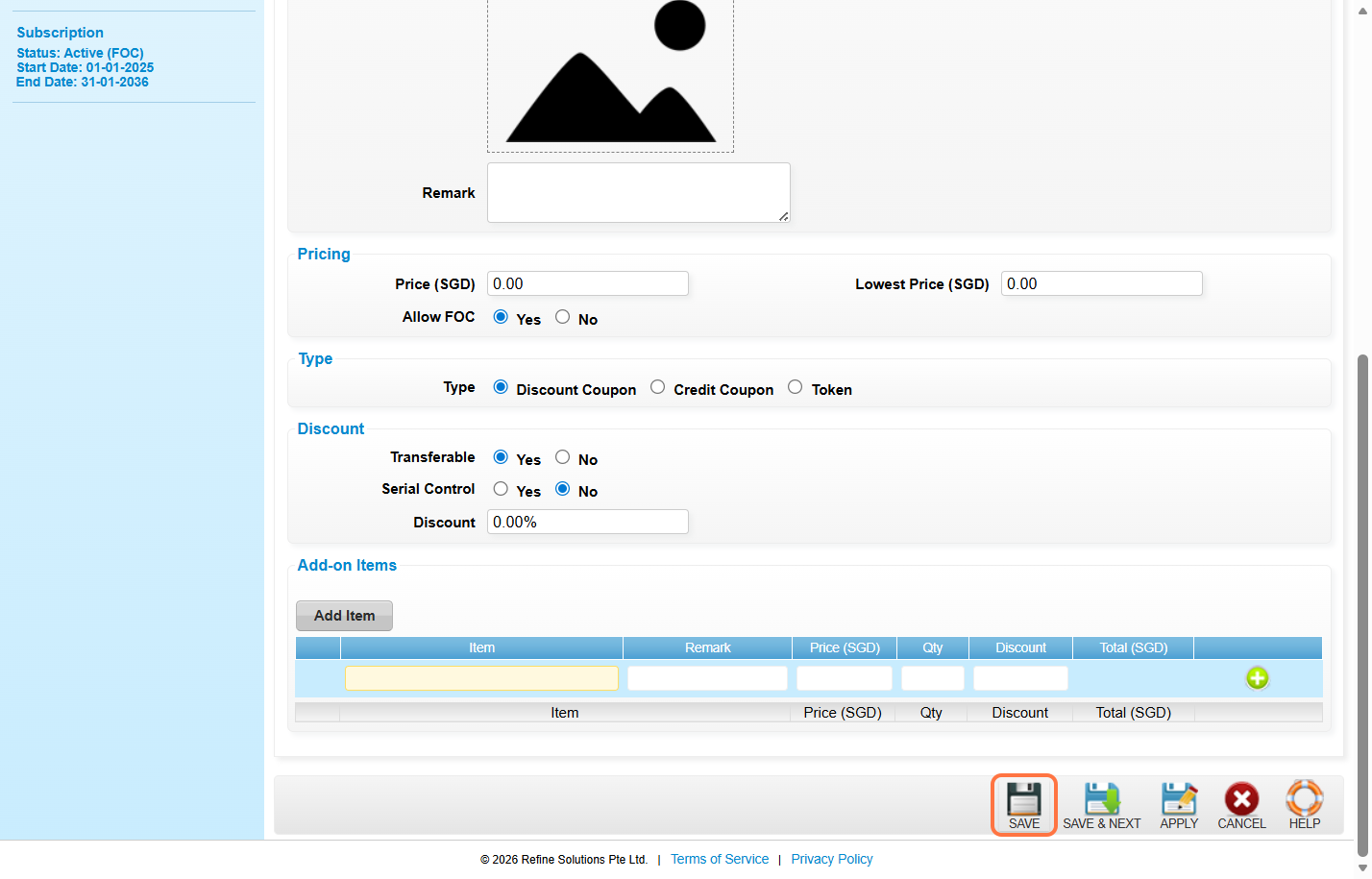
Step 11: Make sure the record has been saved.
Last Updated: March 2026