
Step 1: Click “Sale & Appointment” .
Step 2: Click on “SALE TICKET” .
Step 3: Click “NEW” .
Step 4: Set a “Customer” name and select a customer .
Step 5: Click “Employee” .
Step 6: Select an employee and click “SET“.
Step 7: Enter the serial number coupon name and select it .
Step 8: Make sure enter the correct “Serial Number” .
Step 9: Click on the “➕” to add .
Step 10: Click “ADD & CLOSE” .
Step 11: Click the item .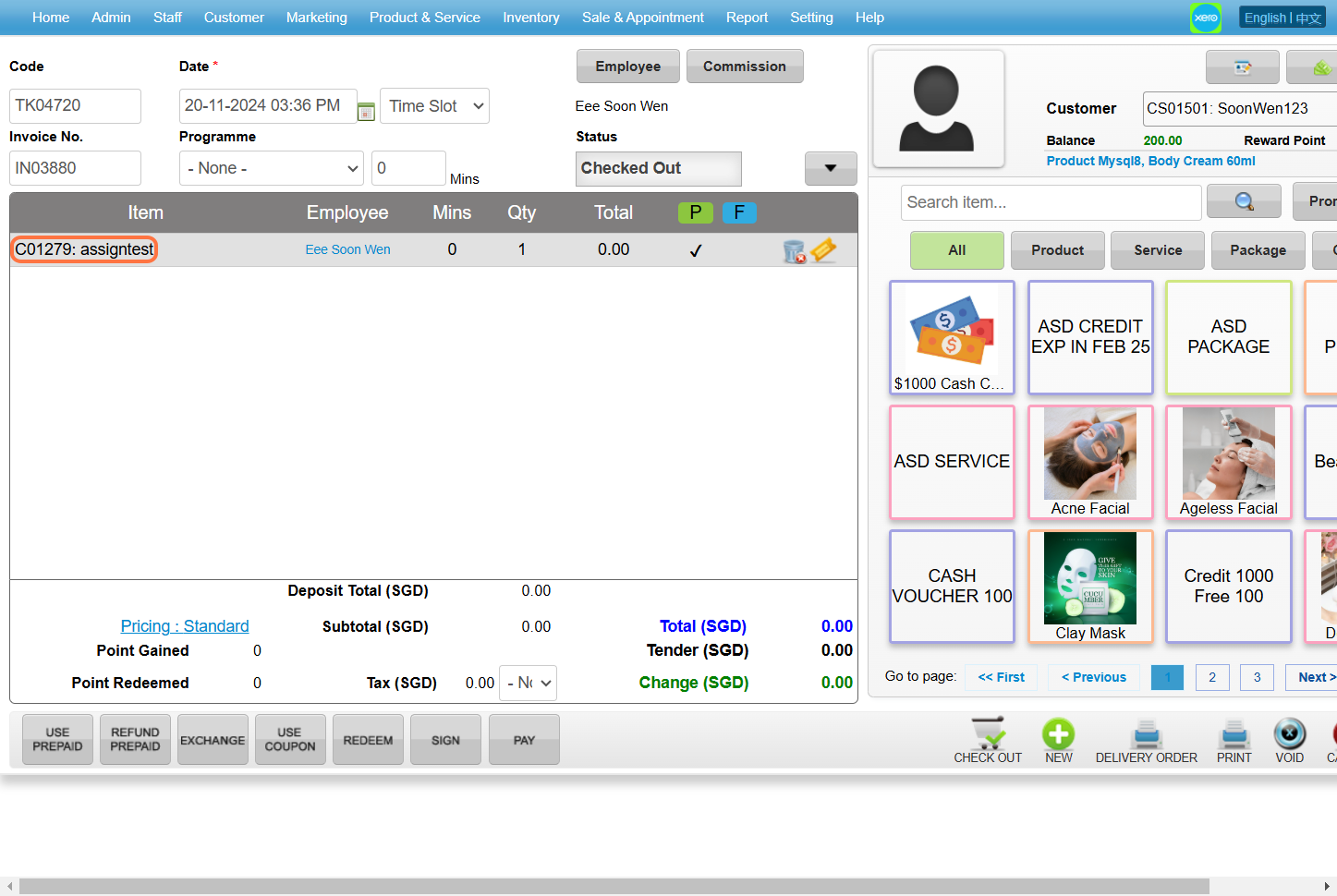
Step 12: Select “Prepaid” .
[!] If the prepaid option is not ticked, tick it.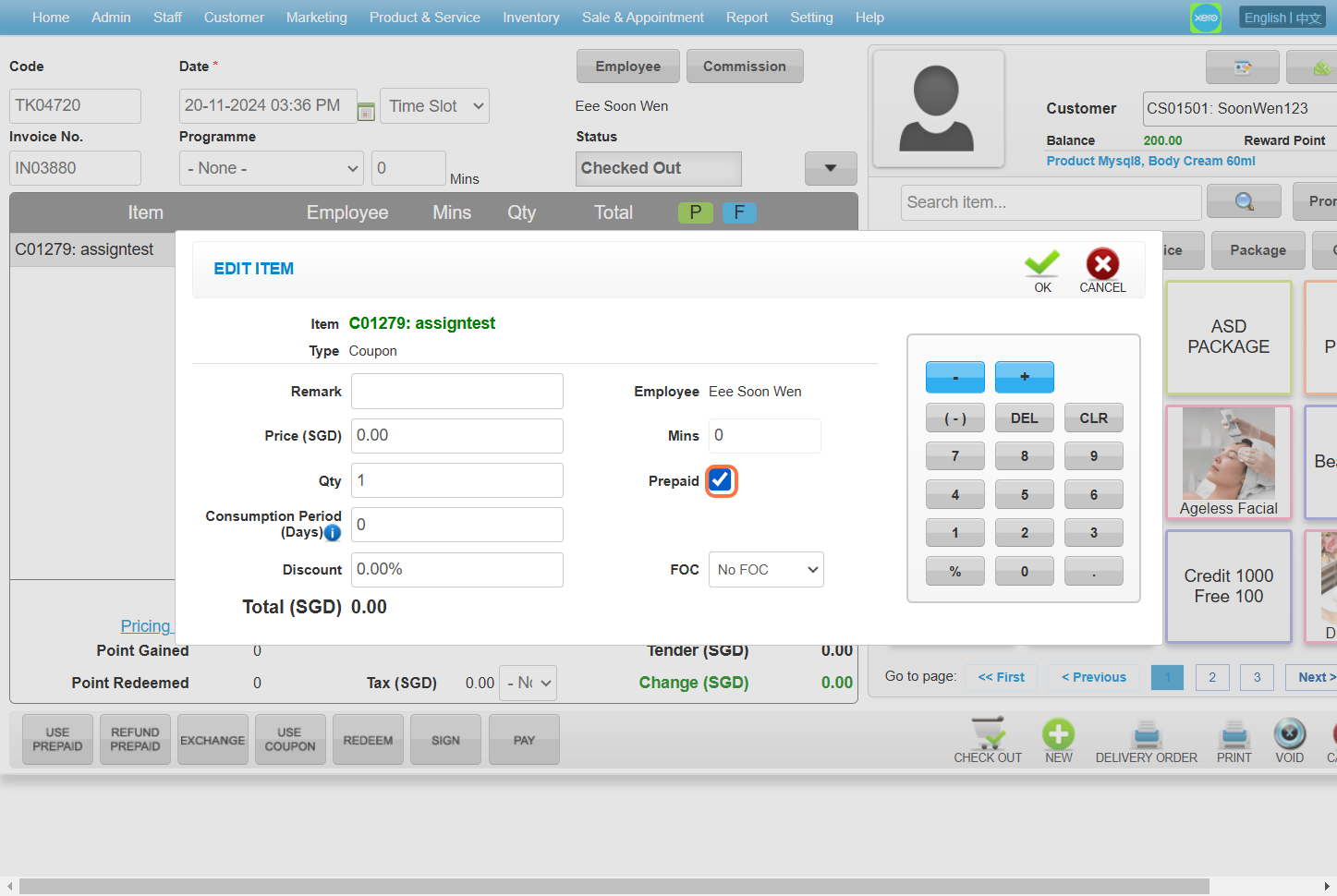
Step 13: Click “OK” .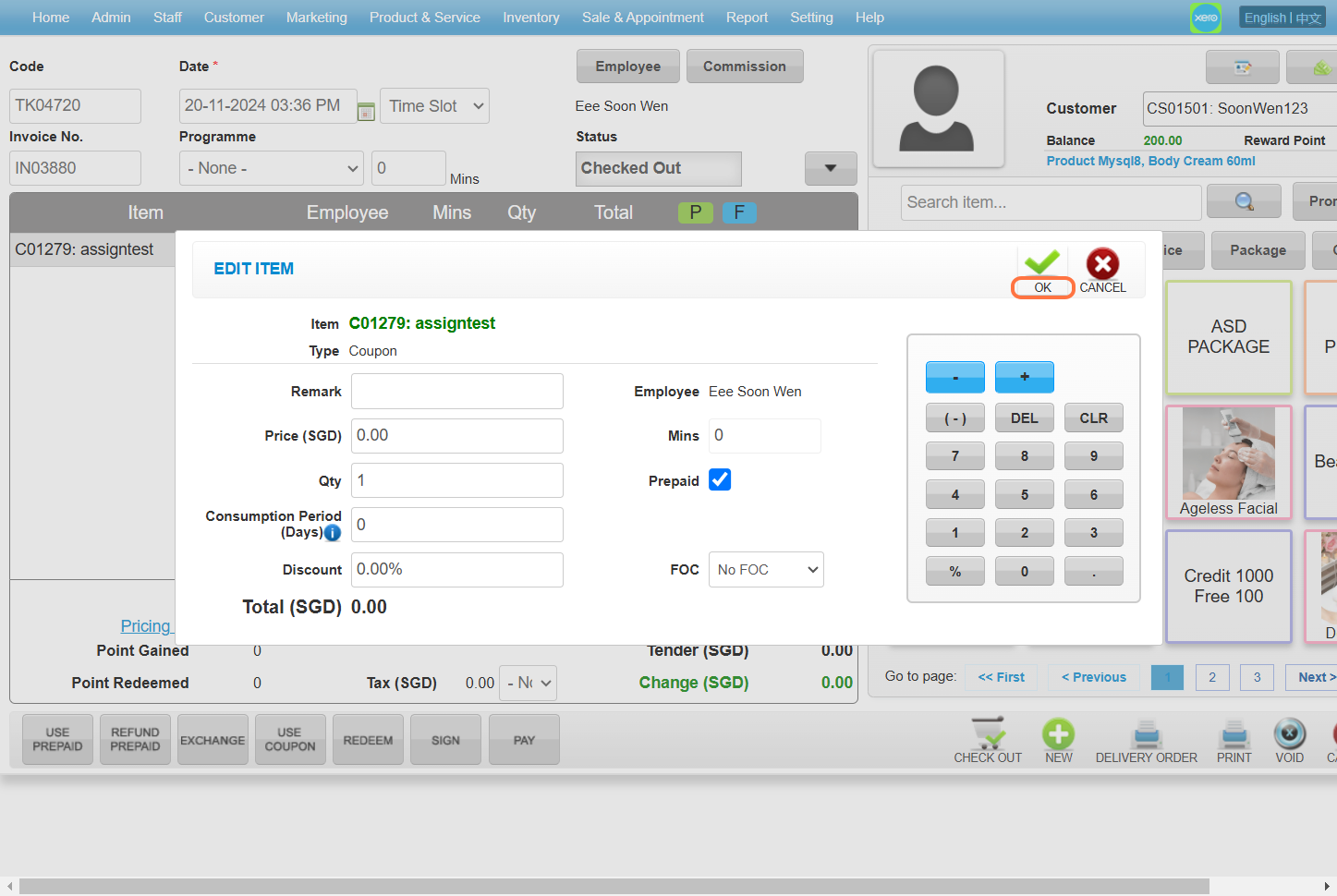
Step 14: Click “CHECK OUT” .
Last Updated: Nov 2024