
Step 1: Click “Setting” .
Step 2: Click “MANAGE SURVEY” .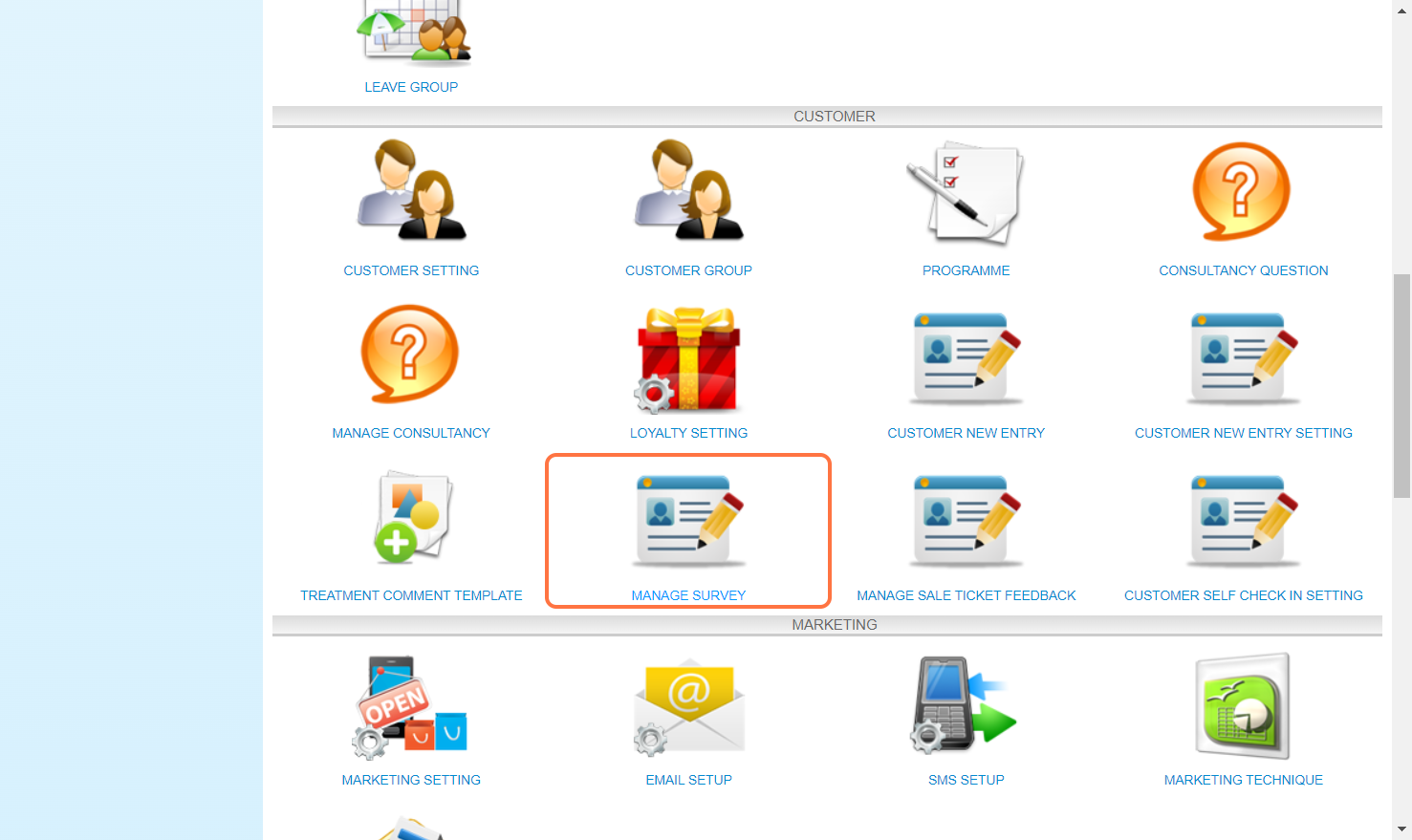
Step 3: Click on “NEW” .
Step 4: Enter a “Title” for new survey form in the Survey Setting. Also the Description and Remark can be filled in here if needed.
Step 5: Click once on the “Form Description” field on the right to edit it.
Step 6: The left side will automatically display the “Description field” in the Field Setting then enter the content in the box.
The right side will then display the format of the Form.

Step 7. Click “Add Field” .
Step 9: Long-press and drag “elements” from the left panel into the right panel to add it. In the example diagram, the Star Rating is chosen.
Step 10: Enter information in the “Question” field.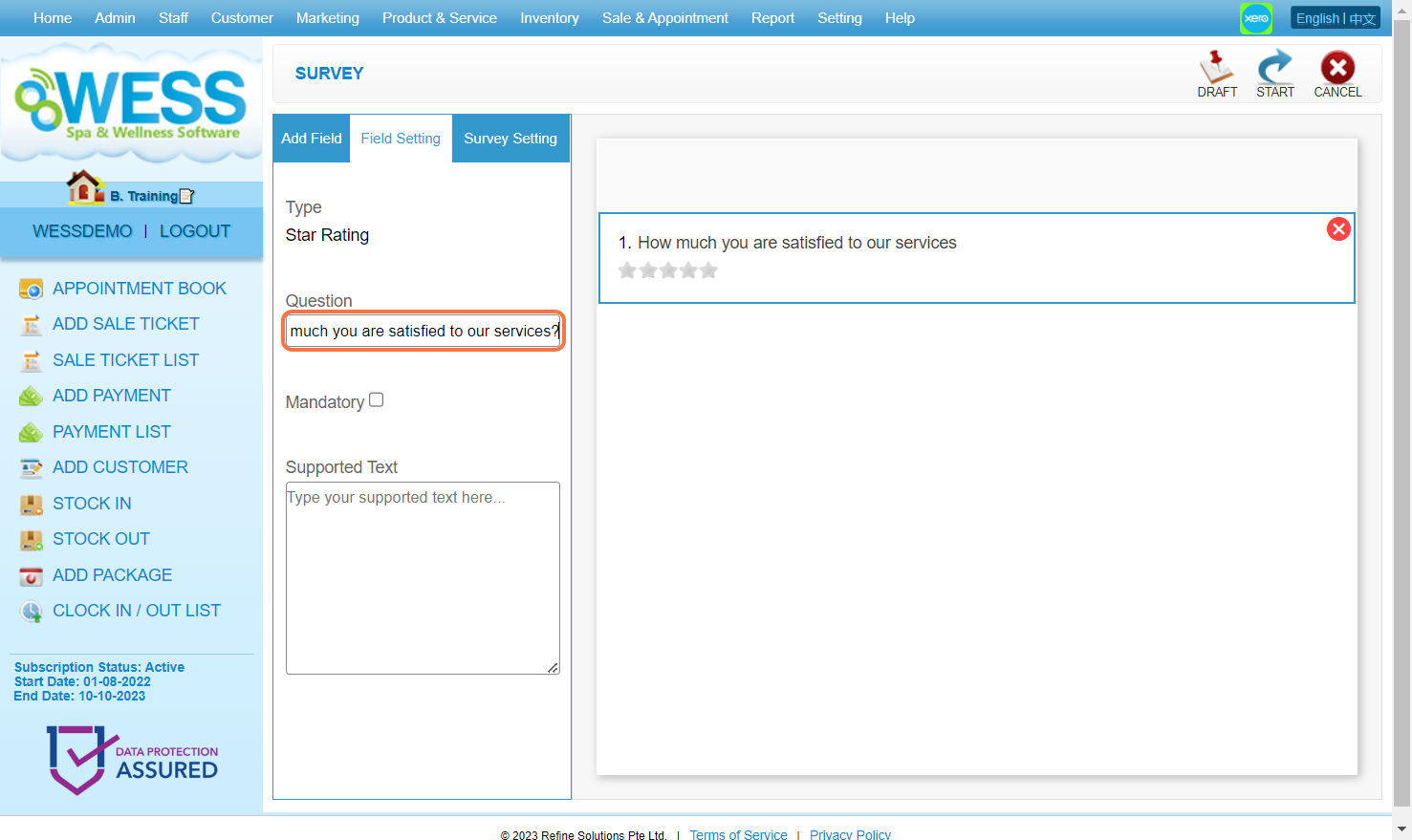
Step 10: [Optional] Check “Mandatory” if the question is important.
Step 11: In the example image, when clicking on the element on the right to edit again.
Step 12. [Optional] When clicking on the last input box, a new option input box is automatically created below.
Or click the orange plus button (+) next to the option input box.

Step 13: [Optional] Click on the red close icon “❎” to remove the option.
Step 14: Click on the red close icon “❎” to remove the element.
Step 15: Click “DRAFT” .
Step 7: Make sure the new survey form has been saved.
Step 17: If decide to activate the form and let the customer fill it in, click START icon “➦” .
Step 18: Make sure the form has been activated/started.
Last Updated: July 2024