
This section is organized into two parts.
[i] Part 1 ▿▿▿
Step 1: Click “Product & Service”.
Step 2: Click on “COUPON“.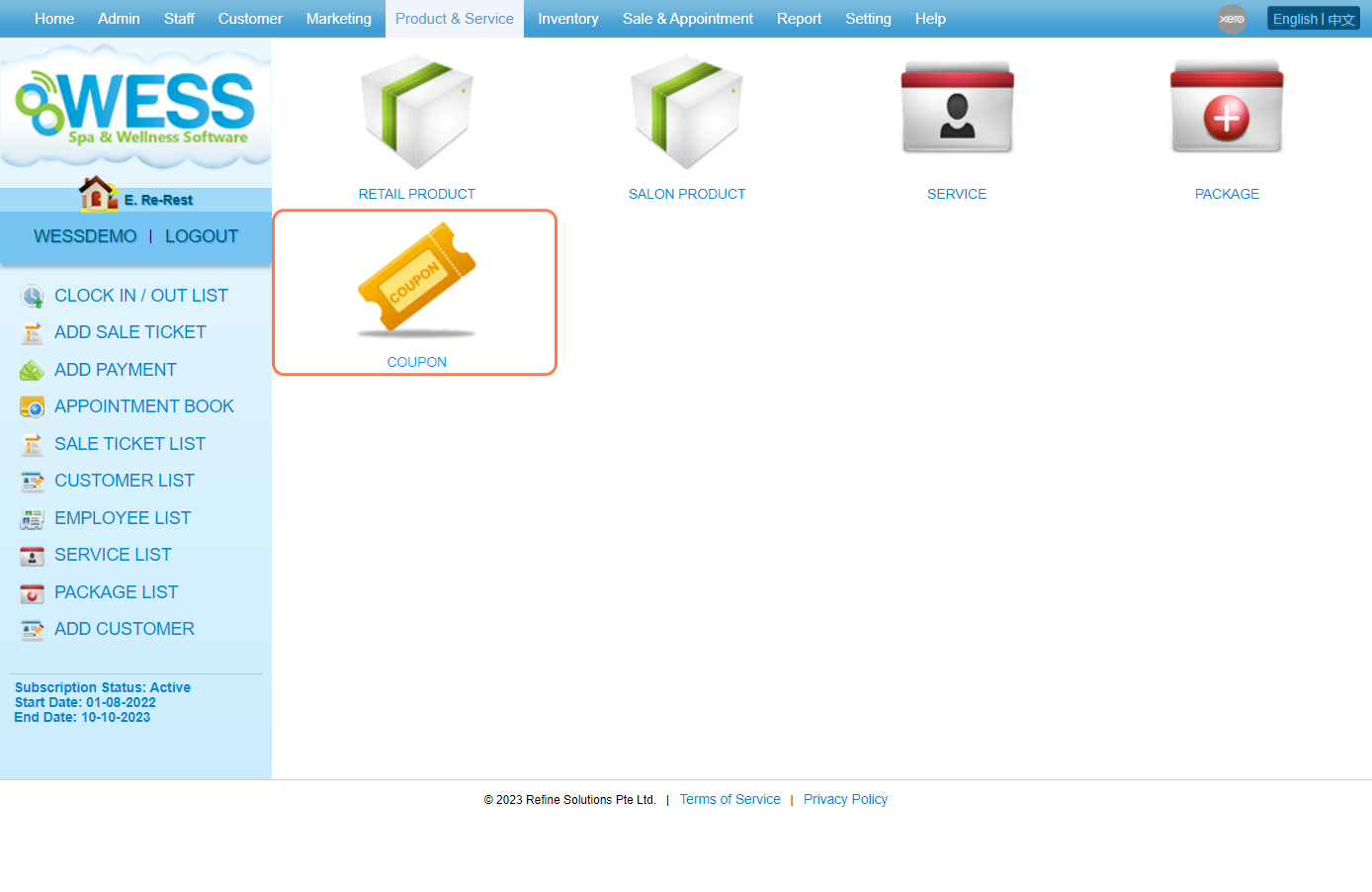
Step 3: Click on “NEW“.
Step 4: Type a “Name” for the new coupon.
Step 5: Type “0” zero for Price. Make sure you select “Yes” for “Allow FOC“.
Step 6: Select “Credit Coupon” for “Type“.
Step 7: Select “Credit the paid amount” for Credit.
Step 8: Make sure there is no discount for this coupon.
Step 9: Click on Save icon “💾”.
Step 10: Notice the new coupon has been created.
[ii] Part 2 ▿▿▿
Step 11: Click on “Sale & Appointment“.
Step 12: Click on “SALE TICKET“.
Step 13: Click on “NEW“.
Step 14: Find the overcharged customer.
Step 15: Set an employee to make sale.
Step 16: Search for the new coupon in search box.
Step 17: Click on the added coupon.
Step 18: Enter a value for “Price“, the price will be the amount of credit in the coupon.
Step 19: Again, make sure there is no discount applied to the coupon.
Step 20: Tick icon “✔️” checkbox to “Prepaid“, then the customer can use the coupon in the future.
Step 21: Select FOC so that the coupon is free with credits.
Step 22: Click OK icon “✔️”.
Step 23: Click “CHECK OUT“.
Step 24: Make sure the ticket has been created.
Step 25: In the future, this prepaid item can be viewed in the “TRANSACTION” section of the Customer Details page.
Step 26: Here it will show to see a new coupon with the amount entered.
Last update: July 2024